Как пополнить кошелек terra station
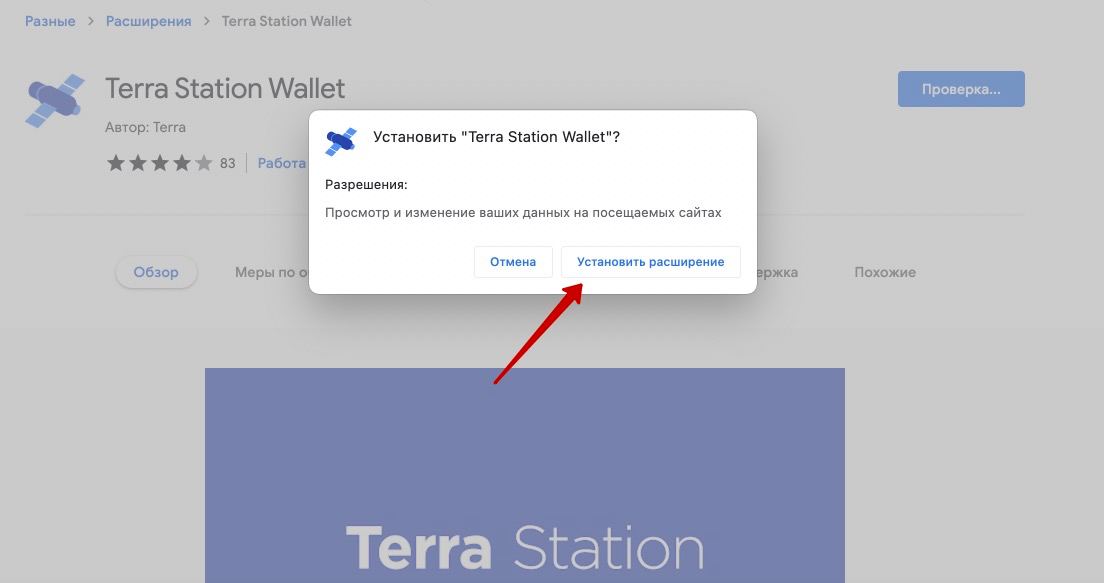
Третий вариант: установка через расширения браузера.
Для Google Chrome последовательность действий следующая:
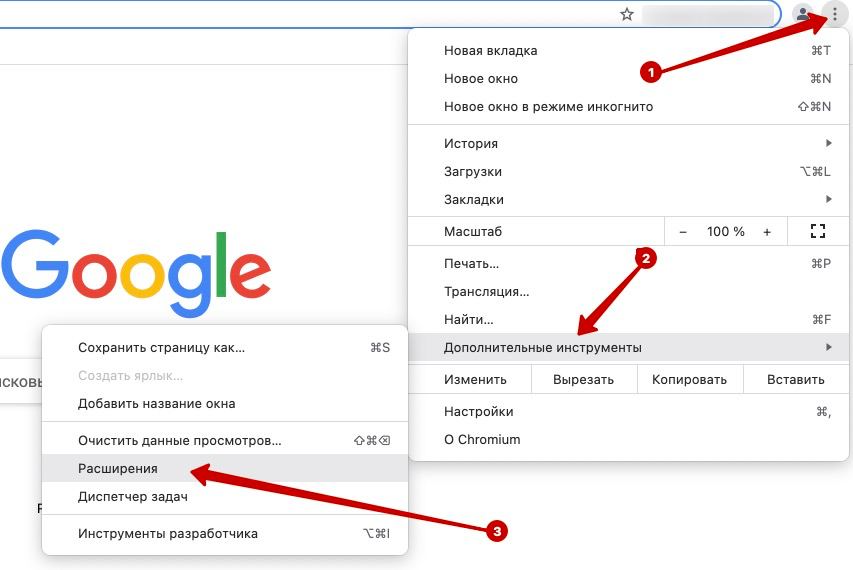
1.1 Откройте меню браузера
1.2 Выберите Дополнительные инструменты
1.3 Затем выберите Расширения
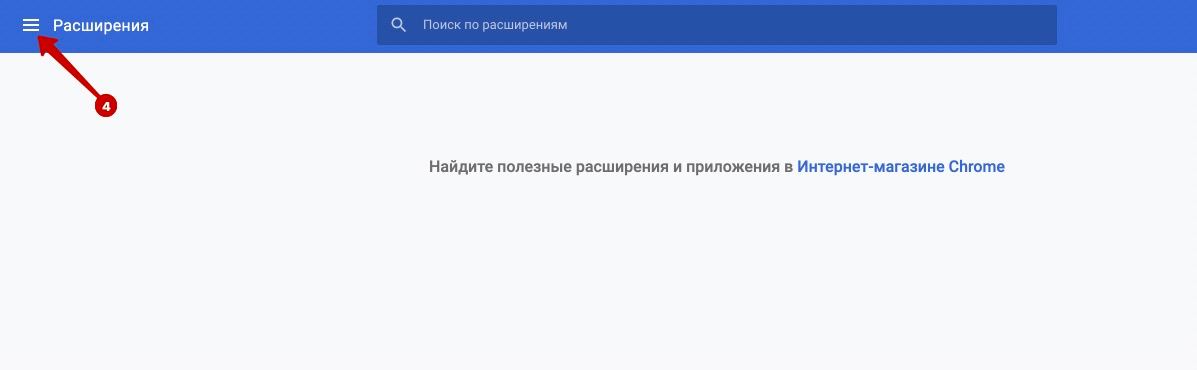
1.4 В открывшемся окне нажмите на «гамбургер»
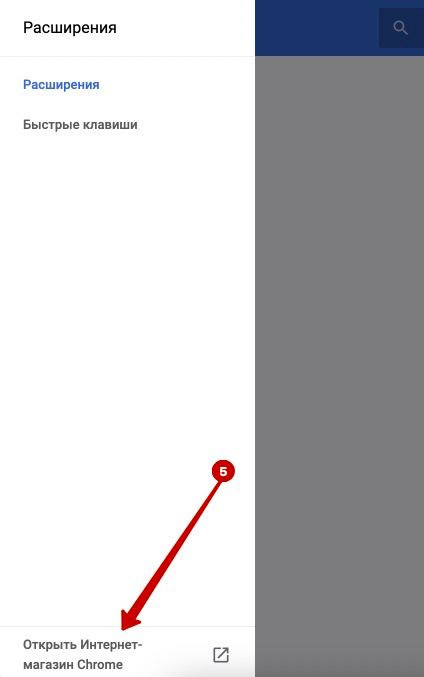
1.5 Затем выберите Открыть Интернет-магазин Chrome
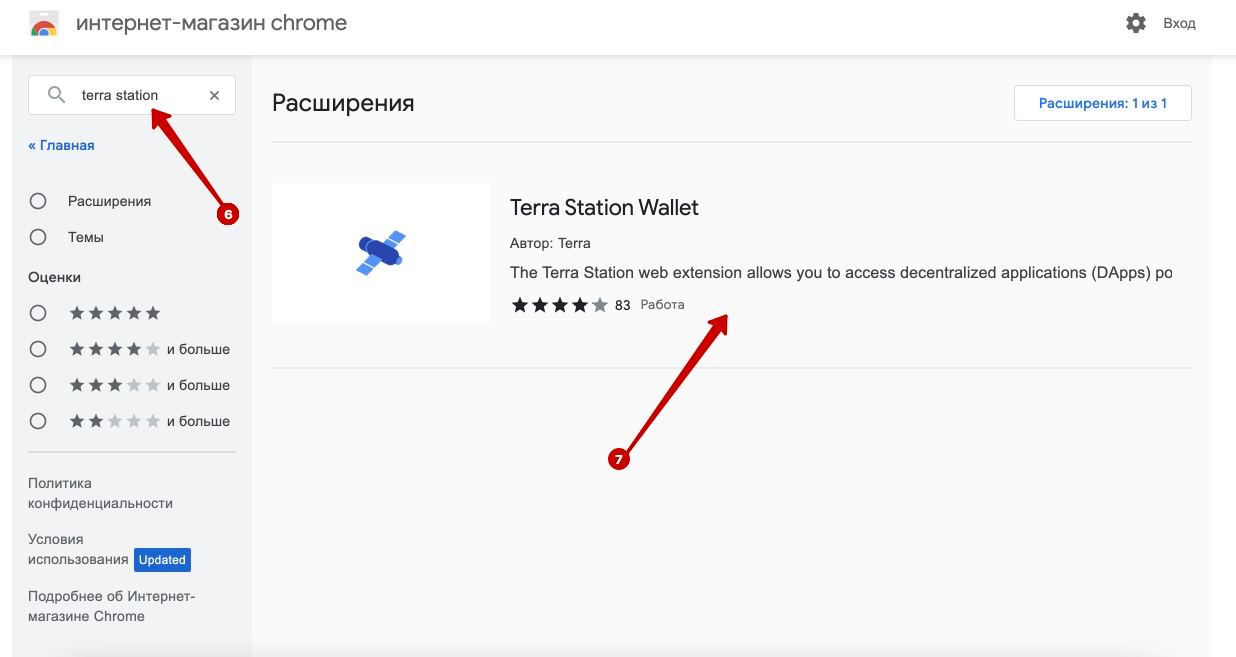
1.6 В поле поиска введите terra station
1.7 Затем нажмите на приложение Terra Station Wallet
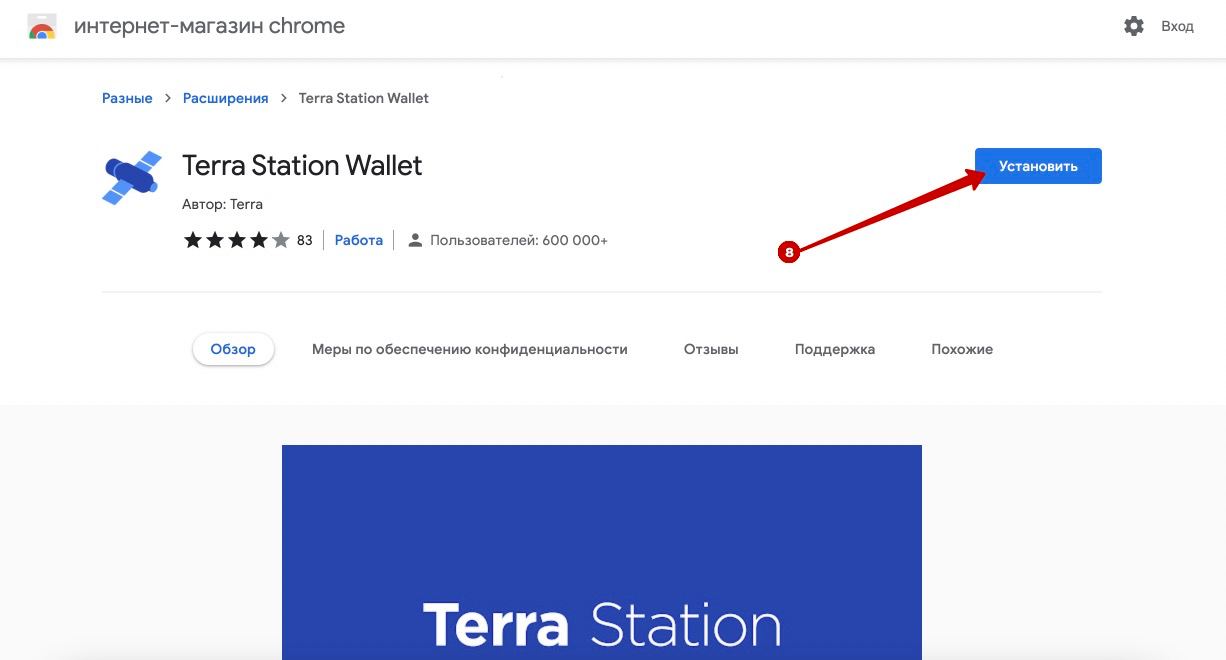
1.8 В открывшейся странице выберите Установить
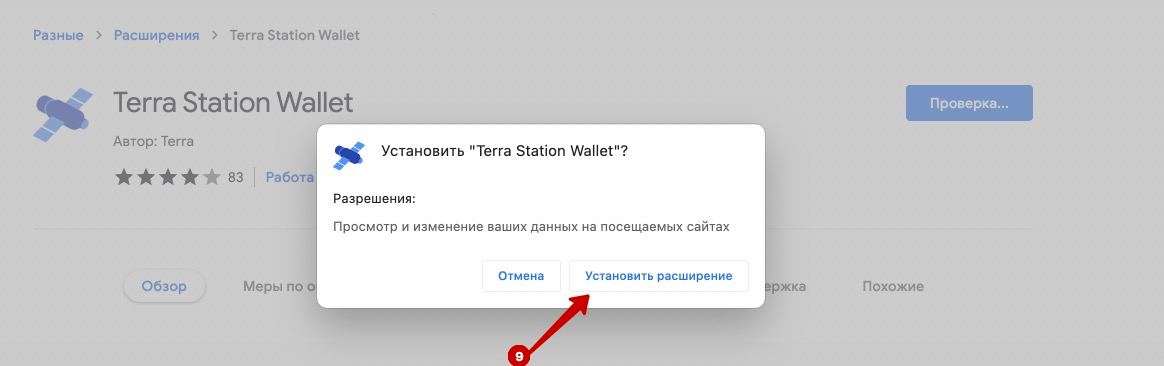
1.9 Затем нажмите на Установить расширение
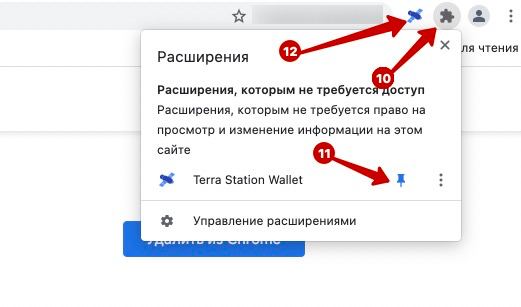
1.10 После того, как приложение установится, выберите значок Пазл в правом верхнем углу браузера
1.11 И нажмите на значок Закрепить, чтобы расширение отображалось на главной панели
1.12 После чего запустите приложение Terra Station, кликнув на символ Спутник
Создание кошелька
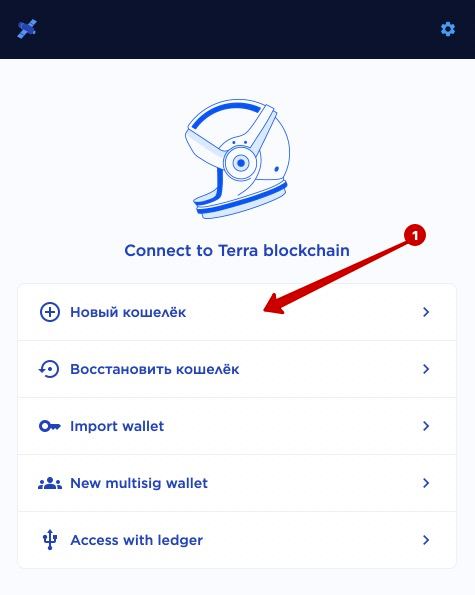
Теперь необходимо создать кошелек, для этого:
2.1 Выберите Новый кошелек
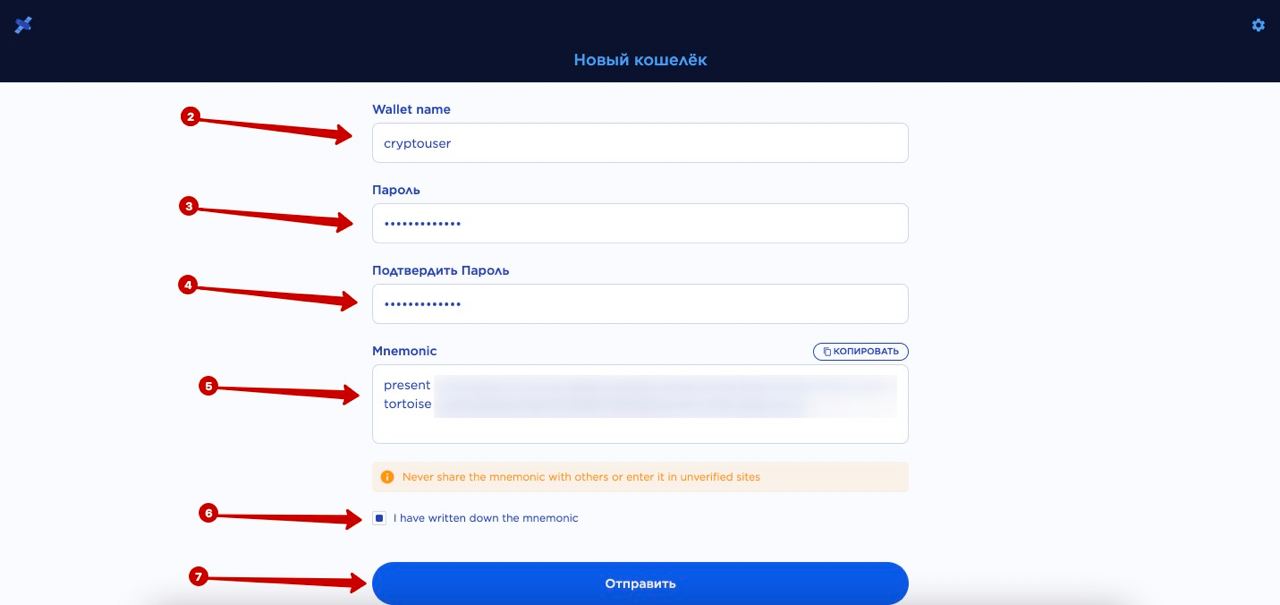
2.2 Придумайте и запишите название кошелька (Wallet name)
2.3 Придумайте и запишите пароль
2.4 Подтвердите пароль
2.5 Скопируйте мнемоническую фразу (Mnemonic) и сохраните ее в надежном месте
2.6 Подтвердите, что вы сохранили мнемоническую фразу (I have written down the mnemonic)
2.7 И нажмите Отправить
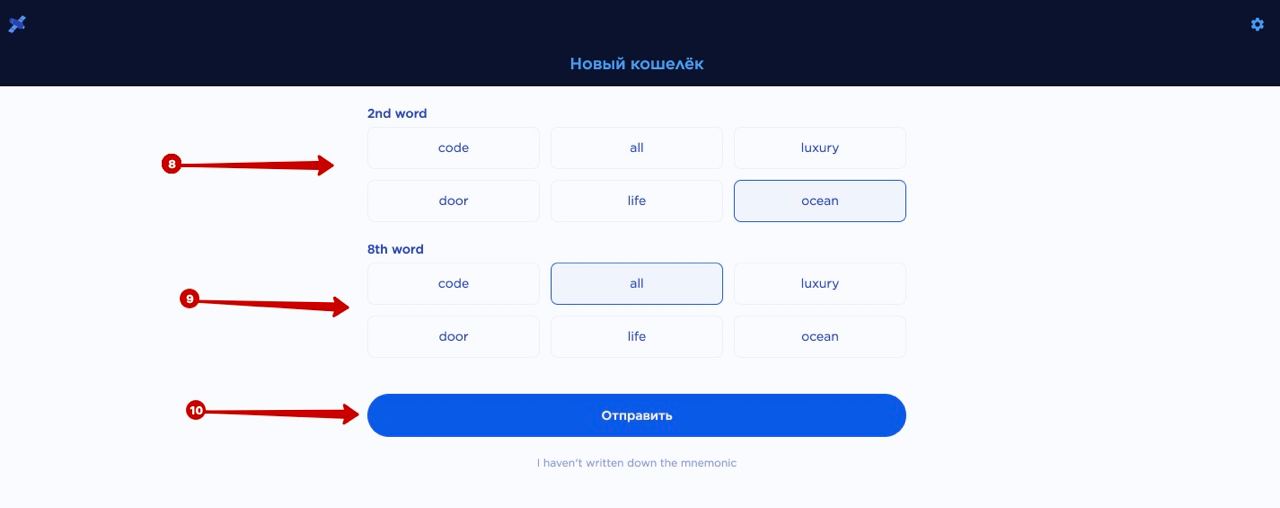
2.8-2.9 Выберите те слова из мнемонической фразы, которые запрашиваются (в данном случае, это второе и восьмое слова)
2.10 Затем нажмите Отправить
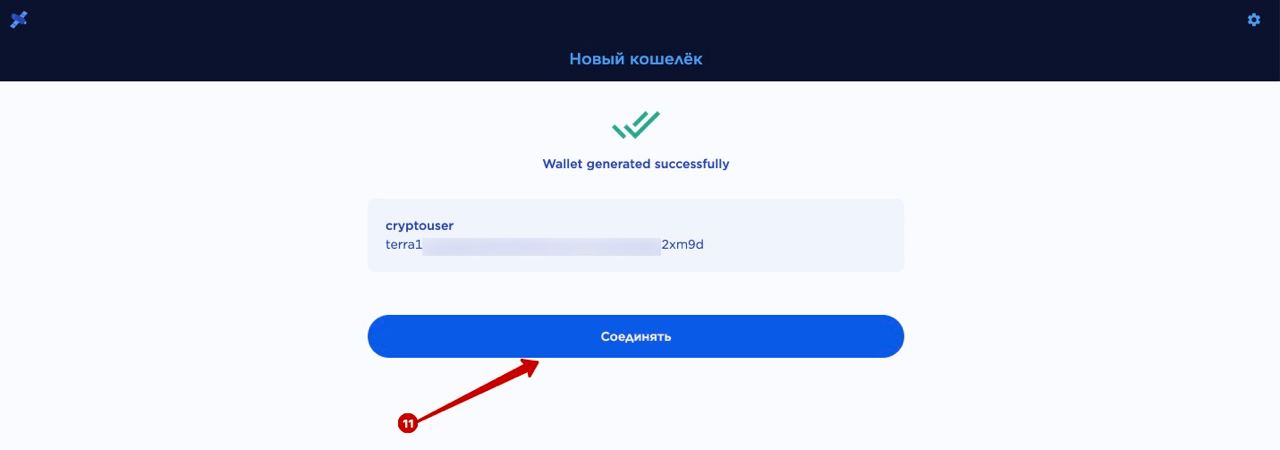
2.11 Новый кошелек создан, подключите его, нажав на кнопку Соединять.
Добавление токенов
Для того, чтобы добавить новые токены в кошелек Terra Station, необходимо:
3.1 Выбрать Добавить токен.
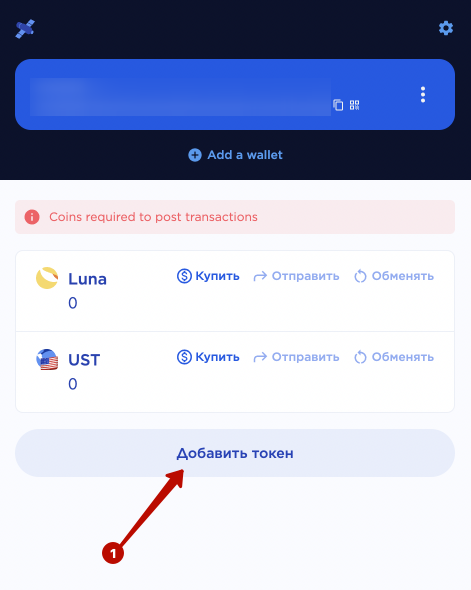
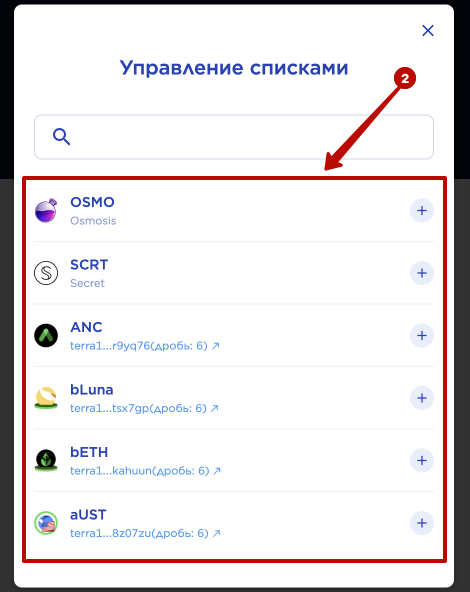
3.2 Можно выбрать нужный токен из списка
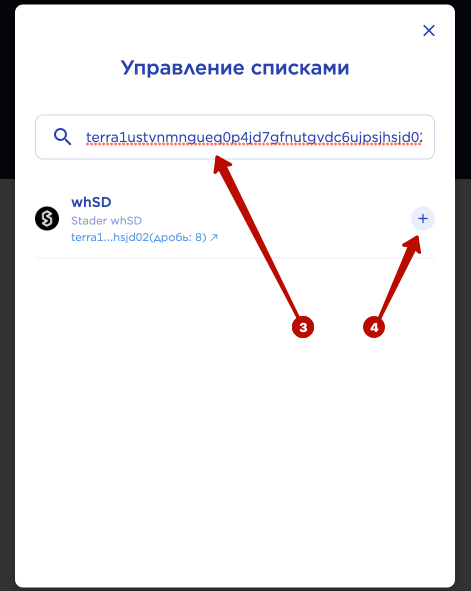
3.3 Или добавить вручную: для этого нужно указать смартконтракт токена в графе поиска
3.4 И нажать на символ «+«
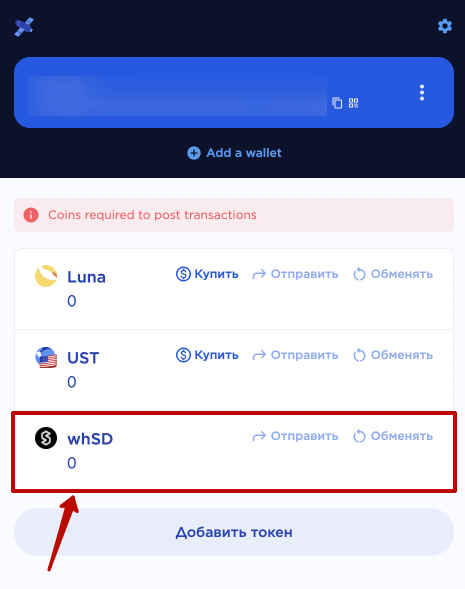
После добавления токен будет отображаться в главном окне кошелька Terra Station.
Отправка токенов
Для того, чтобы отправить токены на кошелек Terra Station Wallet, например, с биржи, необходимо выполнить следующие действия: открыть Terra Station Wallet, скопировать адрес Вашего кошелька (как это сделать, смотри скриншот ниже) и указать его при отправке средств.
Если Вы не владеете аккаунтом на какой-либо бирже, рекомендуем Вам зарегистрироваться на одной из них, например, на Binance или Huobi.
Инструкция Binance доступна по этой ссылке — Binance: регистрация на бирже и торговля p2p
В этой инструкции подробно описаны процессы регистрации и верификации пользователя, покупка криптовалюты на p2p, покупка и отправка средств с биржи.
Инструкция по регистрации на Huobi доступна по этой ссылке — Регистрация на Huobi и торговля p2p
Инструкция по выводу средств с биржи доступна здесь — Как отправить USDT с Huobi на FTX
The Ultimate Guide To Terra Station
If you’ve bought some LUNA or UST before, you may have heard of the Terra Station wallet where you can interact with the Terra ecosystem, such as by staking LUNA.
There may be some things that you aren’t sure about in this wallet, and here’s a guide to answer some of your questions.
- 1 Does Terra Station accept ERC20 or BEP20 deposits?
- 2 What coins can I hold on the Terra Station wallet?
- 3 What does “This wallet does not hold any native tokens, so the transaction could not be processed” mean?
- 4 What tokens can I send to Terra Station?
- 5 How do I stake LUNA on Terra Station?
- 6 How do I unstake LUNA on Terra Station?
- 7 Can I stake UST on Terra Station?
- 8 How do I connect my Terra Station wallet to Anchor Protocol?
- 9 What is the difference between the Terra Station desktop app and wallet extension?
- 10 How do I withdraw from my Terra Station wallet?
- 11 Conclusion
Does Terra Station accept ERC20 or BEP20 deposits?
The Terra Station wallet only accepts deposits via the Terra network, and you are unable to send tokens to the Terra Station wallet using other networks such as the ERC20 or Binance Smart Chain (BEP20).
If you look at the address of your Terra Station wallet, you may notice that it starts with ‘terra‘.
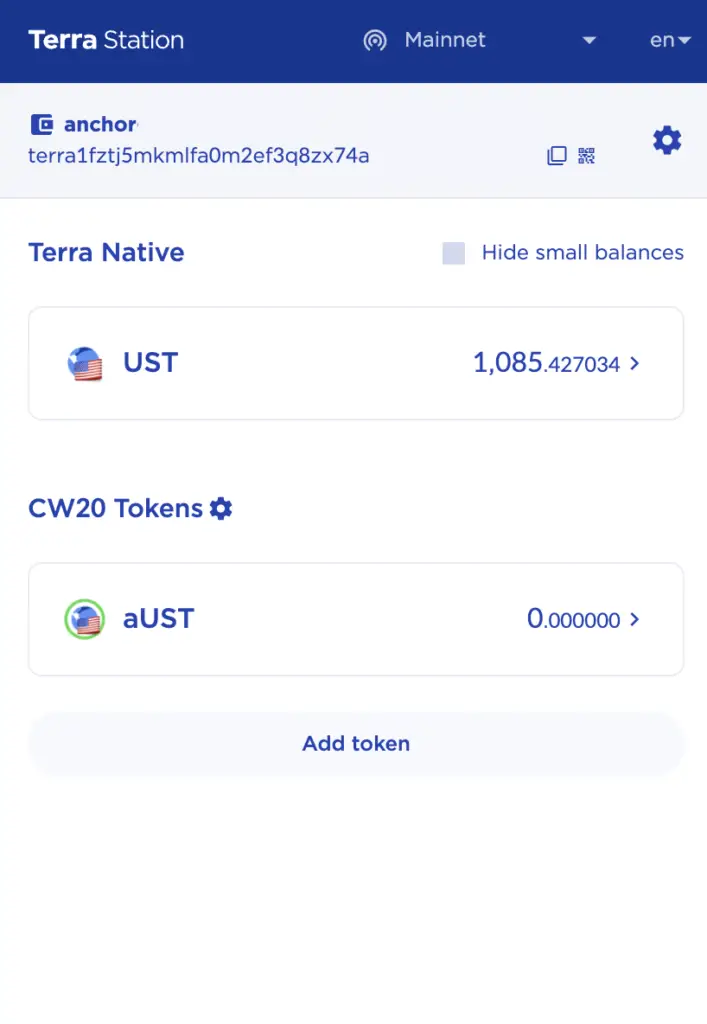
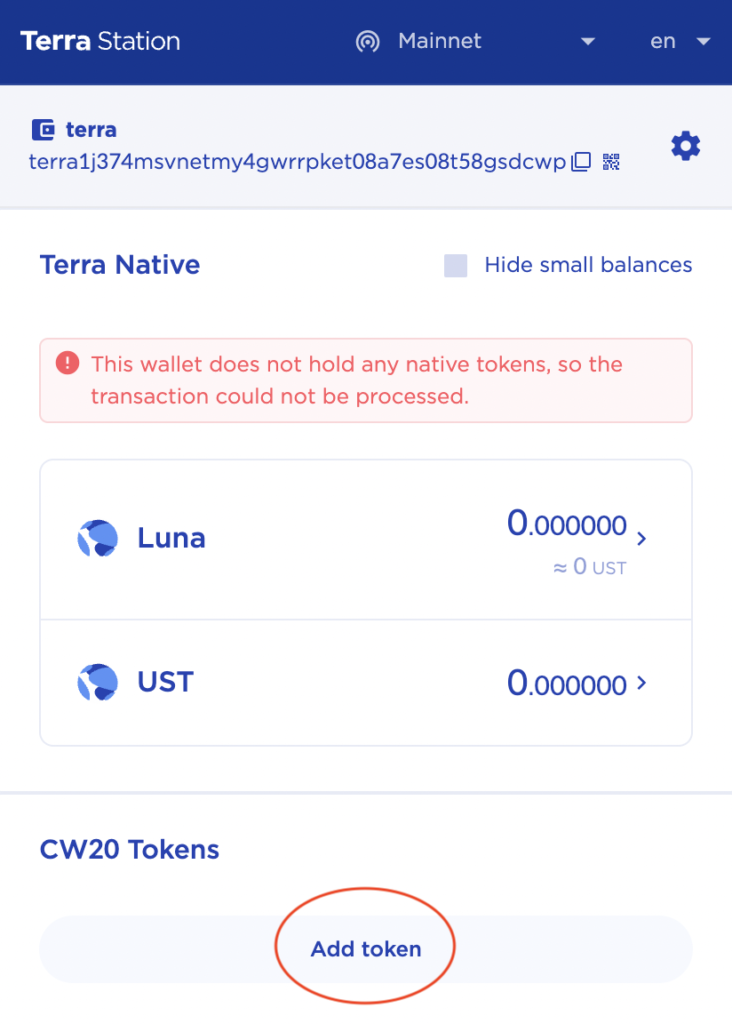
This is different from an ERC20 or BEP20 deposit address, where both of them start with ‘0x’.
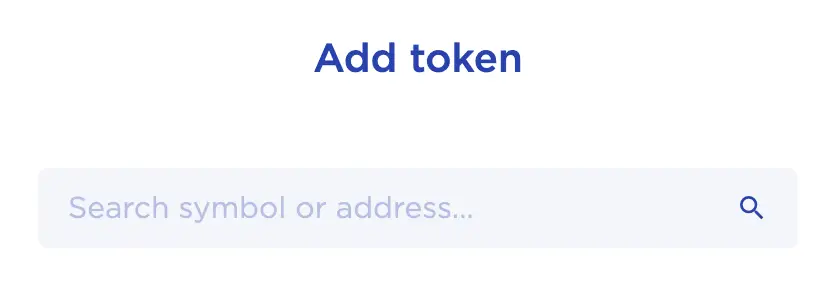
you can start to search for the token that you wish to add.
How do I add LUNA and UST to Terra Station?
You do not need to add LUNA or UST to your Terra Station wallet, as they are the native currencies in your wallet.
When you create a new Terra Station wallet, you will notice that both LUNA and UST will already be added to your wallet as native currencies.
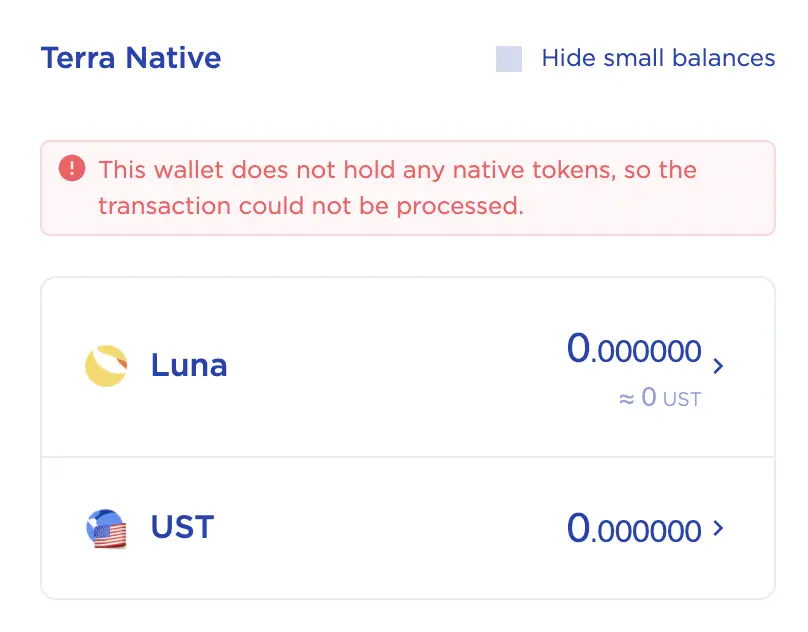
Once you have sent any LUNA or UST to your Terra Station wallet, the balances will appear here immediately!
How do I add USDT to Terra Station?
You are only able to add weUSDT (Wormhole Ethereum USDT) to your Terra Station wallet, which is USDT bridged onto Solana from Ethereum using the Wormhole token bridge.
If you tried to search for USDT on your Terra Station wallet, you will only find weUSDT.
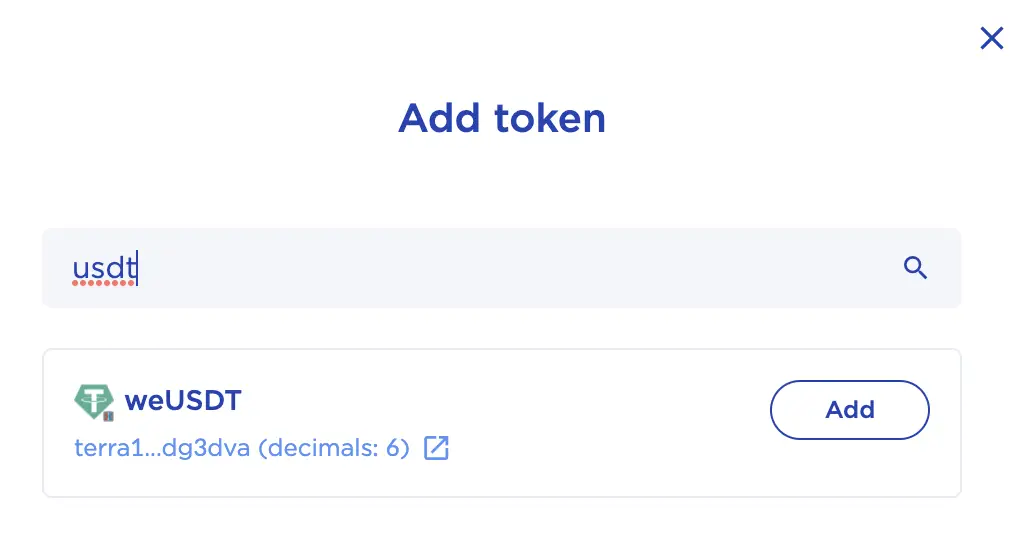
This is not the same as the ERC20 version of USDT, which is native to the Ethereum mainnet.
To send USDT to your Terra Station wallet, you will first need use the Wormhole bridge to obtain weUSDT, which can then be sent to Terra Station via the Terra network.
What does “This wallet does not hold any native tokens, so the transaction could not be processed” mean?
When your Terra Station wallet has just been created, you may have noticed that you have an error message stating “This wallet does not hold any native tokens, so the transaction could not be processed“. This means that your Terra Station wallet does not have any LUNA or UST tokens, hence you will not be able to process any transactions.
The 2 native tokens on the Terra network is LUNA and UST.
As such, you will need to use either token to process transactions on the Terra network. One example would be to deposit UST to the Anchor Protocol.
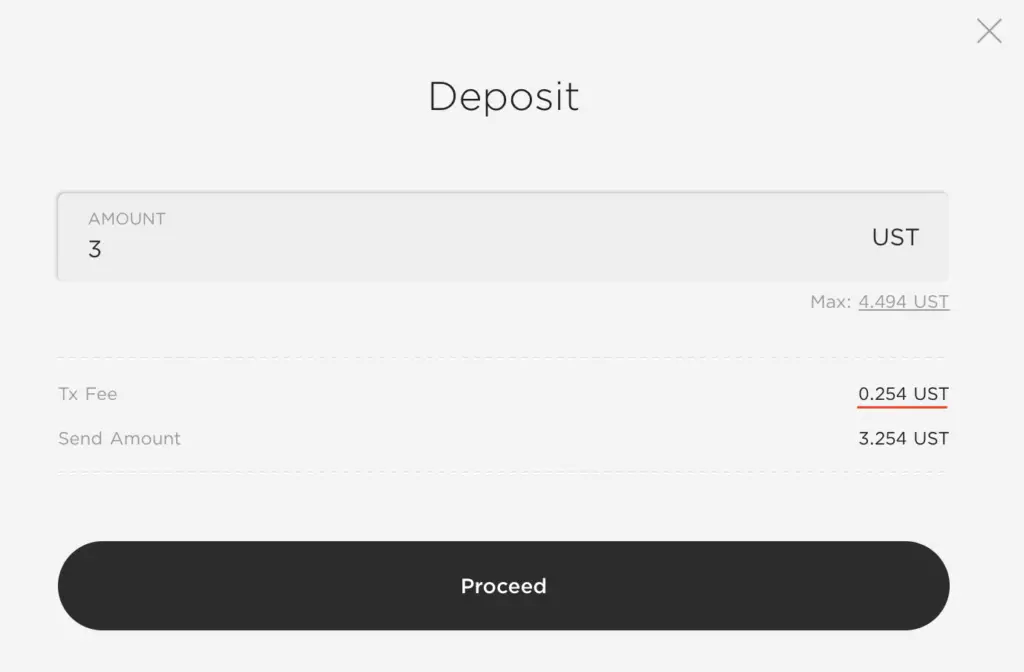
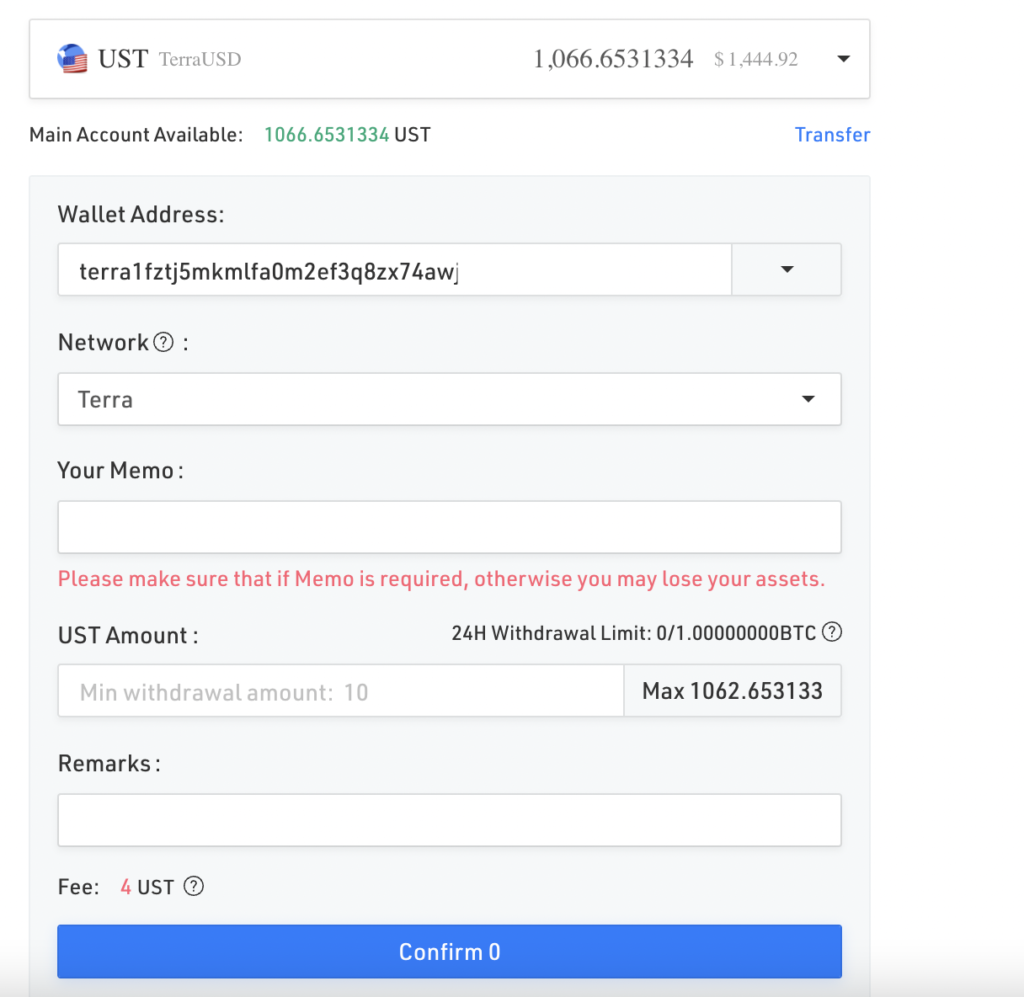
If you do not have any LUNA or UST in your Terra Station wallet, you will not be able to process any of these transfers.
However, if you look at your Terra Station wallet, you may have noticed that you only have a deposit address, and not a memo.
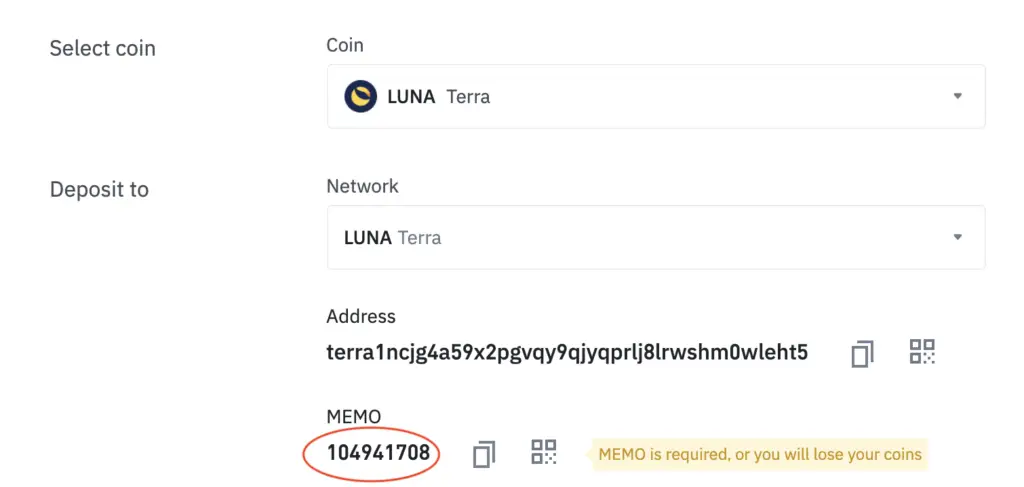
The memo is only required when you are sending from one exchange to another, e.g. KuCoin to Binance. For example, you will see that a memo is required when depositing LUNA to Binance via the Terra network.
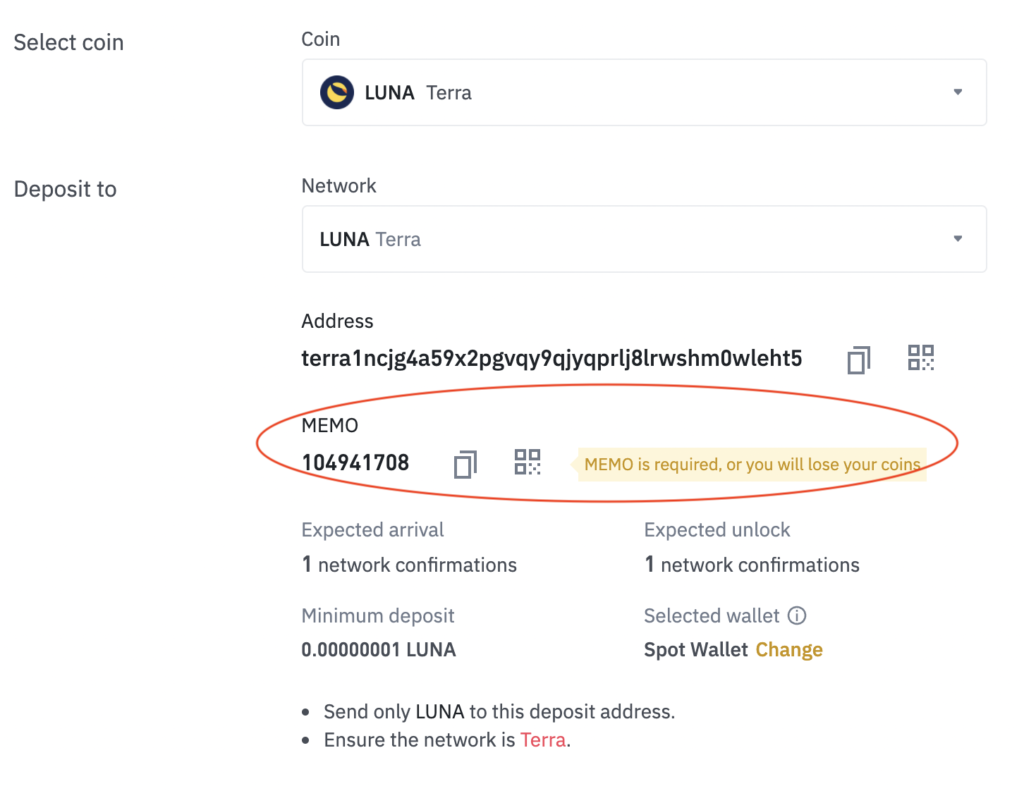
However, since you are sending from an exchange to your Terra Station wallet, you do not require a memo!
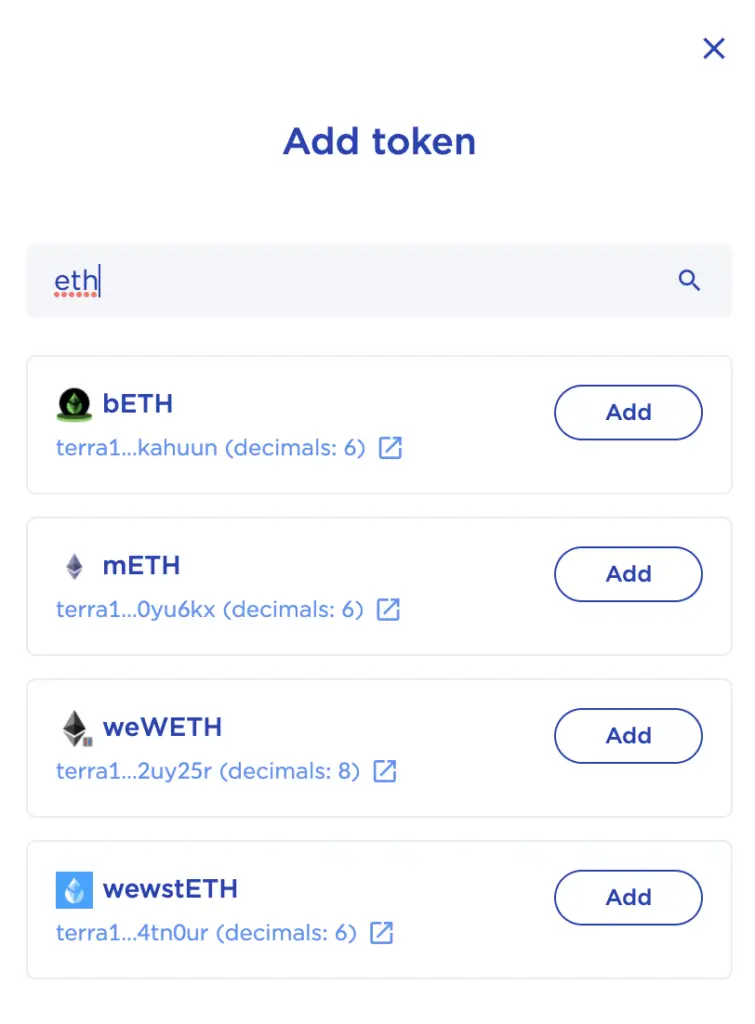
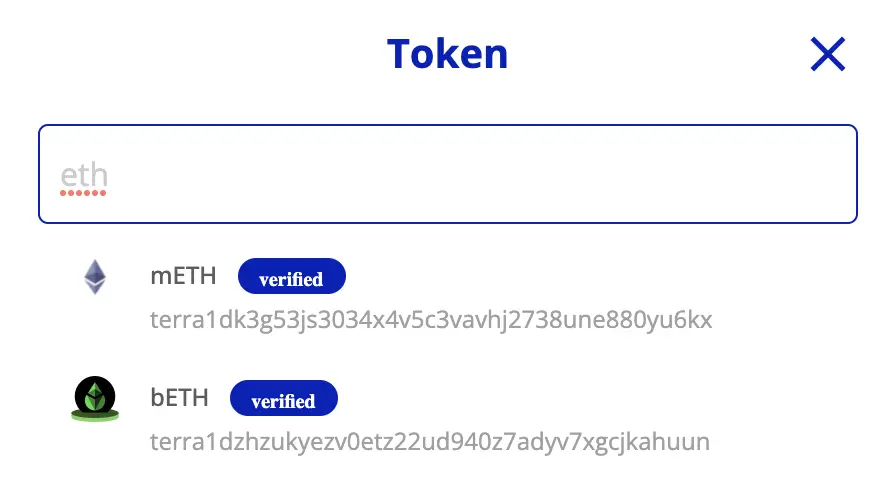
These are all versions of ETH that are native to the Terra network.
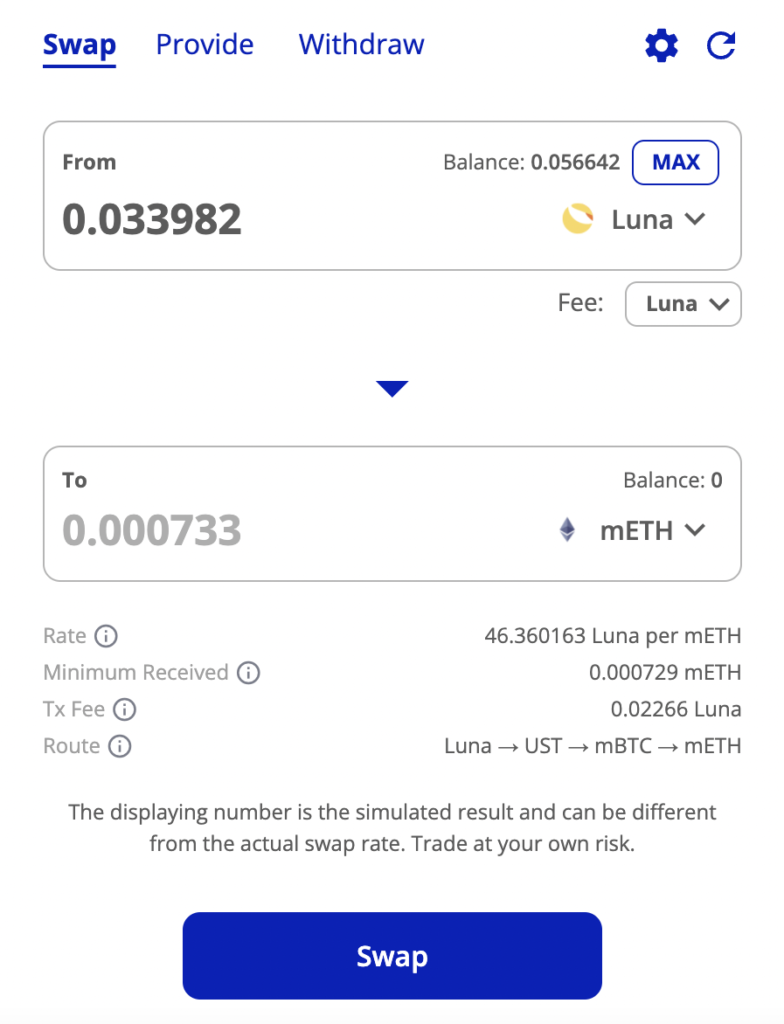
If you would like to obtain either bETH or mETH, you will need to use the Terraswap platform to swap LUNA to either of these tokens.
Can I send MIR to Terra Station?
You are able to send MIR tokens to your Terra Station wallet via the Terra network. However, if you send MIR to your Terra Station wallet via the ERC20 network, there is a chance that the MIR may be lost forever.
When you send MIR to your Terra Station wallet, you will need to use the same deposit address that you see on your Terra Station wallet.
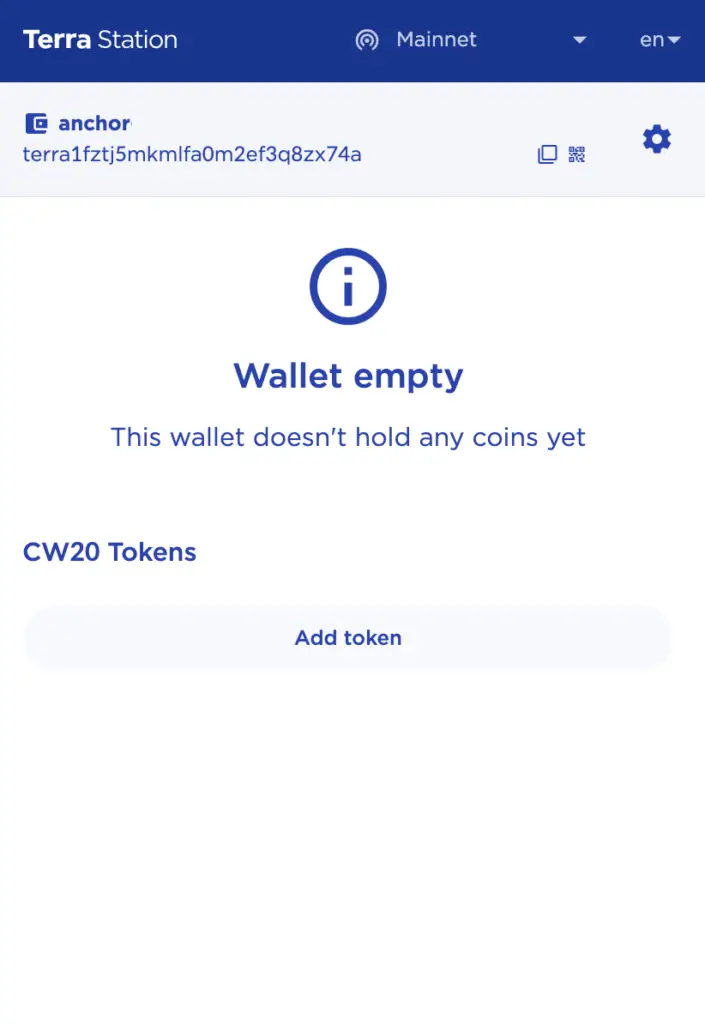
This address usually starts with ‘terra‘.
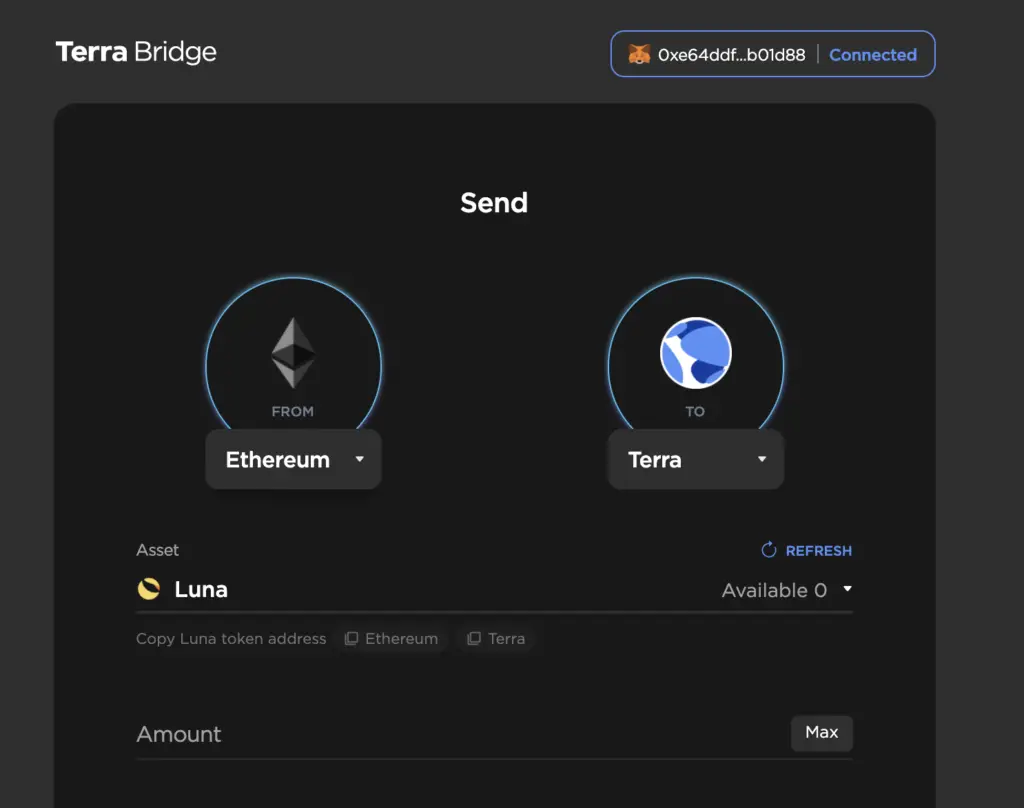
However, there are some platforms like Gemini or Coinbase that only support the ERC20 version of MIR. These platforms only support the ERC20 version of MIR, and not the Terra version of MIR.
How do I stake LUNA on Terra Station?
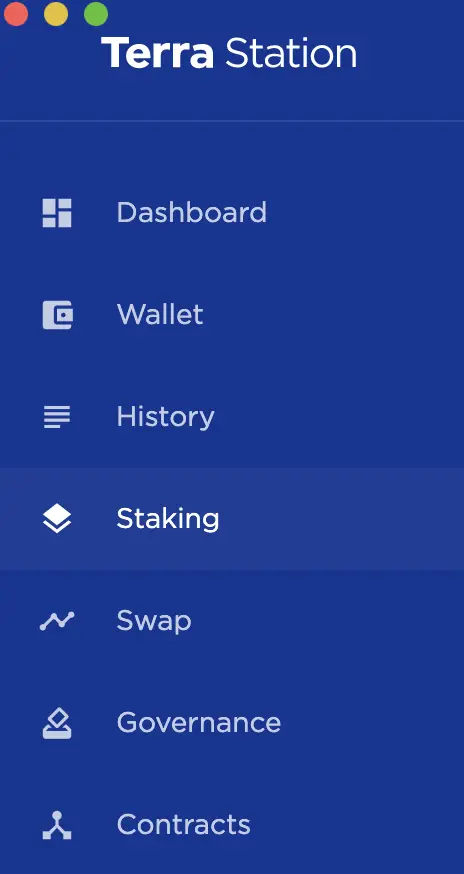
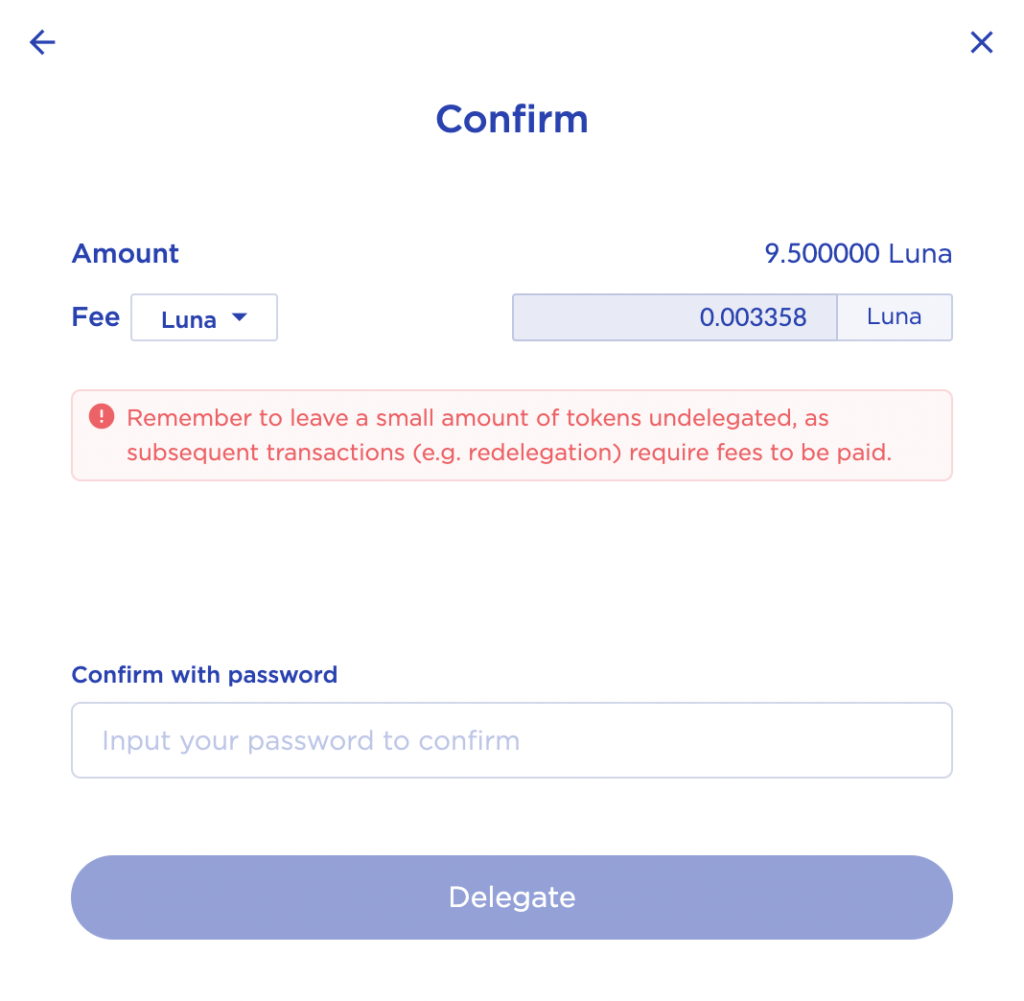
To stake LUNA, you will need to go to the ‘Staking‘ tab on your Terra Station wallet, and then select a validator before clicking on ‘Delegate‘. You will need to pay a small transaction fee to process the transaction, so it will be best to leave some LUNA unstaked in your Terra Station wallet.
First, you will need to go to the ‘ Staking‘ tab on your Terra Station wallet.
- Voting power
- Self-delegation
- Validator commission
- Uptime
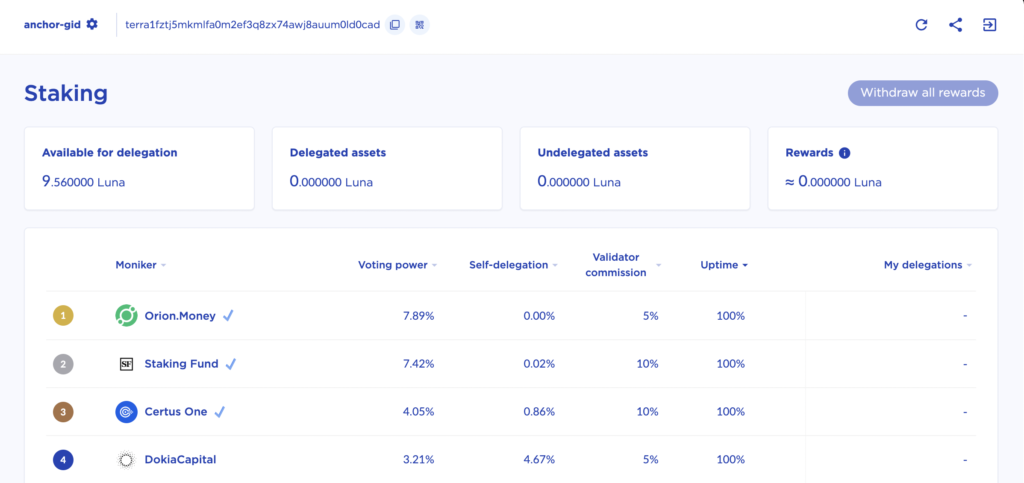
After selecting a validator that you like, you can select ‘Delegate‘ on the validator’s page,
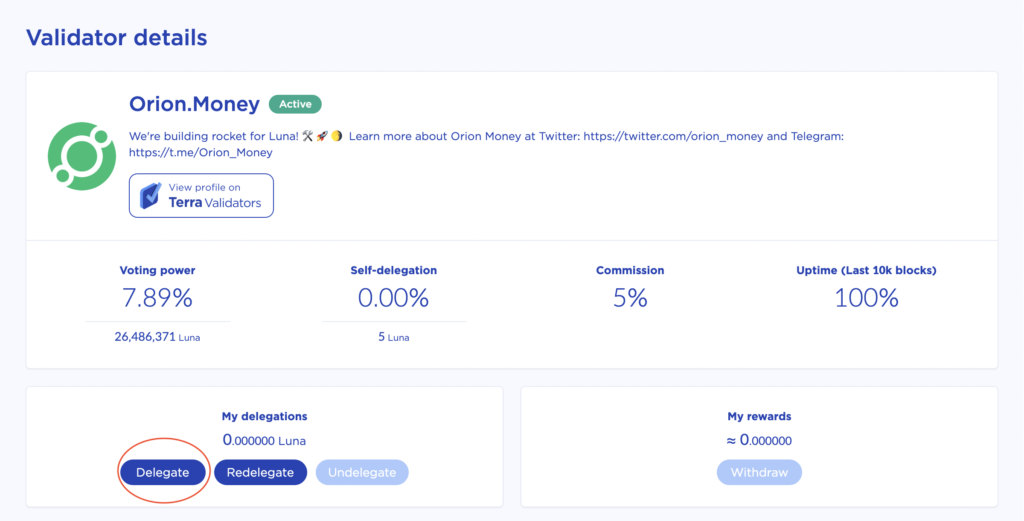
and then choose the amount of LUNA you wish to delegate.
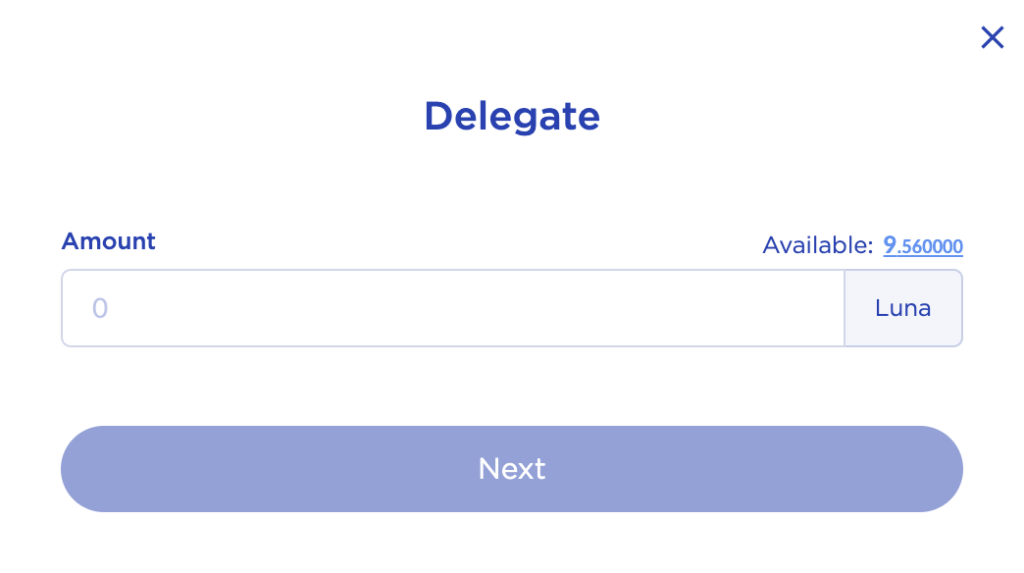
You will need to pay a small fee for each LUNA stake, so it would be best not to stake all of your LUNA.
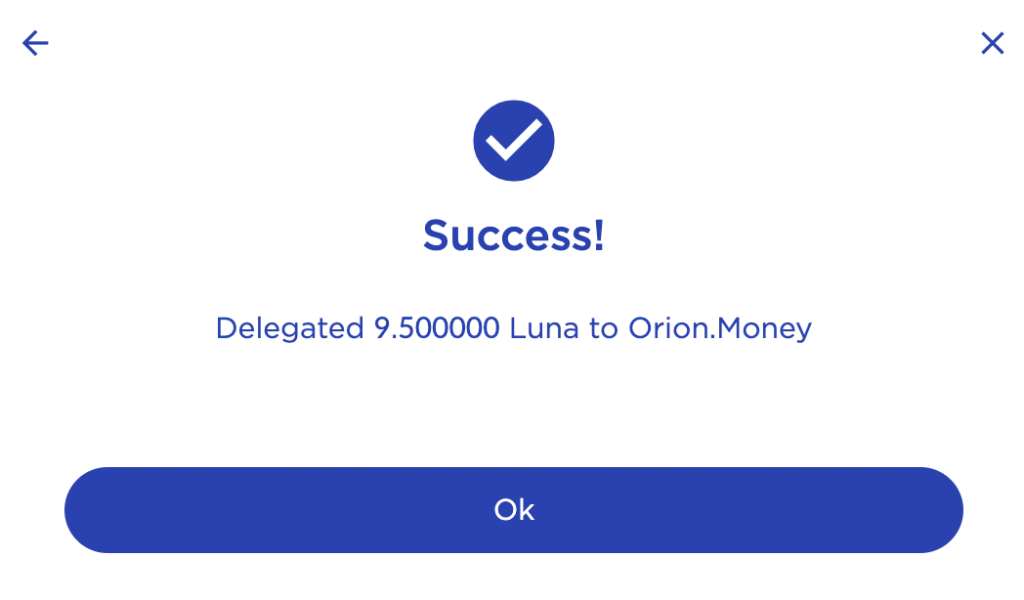
Once the transaction is confirmed, you will be able to start receiving rewards when your LUNA is staked.
What are the staking rewards for Terra Station?
When you stake your LUNA on Terra Station, you will receive a part of the fees incurred when a person makes a swap on the Terra Station app. Moreover, you are also eligible for airdrops from the different protocols on the Terra network, depending on the amount of LUNA that you’ve staked.
You are able to see the rewards that you can earn by staking LUNA on your Terra Station wallet.
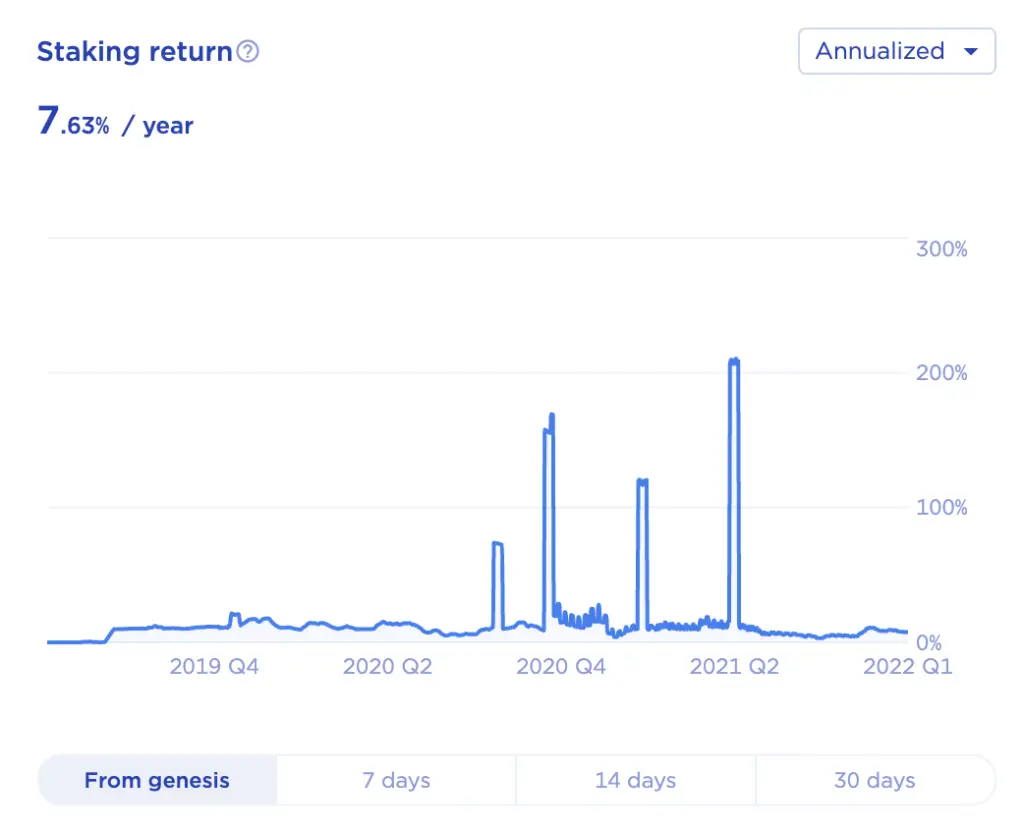
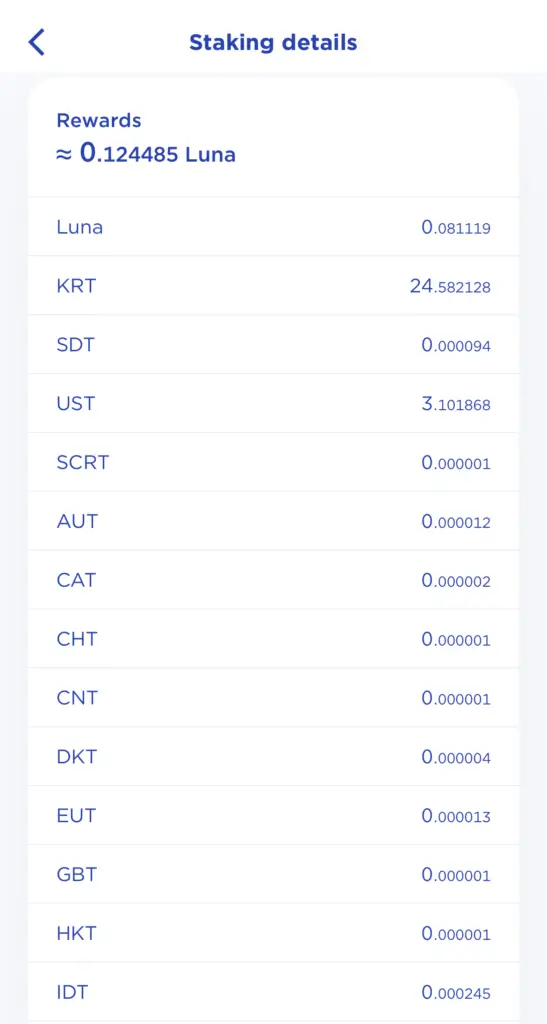
You are able to claim this at anytime, but you will incur a transaction fee!
- Anchor Protocol
- Mirror Protocol
- Orion Money
You will need to go to each protocol’s page to claim the reward. For example, I am eligible to claim my airdrop on Orion Money.
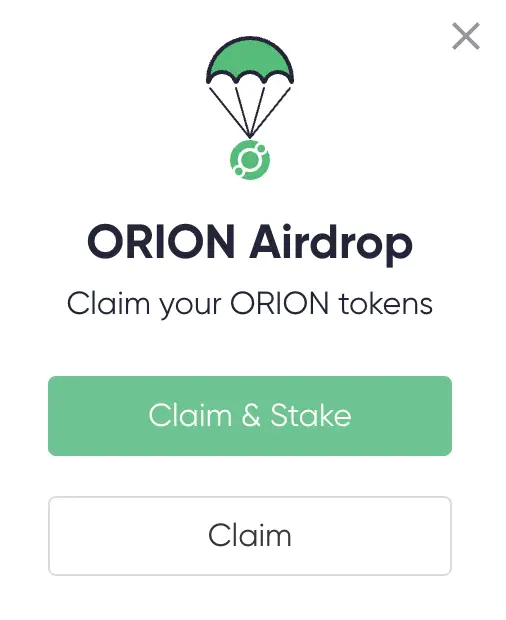
However, there may be times when you miss an airdrop, just like how I did for StarTerra.
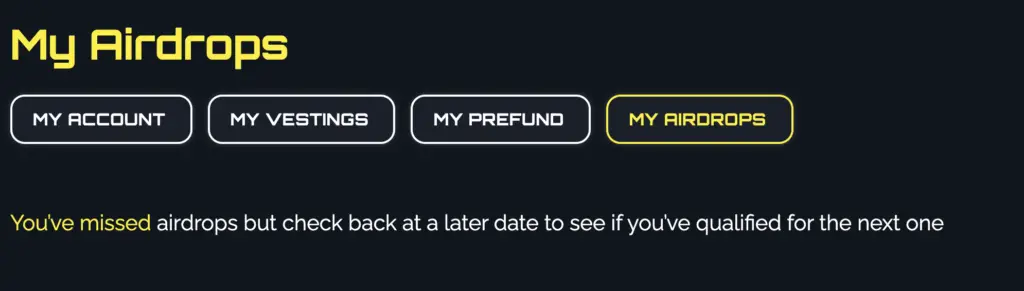
If all of this is too confusing, you can view all of the protocols that provide airdrops on the Smart Stake platform.
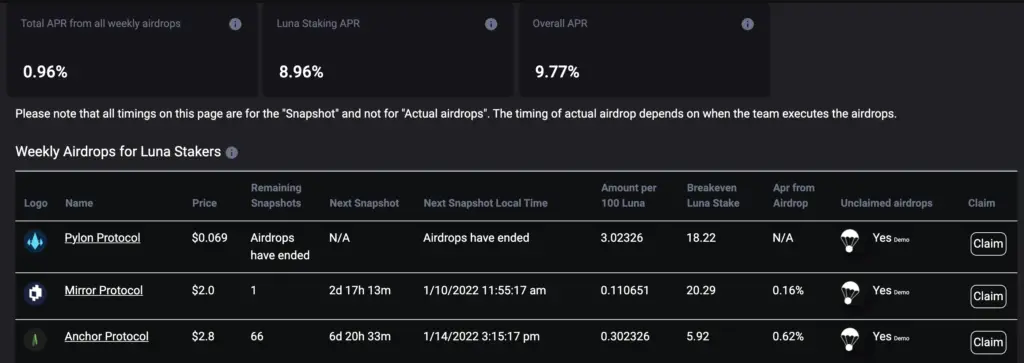
- The protocols that provide airdrops
- The time of the next snapshot
- The breakeven LUNA stake to claim these airdrops
- The estimated APY you will receive from the airdrop
What I like about Smart Stake is that it tells you the ‘Breakeven LUNA Stake‘. This is because claiming each airdrop requires a transaction fee.
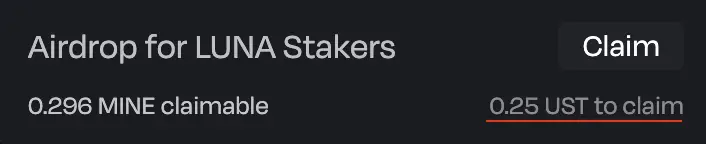
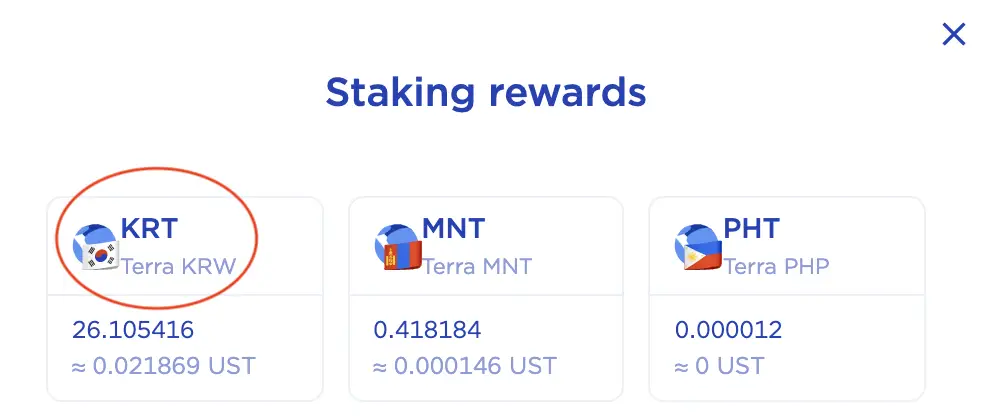
The amount of airdrops that you are eligible for depends on the amount of LUNA that you’ve staked. As such, the amount of airdrops that you receive may be less than the transaction fee that you’ll incur for claiming it.
This is similar to how UST is the Terra stablecoin for USD.
There isn’t much use for this stablecoin, unless you are in South Korea.
However, it is possible to use it to pay for your transaction fees!
What does validator commission mean on Terra Station?
When you stake LUNA with a validator, the commission that is stated on the validator page would mean that they will take a cut of your staking rewards. For example, a 5% commission will mean that the validator will take a 5% cut of the staking rewards that you receive.
You can view the commissions that each validator charges you on the ‘Staking‘ page.
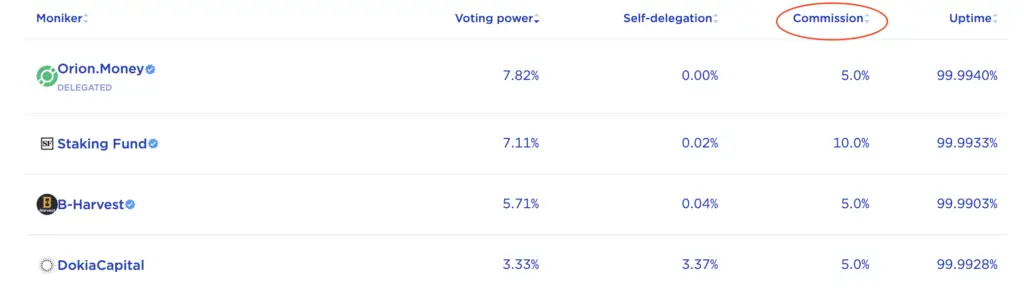
There are some validators which charge 0% commissions, while there are others that charge 100% commissions!
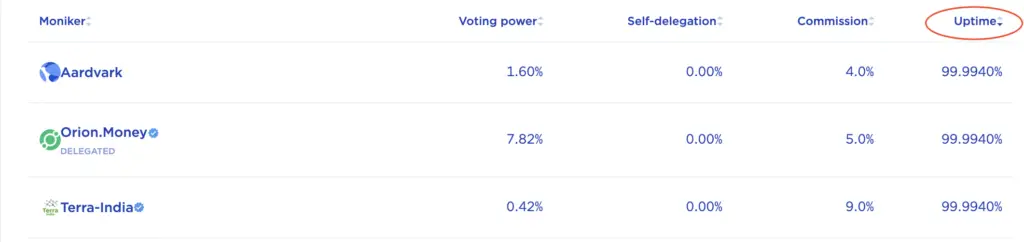
Usually, new validators may charge 0% commissions so as to entice you to stake with them. However, there is a chance that this may not be sustainable in the long run, and the commission may increase instead.
This is an indicator of how often the validator is online, as you will only earn your staking rewards when they are online.
Ultimately, I feel that it may be better to stake with multiple validators, instead of placing all your LUNA with just one validator.
This helps to spread your risk, so that in the event that one validator does not perform well, you still have your staked LUNA with other validators!
How do I unstake LUNA on Terra Station?
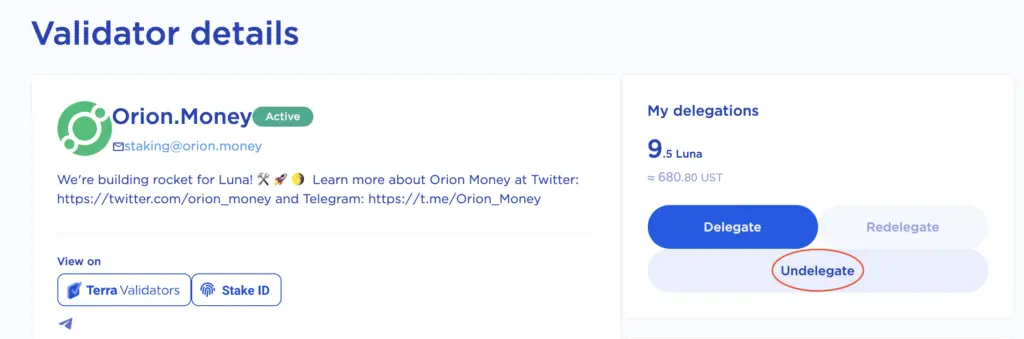
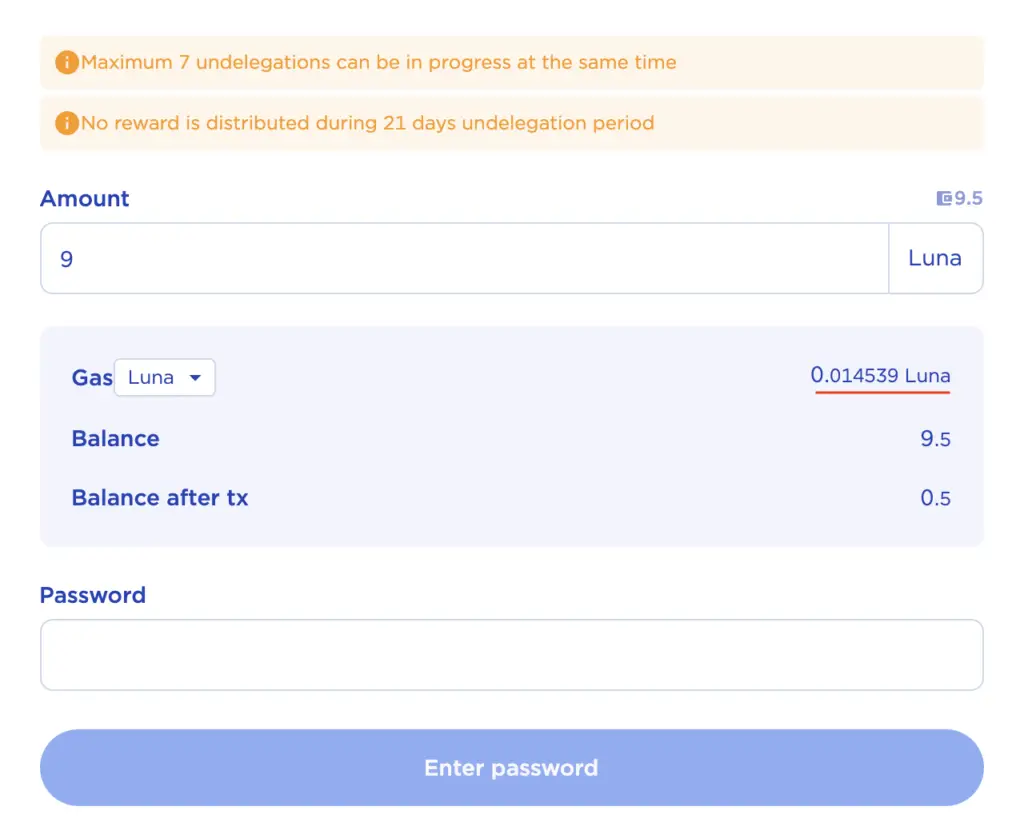
To unstake LUNA from a validator, you will need to go to the validator’s page and select ‘Undelegate‘. After selecting the amount of LUNA you wish to unstake, it will take 21 days for the undelegation to be completed and the LUNA to be deposited in your Terra Station wallet.
When you are on the validator’s page, you will need to select ‘Undelegate‘.
After selecting the amount of LUNA you wish to unstake, you can view the transaction fee as well.
After you have confirmed the transaction, it will take 21 days before your LUNA is undelegated and sent back to your Terra Station wallet.
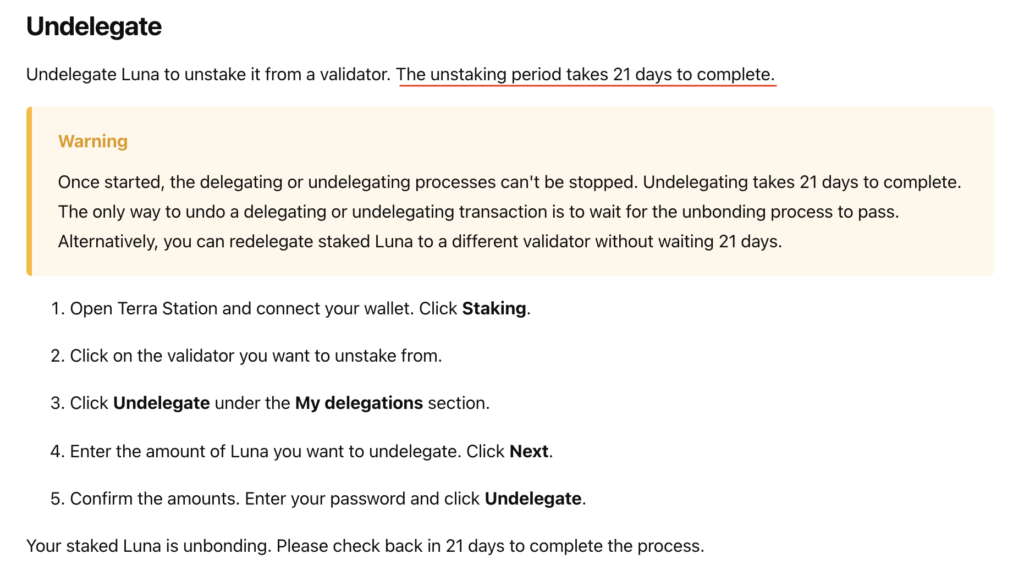
You may want to note that you will not receive any staking rewards during this undelegation period!
Can I stake UST on Terra Station?
There is no option for you to stake UST on your Terra Station wallet, as you are only able to stake LUNA on this platform. If you wish to ‘stake’ your UST tokens, you can consider depositing them on the Anchor Protocol instead.
If you’re wondering how you can use the Anchor Protocol from Singapore, you can view my step-by-step guide here.
When you are searching for validators to delegate with on your Terra Station wallet, you will notice that you are only able to stake LUNA, and not UST.
As such, one of the alternative ways for you to earn interest on UST is by depositing it with the Anchor Protocol.
How do I connect my Terra Station wallet to Anchor Protocol?
To connect your Terra Station wallet to Anchor Protocol, you will need to select the ‘Connect Wallet‘ button on the right hand corner of the Anchor dashboard, and then select ‘Terra Station‘ as the option to connect your wallet.
After selecting the ‘Connect Wallet‘ button,
You will be given the option to either connect your Terra Station wallet via the Chrome extension, or via Wallet Connect.
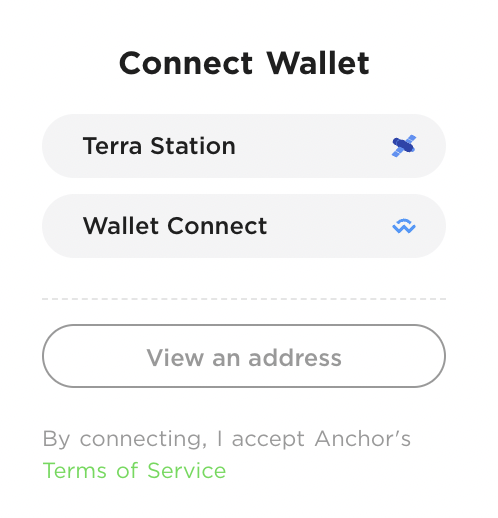
If you already have the Chrome extension of Terra Station installed, it will connect to Anchor Protocol automatically.
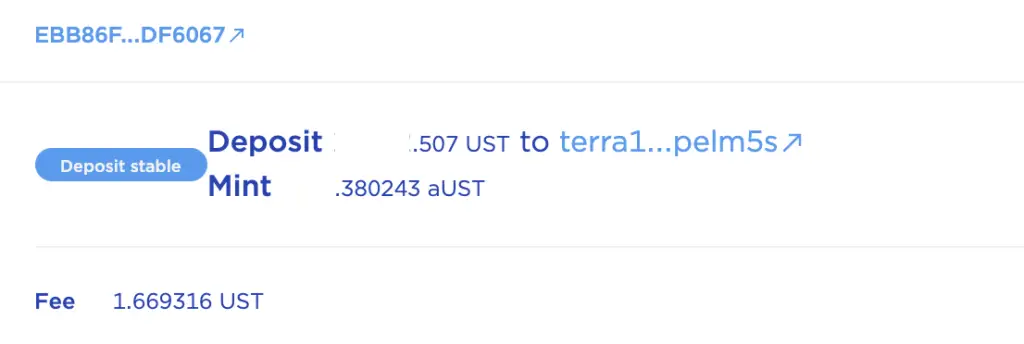
You may notice that when you deposit UST to Anchor, your Terra Station wallet will now show your balance in aUST instead.
What is the difference between the Terra Station desktop app and wallet extension?
The Terra Station desktop app allows you to stake LUNA, swap tokens on the Terra ecosystem and access the NFT marketplace, which is not available on the Chrome extension. Meanwhile, the Chrome extension allows you to connect your Terra Station wallet to decentralised applications, such as the Anchor or Mirror Protocols.
The functionality of the Chrome extension is quite limited, and you can mainly view the balances in your wallet.
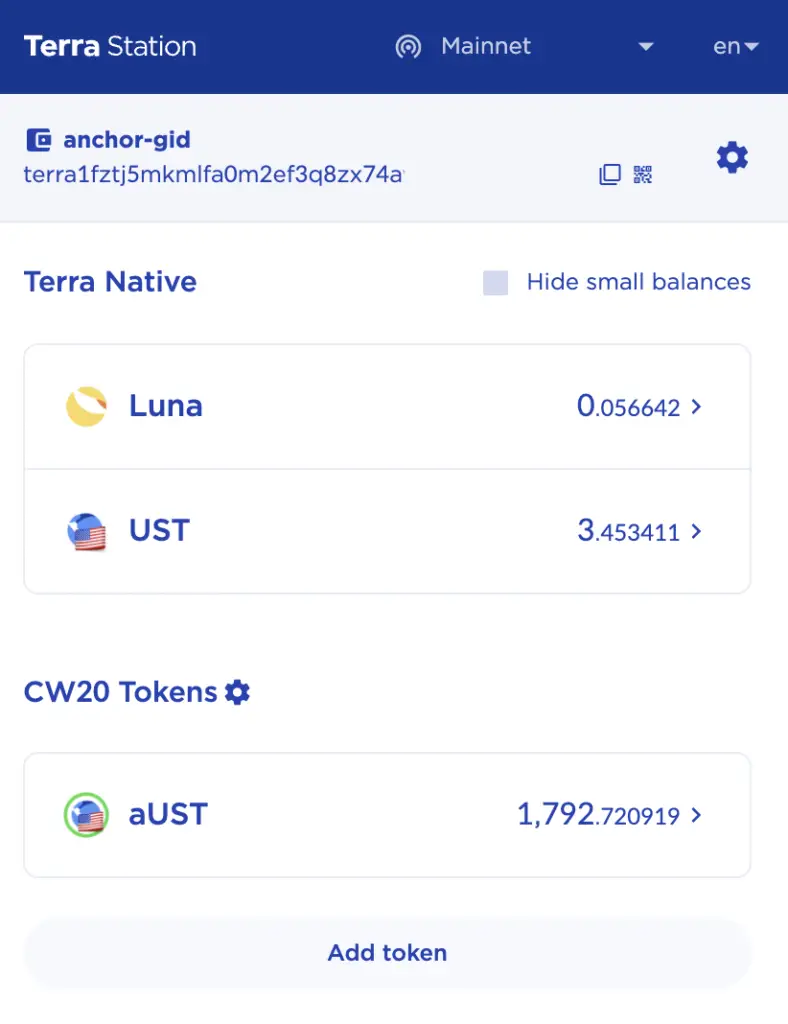
Its main advantage is that you are able to connect the wallet to decentralised applications. This is similar to how you would connect your Metamask wallet to applications such as Uniswap or Pancakeswap.
- Stake
- Swap
- NFT
- Governance
As such, it depends on which functionalities you wish to use!
If you would like to use the same Terra Station wallet on both the Chrome extension and desktop app, it is better to recover the existing wallet, rather than create a new wallet.
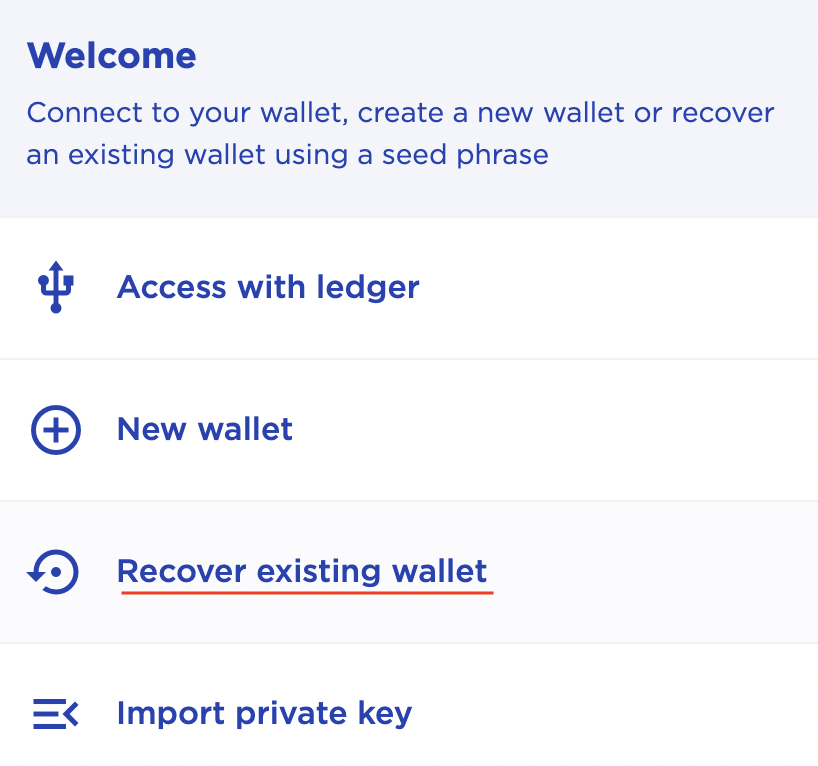
You will be asked to input your 24-word seed phrase, which you can use the phrase from your original wallet.
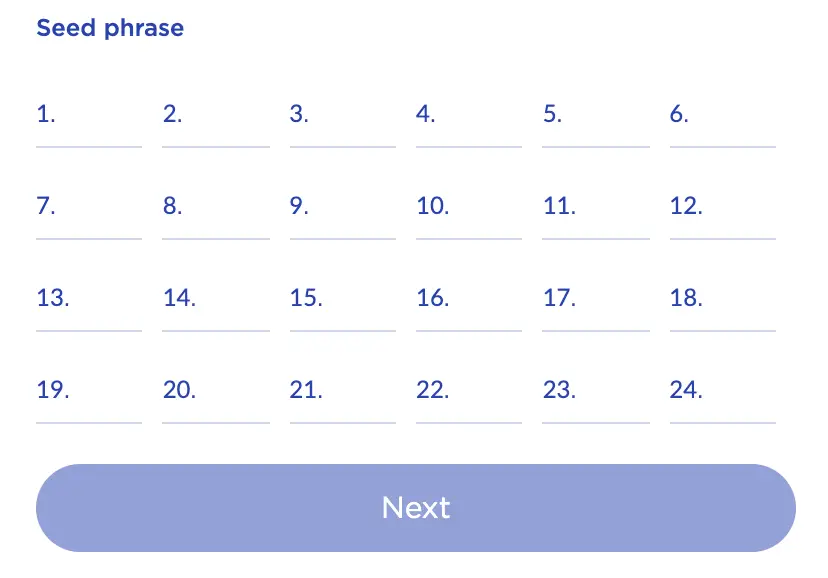
If you create 2 separate wallets, it will be hard to synchronise your funds between them if you want to use both the desktop and the Chrome extension!
How do I withdraw from my Terra Station wallet?
To withdraw funds from your Terra Station wallet, you will need to go to the ‘Wallet‘ tab on the Terra Station desktop app, and then select ‘Send‘ on the currency you wish to withdraw. The last step you’ll need to do is to enter the withdrawal address and confirm the transaction.
First, go to the ‘Wallet‘ tab,
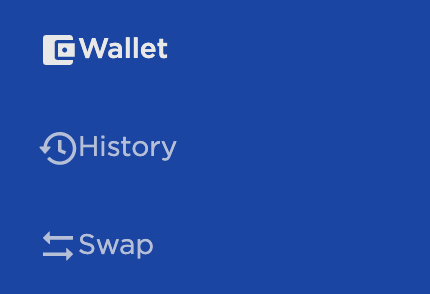
and then select the currency that you wish to withdraw and select ‘Send‘.
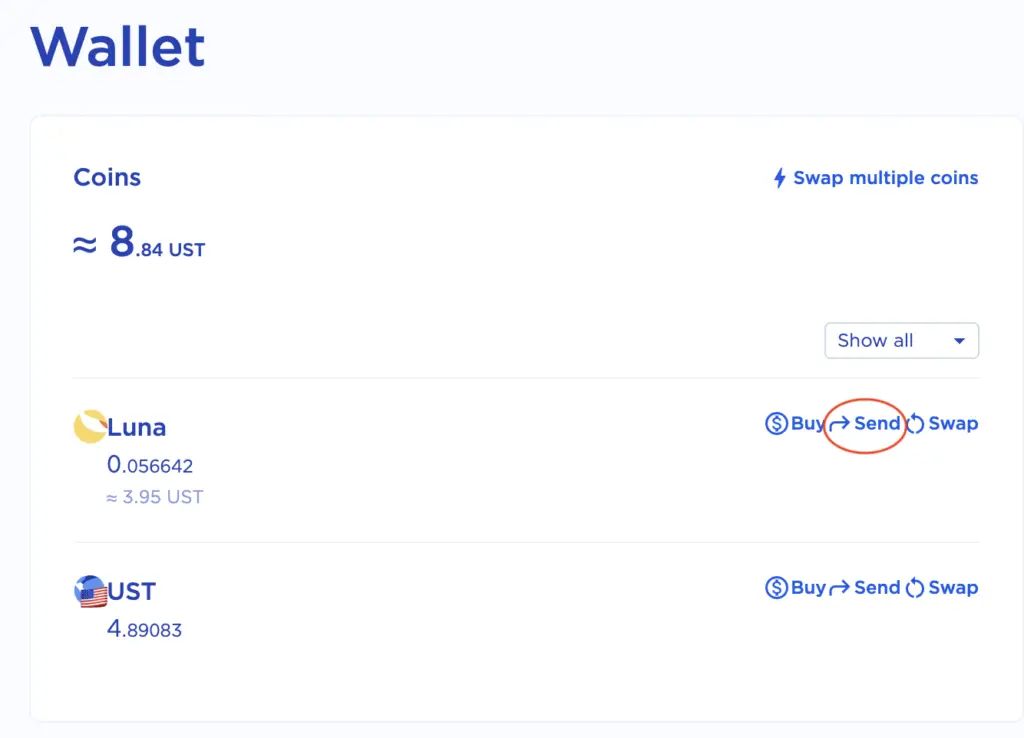
- The amount of cryptocurrency you wish to withdraw
- The withdrawal address that you’ll be depositing to
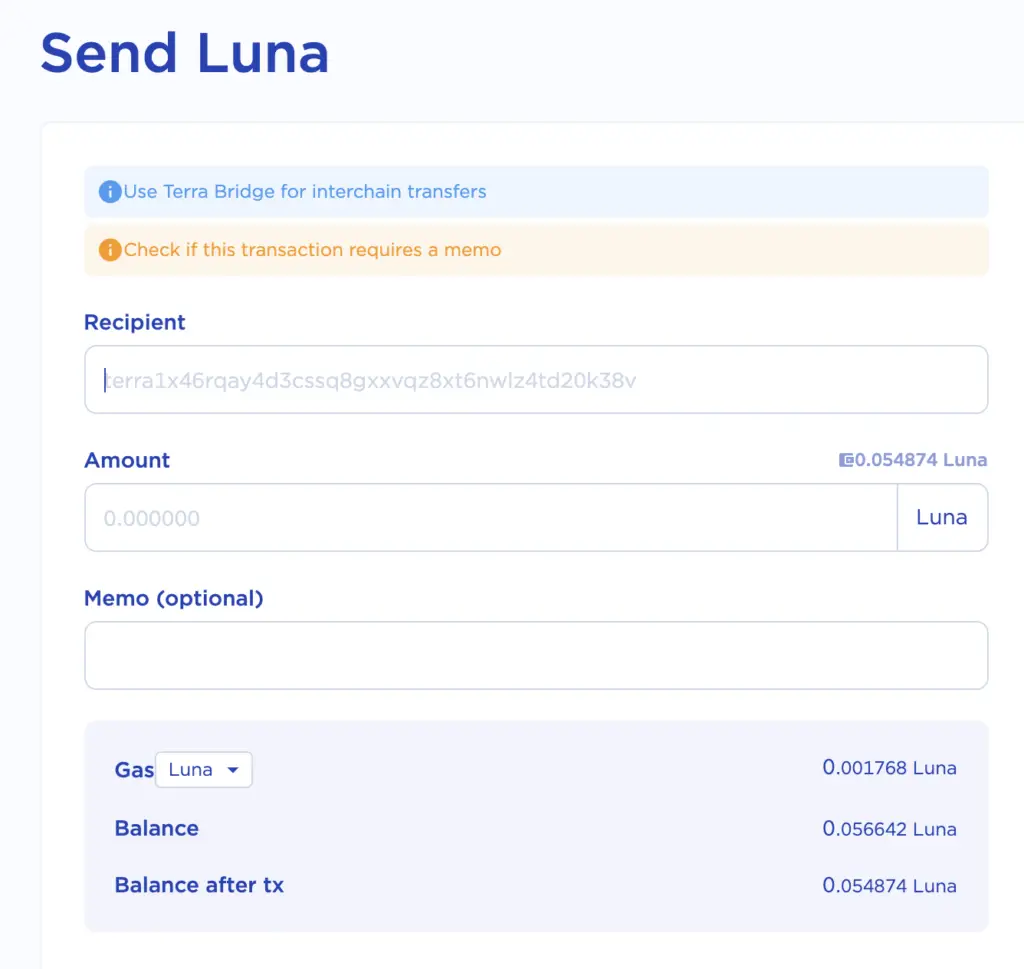
You will be able to see the transaction fee that you’ll pay, but it’s usually quite little.
Terra Station only supports withdrawals via the Terra network. This means that the address that you’re withdrawing to should start with ‘terra‘.
If you are sending your funds to an exchange like Binance, you will need to include the memo too!
Conclusion
The Terra Station wallet is the gateway to the Terra ecosystem, and you are able to use it with many decentralised apps.
You are only sending and receiving tokens on the Terra network, so it would be best not to deposit or withdraw tokens that are from other networks (e.g. wrapped LUNA and UST)!

Do you like the content on this blog?
To receive the latest updates from my blog and personal finance in general, you can follow me on my Telegram channels (Personal Finance or Crypto) and Facebook.
Are you passionate about personal finance and want to earn some flexible income?
How to Set Up and Use Terra Station Wallet
Step into the world of stable DeFi savings and much more with the Terra ecosystem. Read on to know how you could get your own Terra Station Wallet!
The Terra ecosystem is amazing. There’s something here for everyone. For those wanting a stable savings solution in the DeFi space, there’s the Anchor Protocol. For those looking for a way to carry out transactions, there’s CHAI, MemePay, and PayWithTerra.
That isn’t all. There’s something for traders and creators too.
For traders, there’s the Mirror Protocol that allows users to create fungible assets that have their prices pegged to real-world assets. These synthetics act as building blocks in smart contracts, bringing all sorts of assets into the DeFi space. Quite an interesting concept, if you ask me.
For creators, there’s Terraform Capital. It provides capital to the creators that enable them to launch their products. So, launch and audit costs are both covered here.
An ecosystem, as interesting as this one, is surely something that moves you. But to access the ecosystem and use it to the fullest, you need to have a Terra Station Wallet. And that is exactly what we’re going to cover in this article.
Developed by the South Korean firm, Terraform Labs, Terra is a blockchain project with an ecosystem that contains a number of cryptocurrencies and associated financial apps.
Terra (LUNA) is one of the cryptocurrencies in the Terra ecosystem. It is a stablecoin that was made with a single purpose—reducing the volatility plaguing most of the cryptocurrencies in the market.
Now, stablecoins have been in the market for a long time. Each stablecoin has its own way of, well, remaining stable. And they do remain stable for most of it. But every now and then, you would see surges in their prices which beats the entire purpose of, you know, being a stablecoin.
And that is where the team behind the Terra ecosystem has been able to use their skills and expertise. They have come up with ingenious ways to ensure that the prices of LUNA and UST remain more or less constant.
One of the ways LUNA stabilizes its prices is with a carefully orchestrated balancing act with UST (another cryptocurrency in the Terra ecosystem). For minting new UST tokens, you would always need to burn some LUNA tokens. Doing this ensures that a rise in the demand for UST would lead to more LUNA being burned and sent to community pools. This keeps the prices in check.
Now, it isn’t fool-proof, but it does the job rather well. And at the end of the day, let us not forget that we’re in the DeFi space. As much as the space is growing, it still suffers from many problems plaguing the blockchain industry.
The team has been able to raise quite a lot of capital from renowned investors who find the platform innovative. So there’s definitely something there to it. You too, good reader, find the ecosystem (or at least some part of it) rather interesting. This is why you’re trying to learn how to set up your Terra Station wallet and start using the benefits the ecosystem provides.
I wouldn’t take much of your time and would assume that you have a fair deal of understanding of the Terra ecosystem. So, let’s jump right into how you can download and install the Terra Station wallet.
How to Download and Install the Terra Station Wallet?
To get a Terra Station wallet, you need to download and install the Google Chrome extension for it.
Simply go to the Chrome Web Store and search for “Terra Station”. You then need to click on the “Add to Chrome» button and voila!
This wallet would allow you to store LUNA (the governance token for the Terra blockchain) and UST (an algorithmic stablecoin that is pegged to the US Dollar by Terra LUNA) tokens.
If you’re on a mobile device, you can still find Terra Station on the Apple App Store for iOS users and the Google Play Store for Android users. Setting the wallet up on those platforms is pretty straightforward.
For now, however, let’s focus on the extension since a web browser is where the majority of you would be using it. Once you’ve installed the extension, it is time for you to create a new Terra wallet (or import one if you already have created one).
Creating a new wallet is pretty simple and straightforward. To start with, you need to give a name to your wallet. Next up, you need to enter a password and confirm it for security purposes.
Finally, you have the very important, but often-overlooked seed phrase. I say it is often overlooked because many people copy it hastily on their browsers and paste it into files they would eventually forget about. What they don’t realize is that they might need it sooner than they imagine.
For most of us, hardware failure is not exactly rare. Hard drives crash and fail all the time. A clean wipe of the browser too is something that isn’t unheard of. In all of these cases, you risk losing your wallet and the crypto you have in it. The only thing that can help you if you need to reinstall the wallet is your seed phrase.
The seed phrase is unique to your wallet and is hence used for its identification. So I would strongly recommend you to store it in a safe location. Or perhaps multiple safe locations if you don’t wish to part with your tokens.
Once done, hit the “Next” button. On the next screen, you would be asked to confirm your seed. If you’ve stored it safely, this won’t be an issue for you. All you need to do is enter the correct word present in the positions you’re asked for and you’re good to go.
Now, you have to click on the “Create a wallet” button, and there you have it, your own Terra Station wallet.
Now, an empty wallet isn’t going to get you anywhere. So, you need to fill that wallet up with some UST and/or LUNA tokens. And how do you do that? Let’s take a look!
How to Buy and Send Tokens to Terra Station Wallet?
Buying UST & LUNA tokens are pretty simple. All you need to do is head over to your favorite exchange and search for it. I have seen it on Kucoin and I can say with a great deal of certainty that you can find it there.
But if you want to know of all the exchanges where you can find UST, try searching on CoinMarketCap. Search for UST or LUNA, head over to their page on the platform, switch to the markets tab and it is out there that you’ll find a whole list of all the markets they are listed on.
Now that you’ve found them, head over to the market you’re most comfortable with and buy some tokens. Once done, you need to send them over to your Terra Station wallet.
To do that, you would first need to know what your wallet address is. Luckily for you, that is no rocket science on this platform.
On the main screen of your Terra Station wallet, you would find your address high up such as is shown in the screenshot below. All you need to do is copy this address and paste it as the receiver’s address on your crypto exchange when you’re sending UST or LUNA tokens.
Have you sent some tokens to your wallet? Good. Now you’re ready to use the various products in the Terra ecosystem.
Before You Go…
The Terra ecosystem has shown quite some promise so far. By the looks of it, it still has much to offer.
One of its platforms, the stable savings solution, Anchor, has stood strong during one of the major crypto crashes that happened not so long ago. Instead of offering the promised 20% APY, it fell down to 18% (which is where it is hovering right now). Now, it might sound like I mean to say it is stagnant at 18% but it isn’t. It is actually trying to rise back up.
If the success of Anchor is any indication of how the entire ecosystem is going to function, it is pretty impressive.
That said, the Terra ecosystem has one major drawback and that comes in the form of the limited number of nodes that the network runs on. The reason why the team went for this approach was to reduce latency. Good thinking, considering the fact that the ecosystem is meant to support a lot of financial transactions.
So, what is the drawback then, you ask? The drawback is that the limited number of nodes makes the platform less decentralized than most of the DeFi platforms out there.
A necessary tradeoff, but surely one that the purists aren’t happy about.
But I leave it on you to decide if you’re fine with it or not. Because if you are fine with it, you have a world of interesting solutions waiting for you!
5 Steps To Transfer From Binance To Terra Station
After you’ve bought some LUNA or UST on Binance, you may be wondering how to transfer it to Terra Station.
This is especially if you want to earn staking rewards with the LUNA that you own!
Here’s a guide on how you can do so:
- 1 How to transfer from Binance to Terra Station
- 2 What are the fees for transferring from Binance to Terra Station?
- 3 Conclusion
- 4 ���� Referral Deals
How to transfer from Binance to Terra Station
Here are 5 steps you’ll need to transfer your crypto from Binance to Terra Station:
- Obtain your Terra Station wallet address
- Go to ‘Wallet’ → ‘Fiat/Spot’ on Binance
- Select LUNA as the cryptocurrency you wish to withdraw
- Enter the transaction details
- Receive your crypto in your Terra Station wallet
P.S. if you are looking to transfer from Terra Station back to Binance, you can check out the video below:
Please enable JavaScript
Obtain your Terra Station wallet address
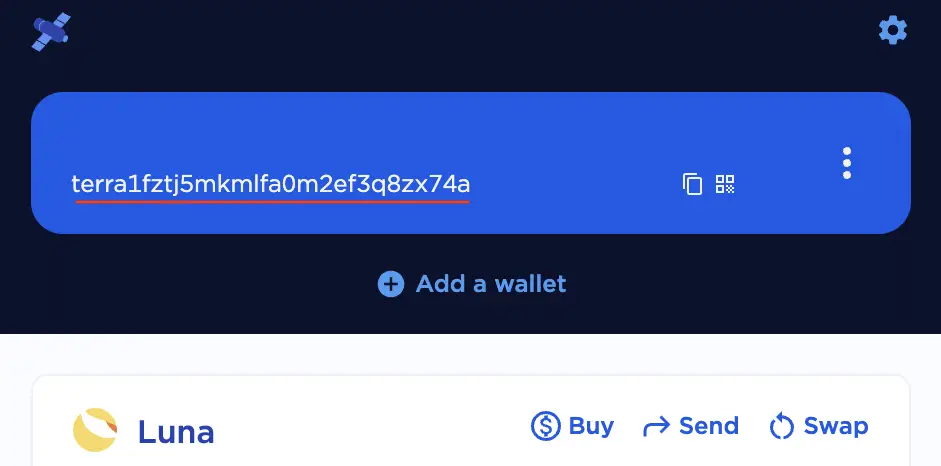
The first thing you’ll need to do is to obtain your Terra Station wallet address.
This can be done by using either the Terra Station app, or the Google Chrome extension.
On either platform, you can click to determine the deposit address. This is where you’ll be sending LUNA or UST to.
If you are finding it hard to remember all of these long deposit addresses, you may want to consider simplifying them using Unstoppable Domains.
This allows you to send crypto to a .crypto or .wallet address, which makes it much easier to transfer cryptocurrencies between platforms!
Go to ‘Wallet’ → ‘Fiat/Spot’ on Binance
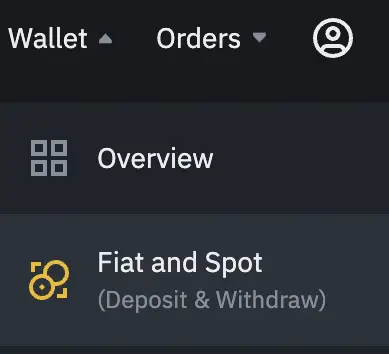
On Binance’s platform, you will need to go to ‘Wallet‘, and then ‘Fiat/Spot‘.
Select LUNA as the cryptocurrency you wish to withdraw
Once you’re there, you can search for LUNA, and then select Withdraw.
Alternatively, you can search for UST if you wish to withdraw it too.
Enter the details of the transaction
On the next page, you will need to enter the details of the transaction.
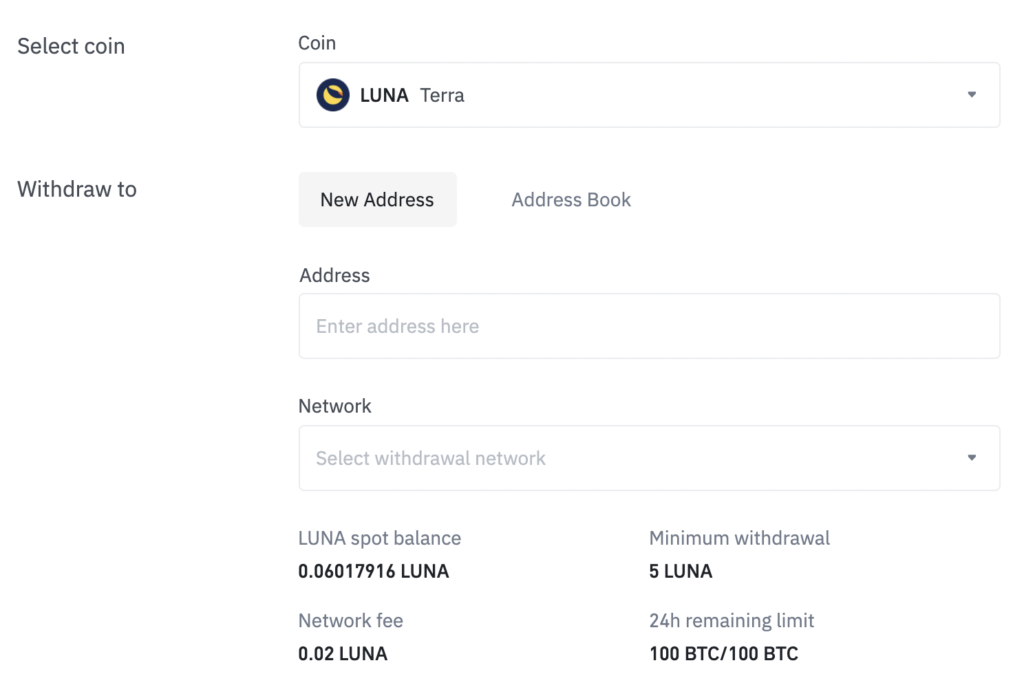
- The address you’ve obtained from Terra Station
- The network that you are using to withdraw
- The amount of LUNA you wish to transfer
Binance only allows you to send LUNA via the LUNA network.
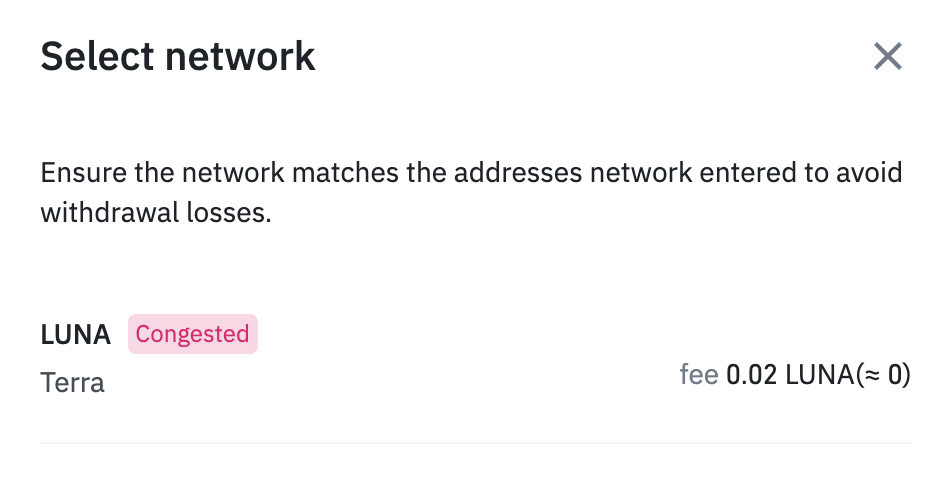
As such, this will help to reduce the chances of you making an error when sending LUNA over!
- BEP20
- ERC20
- Terra network
- Polygon network
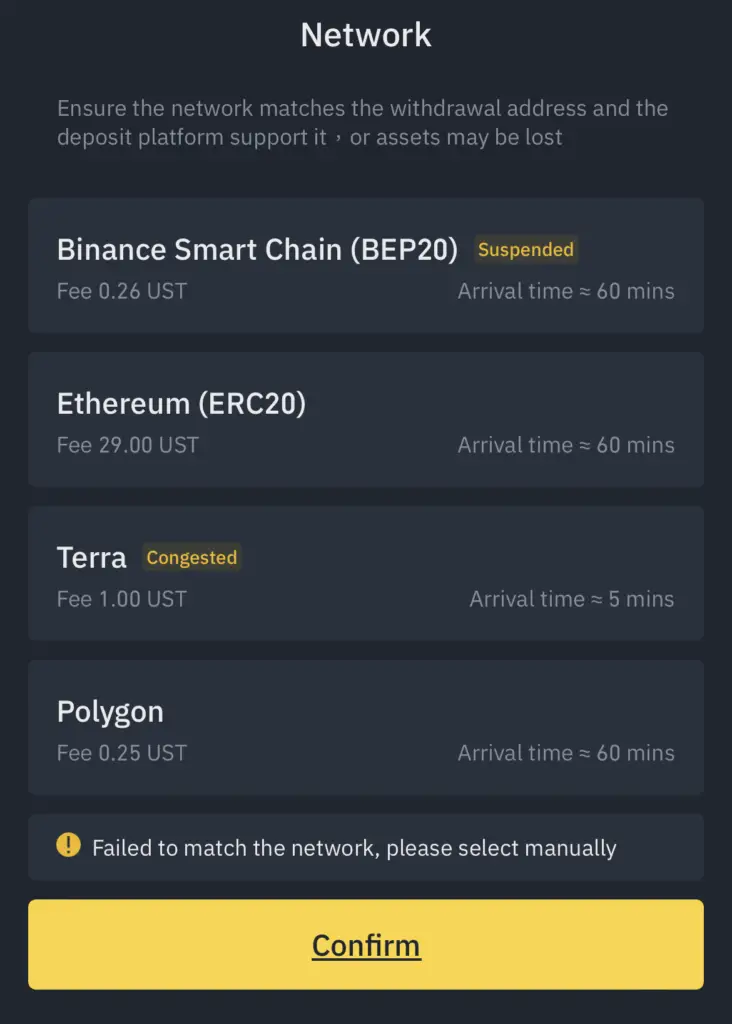
You will need to select the Terra network if you wish to withdraw from Binance to your Terra Station wallet. If you use any other network to transfer UST to Terra Station, it may be lost forever!
Receive your crypto in your Terra Station wallet
Once the withdrawal has been processed, you should receive your crypto in the Terra Station wallet.
What are the fees for transferring from Binance to Terra Station?
Binance charges 0.02 LUNA for each withdrawal that you make. This is cheaper than what KuCoin charges you (0.1 LUNA).
However, there are some platforms such as OKEx which charge a much lower fee (0.016 LUNA). You can consider withdrawing from OKEx instead as they charge lower trading fees too.
Meanwhile, you will need to spend 1 UST if you wish to withdraw UST to Terra Station via the Terra network. This is cheaper compared to either Gate.io or KuCoin, but similar to Kraken.