Support
This article provides a quick guidance on MoFi Network MOFI4500 Router setup and configuration to connect it to Swift Navigation GNSS receiver and obtain corrections from Skylark or a third party RTK correction service.

Fig 1. MOFI4500-4GXeLTEv2 Router
General Information
The MoFi Network Router MOFI4500-4GXeLTEv2 does not include internal cell modem. For the Internet access it can either operate as a WiFi client and connect to a WiFi hotspot (in the cell phone for example) or work with cell modem USB dongle plugged directly to the router.
MoFi Network (http://mofinetwork.com) manufactures also other routers with built-in cell modems but they were not tested by Swift Navigation.
At Swift we use MoFi routers with Verizon USB cell modem dongles in several test setups with very good results.
The router has four Ethernet RJ45 ports.
Hardware Setup
Recommended Piksi Multi / Duro setup is depicted in the diagram below.

Fig 2. Hardware Setup
The MOFI4500 router can be used as a Cellular Internet Gateway and connect to Piksi Multi Evaluation Board / Duro directly.
Piksi Multi Setup Example
Swift Navigation uses following setup to connect Piksi Multi to Internet.

Fig 3. Piksi Multi Setup Example
Setup description:
- GNSS antenna
- TNC-SMA GNSS antenna cable
- SMA-MMCX antenna cable adapter
- 12V Barrel Jack to cigarette lighter power cable
- 2.1mm/5.5mm Barrel Jack power cable splitter
- USB drive for on-board data recording and firmware upgrades
- Piksi Multi Evaluation Board with Piksi Multi GNSS receiver module
- MoFi Network router MOFI4500-4GXELTE
- RS-232 USB adapter for real-time control, monitoring and off-board data recording
- Verizon 4G/LTE USB dongle (Pantech UML295 or UML290)
- Ethernet cable
MOFI4500 Basic Setup
- Plug-in the activated USB cell modem dongle before power up the router.
- MOFI4500 uses 12 V DC supply. It can be powered from the same power source as Piksi Multi / Duro.
- It takes about a minute for router to boot up.
- As a factory default router is configured as WiFi hotspot and is accessible at 192.168.10.1.
- With correctly activated cell modem dongle no any changes in router configuration are required. Just power system up and wait for router to boot up. The INTERNET LED on router will lit green when router has access to the Internet.
Piksi Multi / Duro Basic Setup
- Connect to Piksi Multi / Duro over the serial interface using Swift Console and configure Ethernet with dynamically assigned IP address:


- Connect Piksi Multi / Duro Ethernet port to the MoFi router. After a couple of seconds Piksi / Duro red LED should lit solid indicating active connection to the Internet.
- Assigned IP address can be seen on Swift Console Advanced tab -> Networking sub-tab after pressing Refresh Network Status button:
- Alternatively, a static IP address in range 192.168.10.2 to 192.168.10.254 can be set on Piksi Multi / Duro.
- Once Piksi Multi / Duro has Internet access you may proceed to setup Skylark or NTRIP corrections source:
- Skylark
- NTRIP
Modified on: Mon, Mar 2, 2020 at 2:41 PM
Mofi Network MOFI4500-4GXeLTE-V2 User Manual
This page contains the user manual in PDF form for the Mofi Network MOFI4500-4GXeLTE-V2 router.
Other Mofi Network MOFI4500-4GXeLTE-V2 Guides
- Mofi Network MOFI4500-4GXeLTE-V2 1.9.8.5-std — Setup WiFi on the Mofi Network MOFI4500-4GXeLTE-V2
- Mofi Network MOFI4500-4GXeLTE-V2 1.9.8.5-std — Mofi Network MOFI4500-4GXeLTE-V2 Login Instructions
- Mofi Network MOFI4500-4GXeLTE-V2 1.9.8.5-std — Mofi Network MOFI4500-4GXeLTE-V2 Screenshots
- Mofi Network MOFI4500-4GXeLTE-V2 1.9.8.5-std — Information About the Mofi Network MOFI4500-4GXeLTE-V2 Router
- Mofi Network MOFI4500-4GXeLTE-V2 1.9.8.5-std — Reset the Mofi Network MOFI4500-4GXeLTE-V2
- Mofi Network MOFI4500-4GXeLTE-V2 2.2.3-xnet-5003 — Mofi Network MOFI4500-4GXeLTE-V2 Screenshots
- Mofi Network MOFI4500-4GXeLTE-V2 2.2.3-xnet-5003 — Information About the Mofi Network MOFI4500-4GXeLTE-V2 Router
- Mofi Network MOFI4500-4GXeLTE-V2 2.2.3-xnet-5003 — Reset the Mofi Network MOFI4500-4GXeLTE-V2
- Mofi Network MOFI4500-4GXeLTE-V2 2.2.3-xnet-5003 — Login to the Mofi Network MOFI4500-4GXeLTE-V2
Download the Mofi Network MOFI4500-4GXeLTE-V2 User Manual
The link below should start your download.
All User Manuals for Mofi Network MOFI4500-4GXeLTE-V2
Other Mofi Network MOFI4500-4GXeLTE-V2 Info
Don’t forget about our other Mofi Network MOFI4500-4GXeLTE-V2 info that you might find interesting.
- Mofi Network MOFI4500-4GXeLTE-V2 1.9.8.5-std — Setup WiFi on the Mofi Network MOFI4500-4GXeLTE-V2
- Mofi Network MOFI4500-4GXeLTE-V2 1.9.8.5-std — Mofi Network MOFI4500-4GXeLTE-V2 Login Instructions
- Mofi Network MOFI4500-4GXeLTE-V2 1.9.8.5-std — Mofi Network MOFI4500-4GXeLTE-V2 Screenshots
- Mofi Network MOFI4500-4GXeLTE-V2 1.9.8.5-std — Information About the Mofi Network MOFI4500-4GXeLTE-V2 Router
- Mofi Network MOFI4500-4GXeLTE-V2 1.9.8.5-std — Reset the Mofi Network MOFI4500-4GXeLTE-V2
- Mofi Network MOFI4500-4GXeLTE-V2 2.2.3-xnet-5003 — Mofi Network MOFI4500-4GXeLTE-V2 Screenshots
- Mofi Network MOFI4500-4GXeLTE-V2 2.2.3-xnet-5003 — Information About the Mofi Network MOFI4500-4GXeLTE-V2 Router
- Mofi Network MOFI4500-4GXeLTE-V2 2.2.3-xnet-5003 — Reset the Mofi Network MOFI4500-4GXeLTE-V2
- Mofi Network MOFI4500-4GXeLTE-V2 2.2.3-xnet-5003 — Login to the Mofi Network MOFI4500-4GXeLTE-V2
Information About the Mofi Network MOFI4500-4GXeLTE-V2 Router
Here is a list of all the guides that we have for the Mofi Network MOFI4500-4GXeLTE-V2. If you need to login to your Mofi Network MOFI4500-4GXeLTE-V2 router, you can follow our Mofi Network MOFI4500-4GXeLTE-V2 Login Guide.
We have a lot more Mofi Network MOFI4500-4GXeLTE-V2 guides listed below.
Guides for the Mofi Network MOFI4500-4GXeLTE-V2 Router
Below is a list of guides that we have for the Mofi Network MOFI4500-4GXeLTE-V2 router.
- Mofi Network MOFI4500-4GXeLTE-V2 1.9.8.5-std — Setup WiFi on the Mofi Network MOFI4500-4GXeLTE-V2
- Mofi Network MOFI4500-4GXeLTE-V2 1.9.8.5-std — Mofi Network MOFI4500-4GXeLTE-V2 User Manual
- Mofi Network MOFI4500-4GXeLTE-V2 1.9.8.5-std — Mofi Network MOFI4500-4GXeLTE-V2 Login Instructions
- Mofi Network MOFI4500-4GXeLTE-V2 1.9.8.5-std — Mofi Network MOFI4500-4GXeLTE-V2 Screenshots
- Mofi Network MOFI4500-4GXeLTE-V2 1.9.8.5-std — Information About the Mofi Network MOFI4500-4GXeLTE-V2 Router
- Mofi Network MOFI4500-4GXeLTE-V2 1.9.8.5-std — Reset the Mofi Network MOFI4500-4GXeLTE-V2
- Mofi Network MOFI4500-4GXeLTE-V2 2.2.3-xnet-5003 — Mofi Network MOFI4500-4GXeLTE-V2 Screenshots
- Mofi Network MOFI4500-4GXeLTE-V2 2.2.3-xnet-5003 — Reset the Mofi Network MOFI4500-4GXeLTE-V2
- Mofi Network MOFI4500-4GXeLTE-V2 2.2.3-xnet-5003 — Login to the Mofi Network MOFI4500-4GXeLTE-V2
Help Us Out
Do you see something missing? Broken Link? Help us out by sending us a message and letting us know about the problem.
MOFI Router Setup – Step-By-Step Guide
One of the most significant reasons behind using MOFI broadband routers is their support for 3G, 4G, DSL, satellite, and LTE wireless networks. Hence, you can insert the SIM card into the router to establish a secure Wifi connection other than the conventional satellite and DSL connection.
Read the following guide to learn how to set up a MOFI network router without professional assistance.
Table of Contents
Is MOFI 4500 a Router and a Modem?
The MOFI4500 4GXELTE network is a multi-functional router that supports 3G, 4G, and LTE mobile wireless to offer a stable and high-speed connection. Also, the users can enjoy the data transfer rate of up to 300 Mbps thanks to the IEEE 802.11 b/g/11 wireless standards.
To ensure better coverage and throughput, the device has two transmitters and two receivers 5dBi detachable antennas featuring multiple-input multiple-output (MIMO) technology.
Finally, the auto fail-over feature ensures a consistent Internet connection by supporting the cellular and DSL connection. For instance, if the DSL connection fails, the cellular connection takes over and reverts once the DSL connection restores.
The MOFI4500 4GXELTE comes with an RJ 45 network cable, power adapter, Wi-Fi, cellular antenna, and a start guide.
How to Setup a MOFI Network Router?
Before discussing the setup, let’s understand what the lights on the MOFI network router represent:
- Power/Boot status – Blinks when the MOFI network router starts and turns solid.
- Internet – The LED turns on when Internet access or it remains off.
- Wifi – The blinking light indicates wireless traffic, while fast blinking means the device is in recovery mode. If the wireless is disabled, the Wifi LED remains off.
- WAN – The light remains off if there isn’t any modem connection and ON if the device is connected to a DSL, cable, or satellite.
- Ethernet – The LED turns on to indicate an active Ethernet device and off when no device is connected via a wire. If the light blinks, the connected wired device is receiving or transmitting data.
Now, you need the following information to begin the MOFI network router setup:
- The IP address of the MOFI network router
- Default username and password
The good news is you can find the information in the manual. Usually, the default gateway IP address is 192.168.1.1, the default username is the root, and the default password is admin. Similarly, the default subnet mask is 255.255.255.0, and the default DNS server is 192.168.1.1.
MOFI Web Configuration Using Wifi Password
Next, proceed to the following steps after connecting the MOFI network router to a computer using an Ethernet cable or wireless connection:
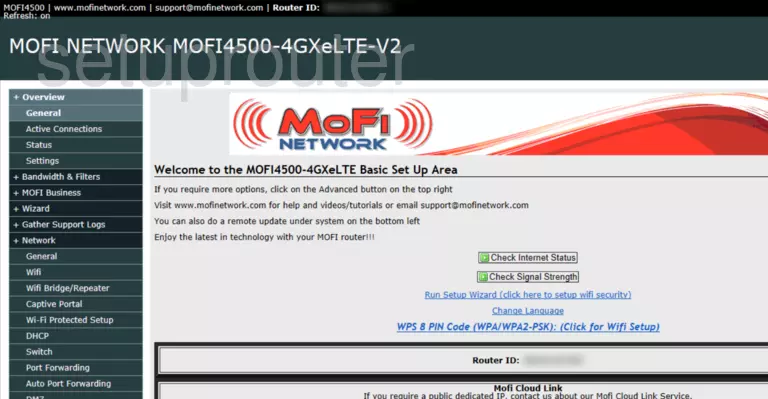
- First, open your web browser and type the default IP address, 192.168.1.1, in the address bar to open the wireless router login page.
- Next, you must enter the default login credentials on the web page to proceed to the router management portal.
- You’ll see several Wifi settings on the left sidebar, such as Network, General WPS, DHCP, etc.
- Next, choose the “Network” option and click on the “Wifi” option.
- You can configure the wireless connection on the Wifi setting page, such as username, password, Network name, Wifi channel, network mode, bandwidth, and other settings.
- To ensure the best encryption and Wifi security, you should select “Force AES” against “Encryption Type (Cipher).”
- Select ” WPA-PSK ” from the “Encryption” drop-down to secure your Wifi network. Also, you need to set the wireless passkey between six to 63 characters.
- It would be best if you didn’t change the “Wifi Channel” usually. However, you can use channels 1, 6, or 11 if some channels are more congested.
- Finally, press the “Save” button to confirm your settings. You can now try to connect different devices to the wireless MOFI network.
Why Is MOFI Network Not Connecting to the Internet?
If the MOFI network router is non-responsive or dropping Wifi connections, you can reset it to resolve the issue:
- In a 30-30-30 reset, you must long-press the reset button for 30 seconds using a paper clip when the router is powered on.
- Next, unplug the MOFI network router from the power source while pressing and holding the reset button for 30 seconds.
- Finally, you can turn the router while still long-pressing the reset button for 30 seconds.
- It takes 90 seconds, during which you first power off the router, then off, and finally switch it on again while you keep on holding the reset button.
- The above process restores the factory default settings meaning you need to configure the MOFI network router again.
Also, you can try the following troubleshooting methods to connect the MOFI network router to the Internet:
- Open the MOFI network router portal on the computer and click the “Check Signal Strength” button to check the signal strength and quality. For instance, the -90 signal strength is better than -100, while the signal quality of -7 is undoubtedly higher than -17.
- You can update the router’s firmware by selecting the option “Remote Update” from the “System” option on the left menu.
Conclusion
The key takeaway of the above guide is to assist you in setting the correct wireless settings to create a secure and encrypted Wifi network within your home. Also, the MOFI network router web portal allows you to customize the Wifi settings whenever you want.
Categories Setup
Suhail M
Suhail is a Jack Of All Trades, a Master Of Networks. He is a Network Engineer and specializes in solving complex network issues.