Установка драйверов через AMD Radeon Software Adrenalin Edition
Какими бы техническими характеристиками и мощностью не обладала видеокарта, установленная в ПК или ноутбук, ее работоспособность и демонстрируемые показатели производительности напрямую зависят от одних из важнейших программных компонентов любой системы – драйверов. Для графических адаптеров производства Advanced Micro Devices Inc самым правильным и действенным методом решить все вопросы с драйверами является использование AMD Radeon Software Crimson.
Скачиваем и обновляем драйвера AMD через Radeon Software Adrenalin Edition
Собственно, именно поддержание драйверов видеоадаптеров в актуальном состоянии является первостепенной задачей, возлагаемой на программный комплекс AMD Radeon Software Adrenalin Edition разработчиками.
Radeon Software Adrenalin Edition — название программного обеспечения, которое пришло на замену Radeon Software Crimson. Это одно и то же приложение, но разного поколения. Драйвер Crimson больше неактуален!
Автоматическая установка
Самым простым и правильным способом получить свежий драйвер для видеокарты AMD является установка в систему фирменного программного обеспечения производителя. AMD Radeon Software Adrenalin Edition содержит в своем составе необходимые компоненты последней на момент загрузки с официального сайта версии, поэтому для того, чтобы актуальный драйвер графического адаптера был установлен, достаточно выполнить несколько простых шагов.
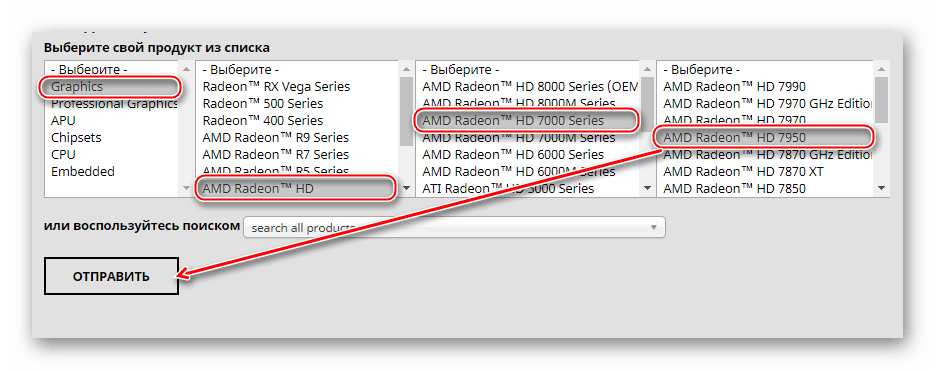
- Загружаем с сайта технической поддержки Advanced Micro Devices инсталлятор Radeon Software Adrenalin Edition, выбрав в раскрывающихся списках тип и модельную линейку графического процессора, на базе которого построена видеокарта.
 Найдите вашу версию и разрядность операционной системы и разверните вкладку на плюсик. В списке предлагаемого программного обеспечения найдите ПО Radeon Software нажмите «Скачать». В некоторых случаях таких файлов 2 — отталкивайтесь от номера ревизии приложения и дату выхода. Более новый драйвер может работать нестабильно на некоторых ПК, по этой причине сервис предлагает предыдущую версию, до которой можно откатиться при возникновении проблем.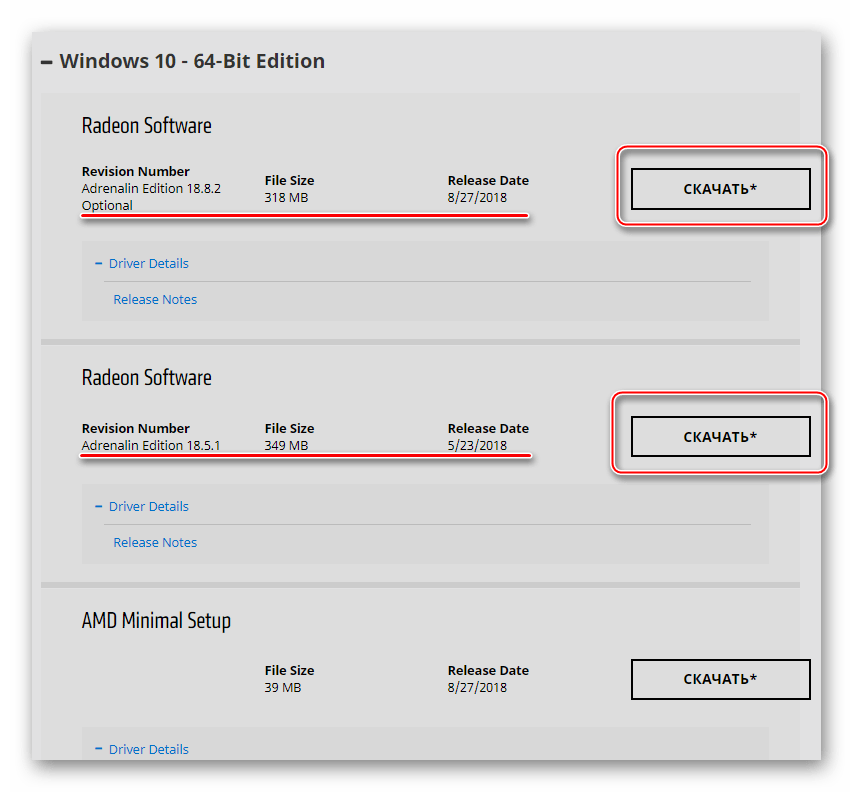
- Запускаем инсталлятор. Сразу же начнется автоматическое сканирование аппаратных компонентов системы на предмет наличия видеокарты на базе графического процессора AMD.
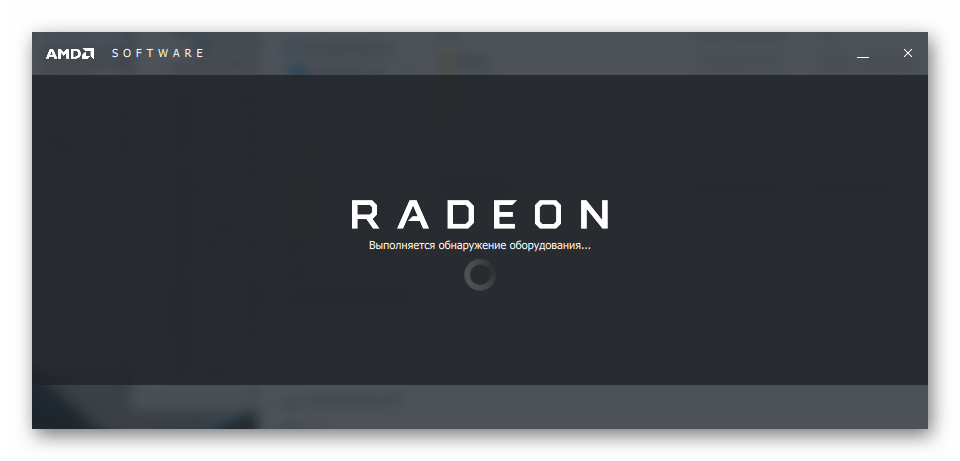
- После определения видеокарты, в случае отсутствия нужных для нормальной работы компонентов
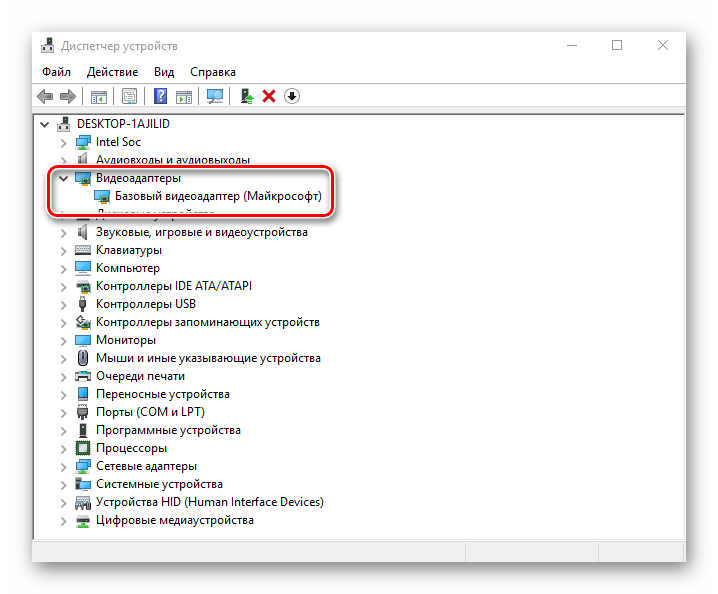 либо возможности их обновления, будет выведено соответствующее сообщение.
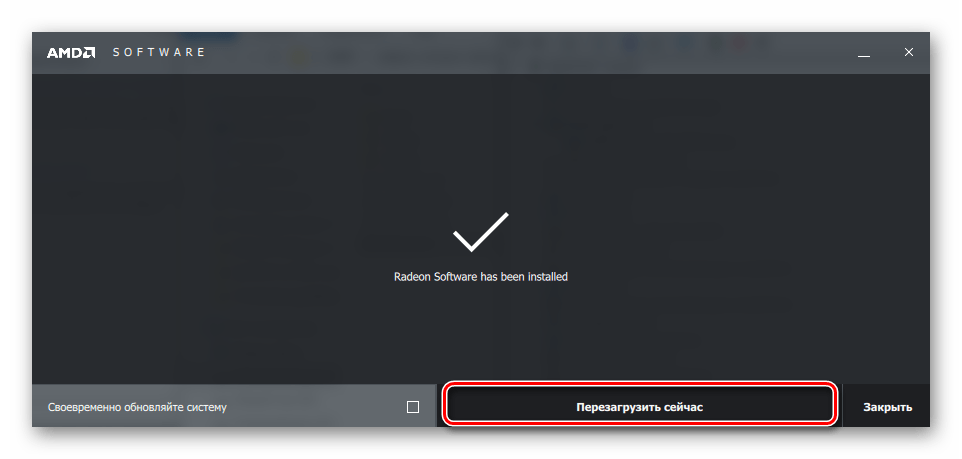
- Нажимаем кнопку «Экспресс-установка» и наблюдаем за процессом инсталляции всех необходимых компонентов.

В процессе инсталляции Radeon Software Adrenalin Edition экран может несколько раз погаснуть. Не следует волноваться – таким образом происходит инициализация графического адаптера с новым драйвером.
Обновление драйверов
С течением времени любое ПО устаревает и требует актуализации. С помощью AMD Radeon Software Crimson обновление компонентов системы, необходимых для должного функционирования графического адаптера, осуществляется очень просто, ведь разработчики предусмотрели все возможности.
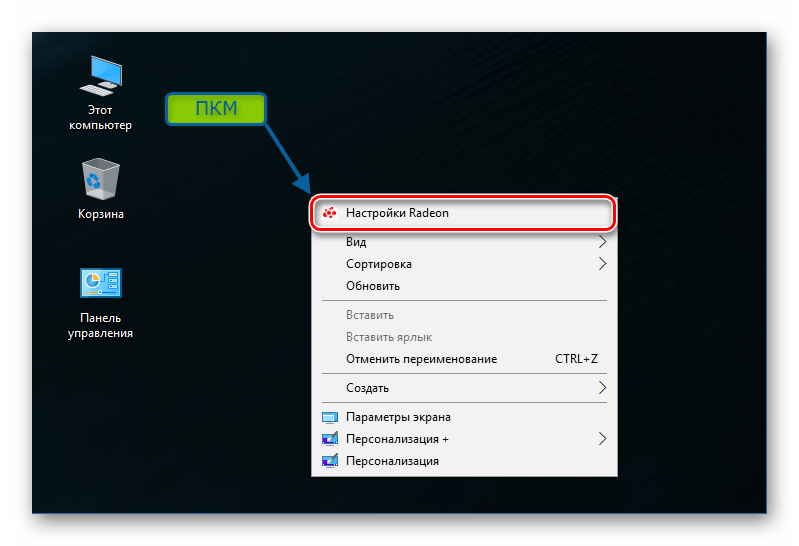
- Открываем «Radeon Settings», например, кликнув правой кнопкой мышки на рабочем столе и выбрав в выпавшем меню соответствующий пункт.
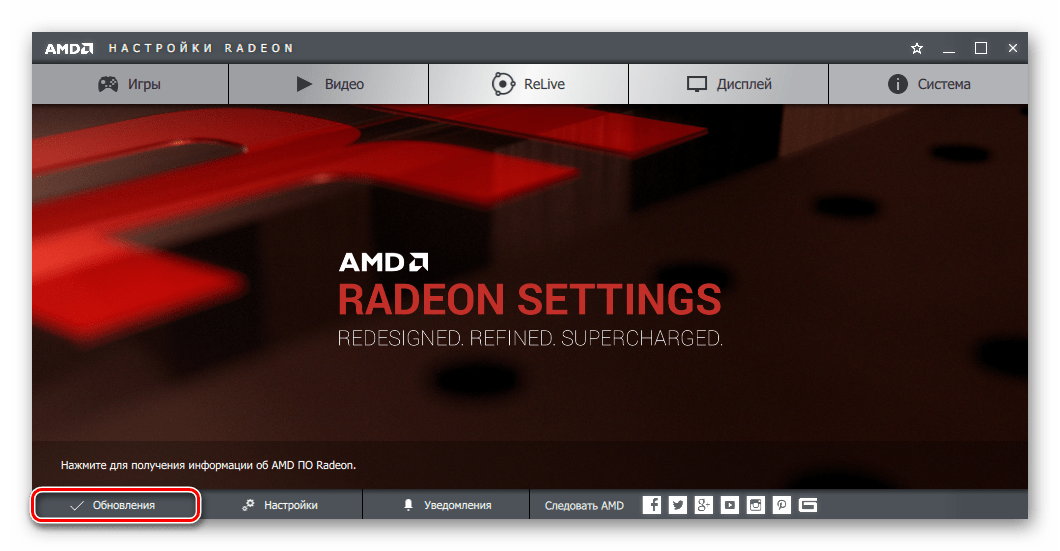
- Нажимаем «Обновления» в открывшемся окне.
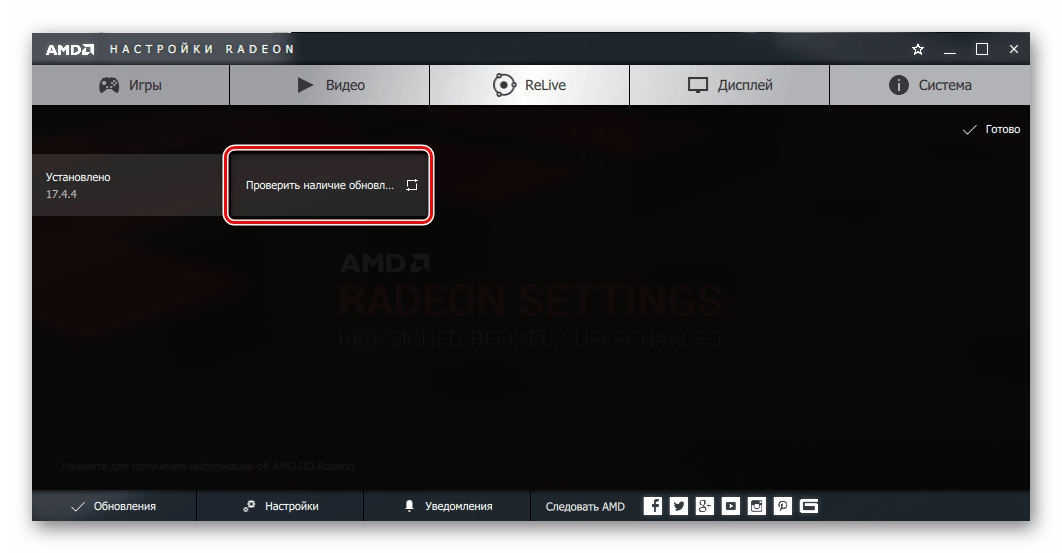
- Выбираем пункт «Проверить наличие обновлений».
- В случае наличия более актуальной версии драйвера, чем та, которая установлена в системе, окно «Обновления» изменит свой вид. Появится ранее отсутствующий пункт «Создать Optional», содержащий сведения о номере новой версии, а также уведомление в нижней части окна о необходимости актуализировать компоненты.
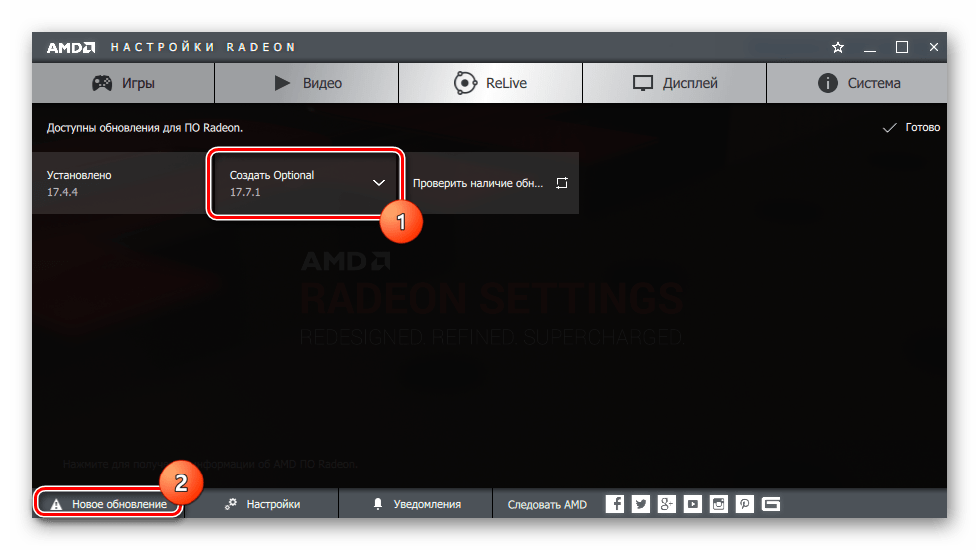
- Нажимаем «Создать Optional», а затем в раскрывшемся меню выбираем «Быстрое обновление».

- Подтверждаем готовность к началу инсталляции новой версии драйвера видеоадаптера при появлении соответствующего запроса, нажав «Продолжить».

- Дальнейший процесс обновления драйвера осуществляется автоматически. Остается лишь наблюдать за заполняющимся индикатором выполнения процедуры.
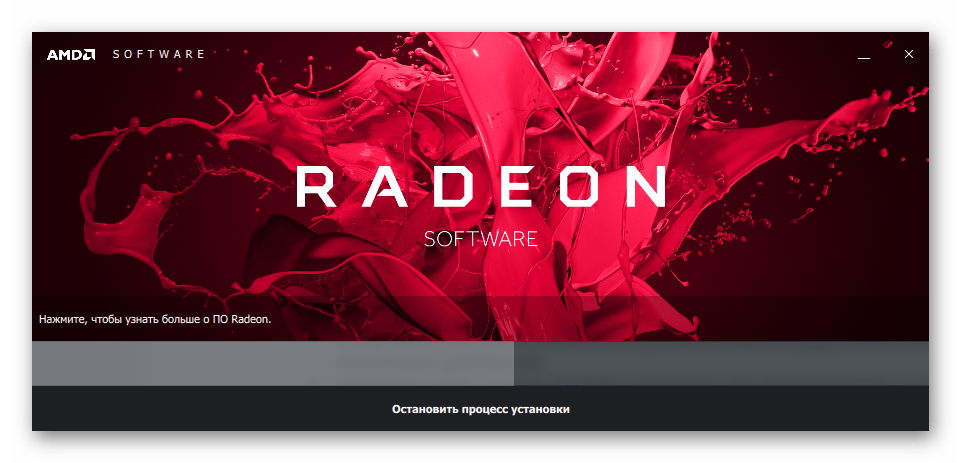
- По завершении работы приложения необходимо перезагрузить систему. Нажимаем «Перезагрузить сейчас».
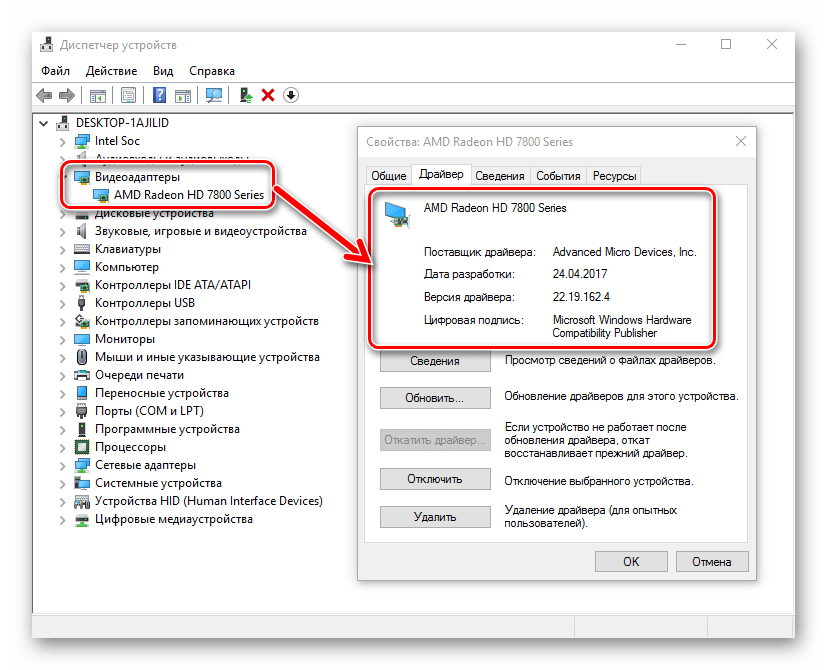
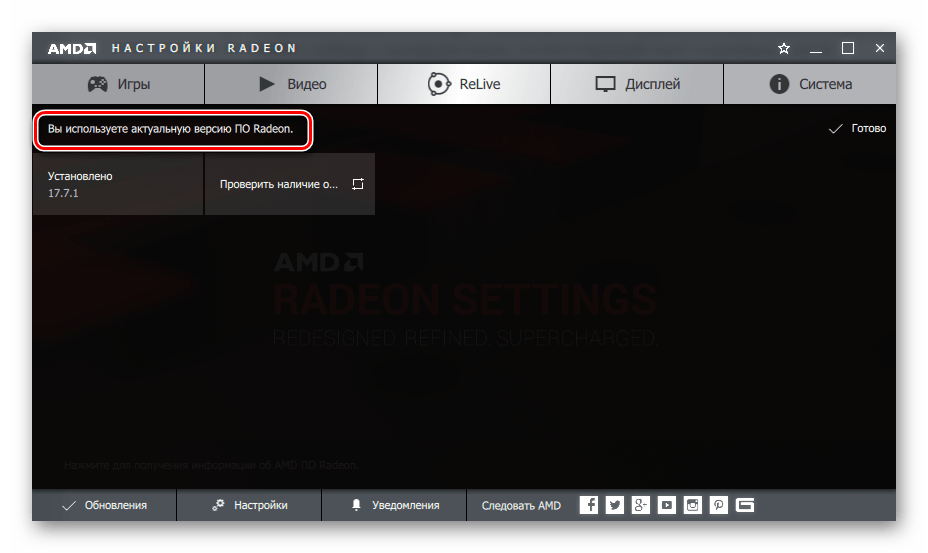
- После перезагрузки можно запустить «Radeon Settings» вновь и проверить, что процедура прошла успешно, все компоненты обновлены до актуальной версии.
Переустановка драйвера AMD, «откат» версии
Если возникает необходимость переустановить драйвера видеокарты AMD с удалением всех ранее установленных компонентов и очисткой системы от данных, накопившихся в процессе работы Radeon Software Adrenalin Edition, понадобится инсталлятор приложения. Кроме того, выполнив нижеописанные шаги, можно вернуться к предыдущей версии драйвера, если обновленная работает некорректно. Удалять уже установленное ПО и драйвер перед переустановкой не нужно! Инсталлятор сделает это автоматически.
- Запускаем программу установки Radeon Software Adrenalin Edition.
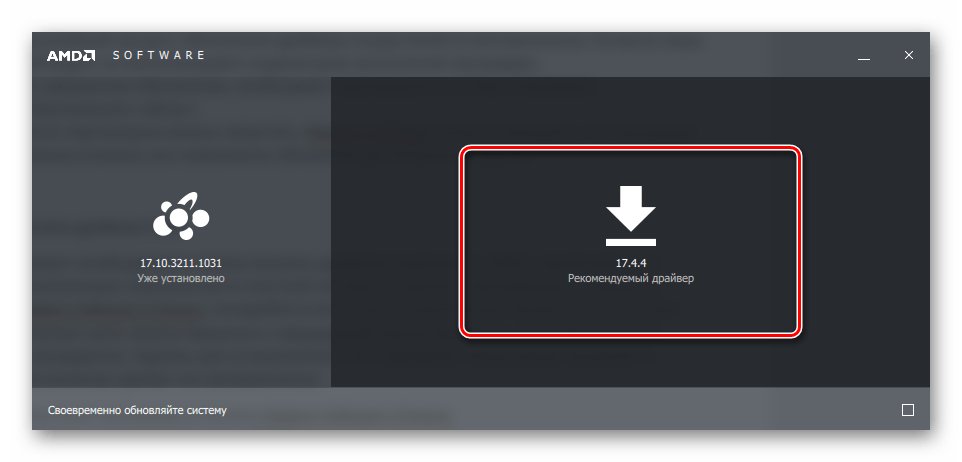
- Кликаем в открывшемся окне область «Рекомендуемый драйвер». (Обратите внимание, на скриншоте версия рекомендуемого компонента системы НИЖЕ установленной).
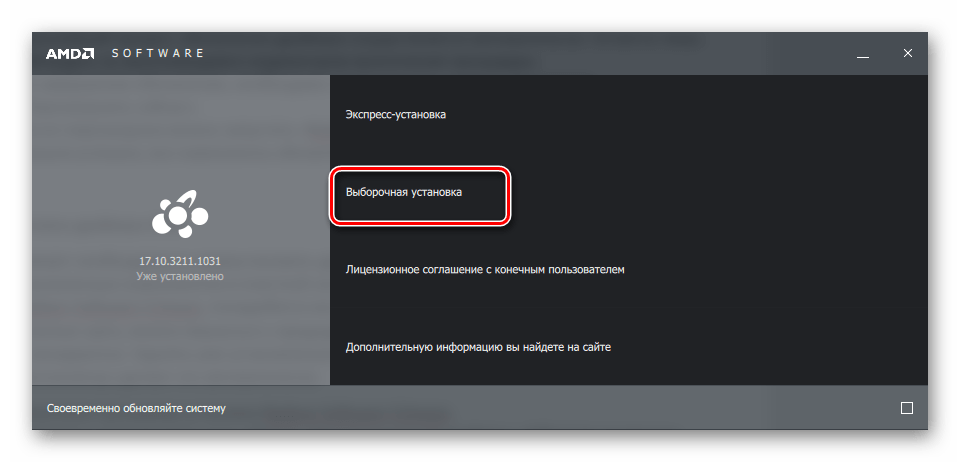
- В следующем окне кликаем «Выборочная установка».
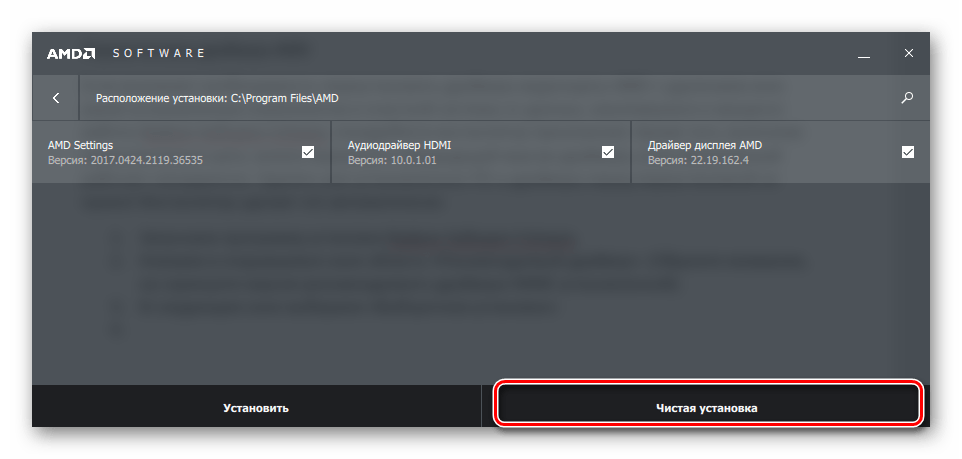
- Выбираем «Чистая установка».
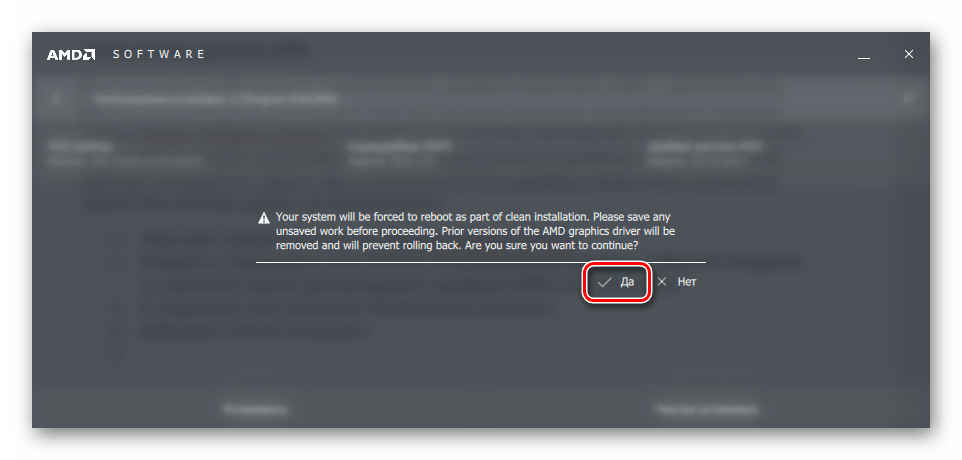
- В процессе переустановки программного обеспечения компьютер будет автоматически перезагружен, что может привести к потере несохраненных данных пользователя. Перед началом процедуры об этом выводится соответствующее предупреждение. Закрываем открытые приложения и сохраняем информацию, затем нажимаем кнопку «Да» в окне инсталлятора.
- Начнется удаление установленных компонентов, включая драйвера,
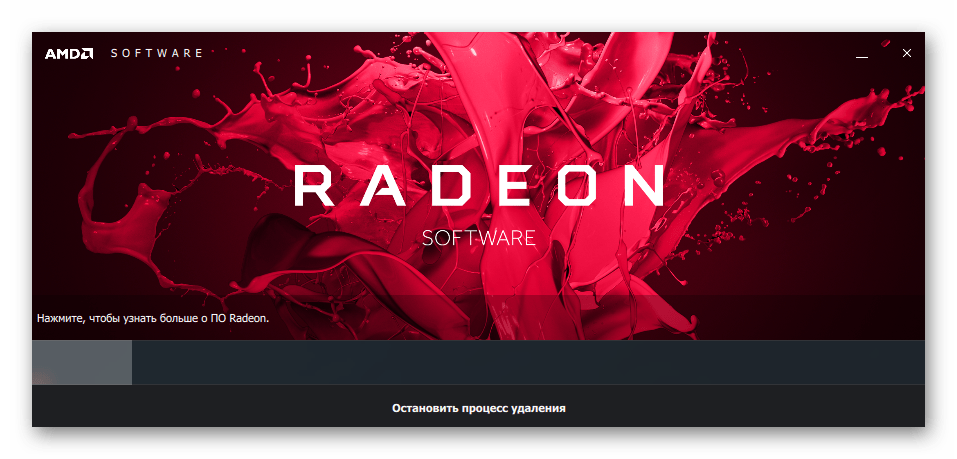 затем перезагрузка,
 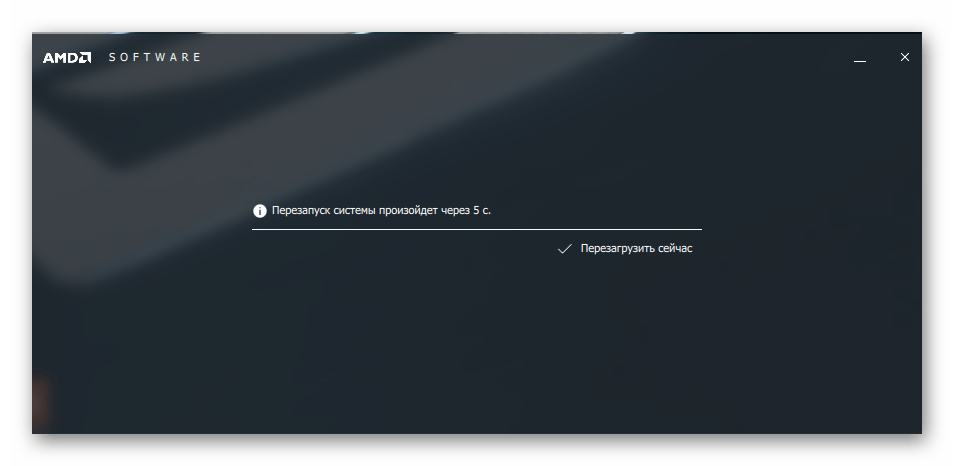 и установка программного обеспечения заново. Все в автоматическом режиме.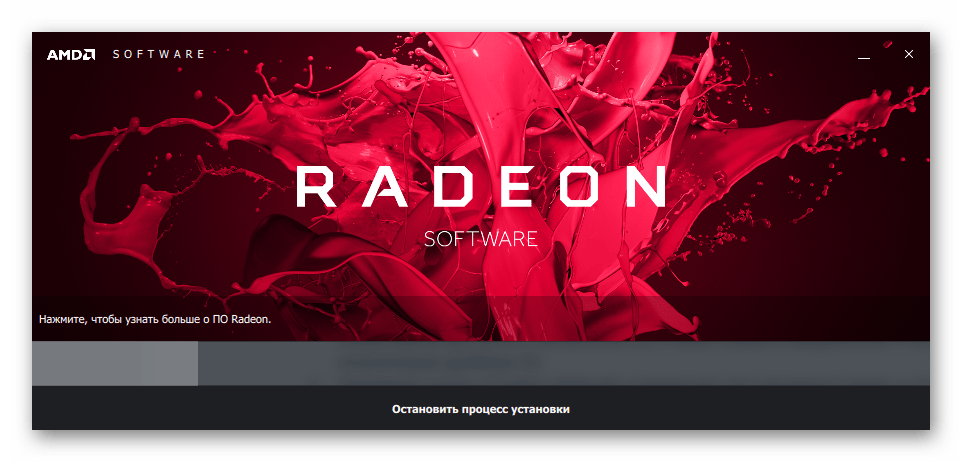
- По завершении переустановки Radeon Software Adrenalin Edition предлагает осуществить еще одну перезагрузку ПК.
- В итоге получаем установленные начисто компоненты и более раннюю версию драйвера, если для процедуры была выбрана одна из предыдущих версий инсталлятора.
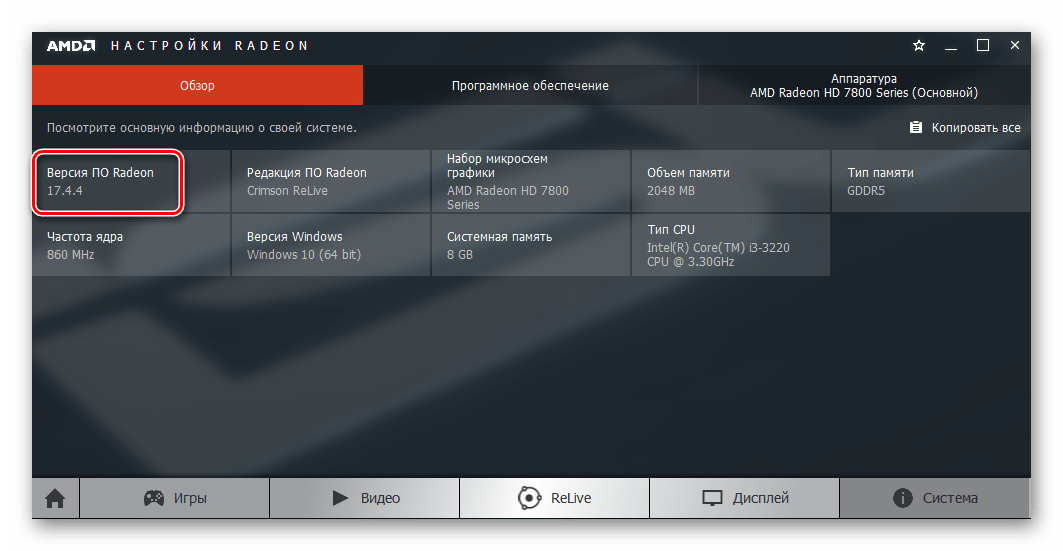
Таким образом можно констатировать, что все вопросы с драйверами современных видеокарт AMD достаточно легко решаются с помощью фирменного программного обеспечения производителя. Процессы установки, обновления и переустановки драйверов графических адаптеров Advanced Micro Devices практически полностью автоматизированы, что дает пользователю возможность не тратить время и силы на поиск нужного решения.
How To Install Or Update AMD Drivers
Installing the latest drivers for your GPU and always keeping them updated is very important to get the best out of your gaming experience.
By Aleksandar Cosic
This article has been written by a vetted expert and fact-checked by other experts. The author has been certified as an expert in this topic. Learn more on our about page.
November 6, 2023

Getting a new Radeon graphics card and installing it into your PC isn’t all you need to do. You also need to know how to install and update your AMD driver.
Driver installation is essential, and you have a couple of options.
Windows 10 will automatically search for drivers when you first install the card.
Unfortunately, this option is far from perfect, but AMD has excellent driver support, which is one reason they have remained a leader in graphics card technology for so long.
There are two relatively simple ways to download and install your new AMD drivers.
- Radeon Software – This is probably the simplest way to install your Radeon drivers. Most modern AMD graphics cards come with this software out of the box, and you usually won’t even have to do anything extra as updating is automatically taken care of. However, some caveats are involved with this, which we will take a closer look at below.
- Manually Installing The Drivers – This is a more traditional way to install your updates. There’s nothing wrong with doing this, but it’s preferred by users who like to have everything that happens inside their PC under their control. We’re looking at you, Linux users.
Table of Contents Show
Getting New Drivers Via Radeon Software

Before installing Radeon Software, your first step is to uninstall the old drivers on your PC. This applies if you’re upgrading an AMD card or if you’re switching from NVIDIA to AMD. This is as simple as uninstalling any other program from your computer.
Step 0 – Uninstalling The Previous Drivers
To uninstall your previous drivers, go to the Control Panel, then Add or Remove Programs.
From here, find the AMD Software and click uninstall. The process is pretty standard and will be the same for any other application. It’s important to note that your screen might blink or turn black for a few seconds during the uninstallation. There’s no need to panic as this is normal when making changes to your graphics drivers.

Before the process can be completed, a system restart is necessary, so be sure to save and exit any programs you have been working on.
If you previously had an NVIDIA GPU, you should look for NVIDIA Control Panel and uninstall it. This will delete all the additional software that came with the driver.

It’s possible that there will be some “leftovers” in the system’s registry and that you might need a deeper uninstallation process.
For this, we recommend that you use Display Driver Uninstaller. However, to use this program, you will need to enter Safe Mode. Here’s what to do:
Download the file and extract the folder before you head over to Safe Mode.
To enter Safe Mode, hold down shift and click on the Restart button in the taskbar. This will take you to the Windows Troubleshooting screen. From there, open Advanced options, Start-up Settings, and then restart.
Once your computer restarts, you will see multiple boot options. Select Safe Mode with the number 4 on your keyboard.
Once your computer boots up, go to your downloaded folder where you extracted DDU. Start the application, select AMD or NVIDIA graphics driver on the right and then press Clean and restart.

Be patient, as the process can take a while. After a few minutes, your computer will automatically restart using a normal boot.
Step 1 – Preparing For The Installation Of The New Driver
The first thing you need to do is download the actual software from AMD’s website. Once you are on their official download page, you will be presented with two choices: downloading the AMD Driver Auto-Detect Tool or downloading the exact drivers for your graphics card.
Before starting the installation process, it’s important to close all running applications, including your firewall and anti-virus. Don’t worry, AMD won’t damage your machine, and you will be perfectly safe. Closing all applications is necessary because the installation wizard can access any files that those running processes might have been using.
Step 2 – The Installation
Once the installation process begins, you will be prompted by a standard End User Licence Agreement. You will need to accept it and move forward. However, there are two different options for accepting.
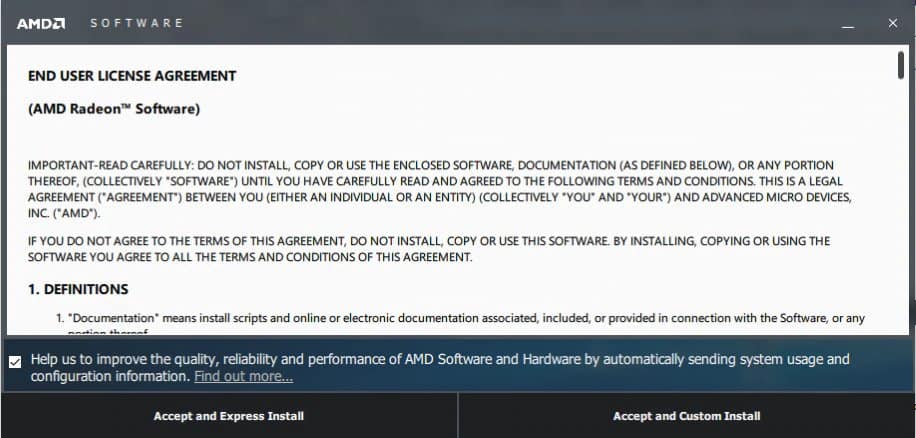
You will either need to use the Express Install or Custom Install.
Before choosing either option, be aware that your screen might flicker or turn black for a few seconds during the installation. Again, this is nothing to worry about.
The Express Install
The Express Install is exactly what it sounds like. It is designed to require minimal user interaction while still performing its task. It will install all driver components and core software to the default location: C:Program FilesAMD
Once the installation process is completed, you will be prompted to restart your computer or close the installer. If a restart isn’t necessary, you will only be given the option to exit to your desktop.
The Custom Install
The Special Installation is slightly more complex, but that is the cost you bear for personalization.
You will first see a screen with two options. If you already uninstalled the previous driver version, the left side of the window will simply show that there are no drivers installed, and you can proceed with your custom installation.

However, if you haven’t already removed your previous drivers, Radeon Software will offer to do it for you. There are two additional options here, Express Uninstall and Custom Uninstall. The first option will automatically find all components associated with Radeon Software and remove them, while the latter will allow you to delete only certain components or all of them.
There is also a third option on the same screen: Search for Heritage Drivers. This will redirect you to AMD’s download page, where you can look for any previous drivers that you might need.
It’s important to note that after you choose and execute one of these three options, you will need to rerun the application to begin the installation itself.
When you open it again, there should now be no previous drivers found. You can proceed to the custom installation of your new drivers.
On this screen, you will be given options of which components you wish to install. Simply check or uncheck whatever you want, and you can proceed.
Before proceeding, it’s recommended that you choose the default installation location (C:Program FilesAMD).
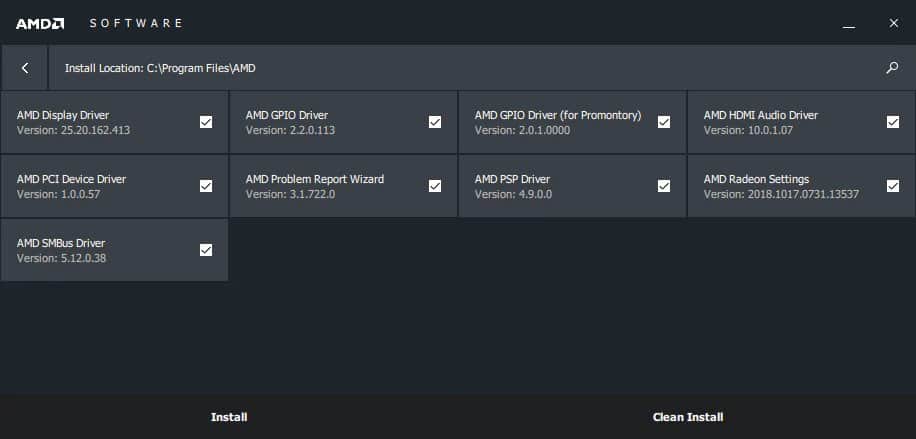
You will also have two additional options: Install and Clean Install. The latter will attempt to remove any remnants of the previously installed drivers before installing new ones.
If you’ve followed this guide so far, the previous driver files are probably already deleted, and you won’t see this option. If that’s the case, click Install and wait for the installer to finish.
Once this is done, you will be offered the option of installing Radeon ReLive if your system is eligible. ReLive is essentially a screen capture software by AMD, which also allows you to stream. While there are better options, it’s still a relatively useful tool and comes free with your graphics card, so it’s worth a try.
Again, if a reboot is necessary, you will be offered that option alongside the option to close the installer. If there’s no need for a reboot, the only option offered will be to close the installer. You have now successfully installed new drivers for your graphics card.
Manually Installing The Drivers
To do this, you will need to repeat the process in the previous section by going to the Control Panel and then Add or Remove Programs. Here, you will find the AMD Software and click uninstall.
As before, you should use Display Driver Uninstaller to ensure any files are gone from your PC if they are related to your previous drivers.
After you have done this, you can go to AMD’s website and select the driver for your specific GPU. This menu is easy to navigate and shouldn’t present any issues. After you choose your graphics card, you will see options for each available operating system on which the drivers can be installed. Choose your OS and click ”Download”.

After the executable is downloaded, start it and click ”Install”. Once the process is finished, you are all set to game to your heart’s content.
How To Reinstall AMD Drivers
It’s necessary to address this aspect of driver installation as there are some driver-related issues that can hinder your gaming experience and can only be solved by reinstalling your drivers.
For the most part, the process is the same as installing a new driver, except you’ll be reinstalling the same driver.
Before starting the installation process, you can remove the driver, as we explained in the previous section. If you don’t, you will again be given this option when starting the Custom Install, but not if you choose the Express Install path.
If your problem is more deeply rooted, you can try the Display Driver Uninstaller. This is a relatively simple and straightforward program, but it’s still best to use it while in Safe Mode.
After completing the uninstallation of your drivers, it’s time to reinstall them. The process here is relatively simple. We have described each method in the previous sections, so simply follow those instructions, and you will be all set.
AMD Drivers (How to Update, Download, Uninstall, Roll Back)
Making AMD Radeon drivers up to date can prevent some graphics card issues and glitches and keep your computer graphics card run smoothly. This tutorial from MiniTool Software provides some instructions for how to download or update AMD drivers, how to uninstall or roll back AMD drivers.
How to Update AMD Drivers
If you are looking for new features and gaming performance improvements with your AMD Radeon graphics, you can update your AMD drivers on Windows 10. Updating the drivers also helps solve some driver issues.
Way 1. You can use Windows Device Manager to update AMD graphics drivers automatically. Check how to do it below.
- Press Windows + X and select Device Manager to open Device Manager on Windows 10.
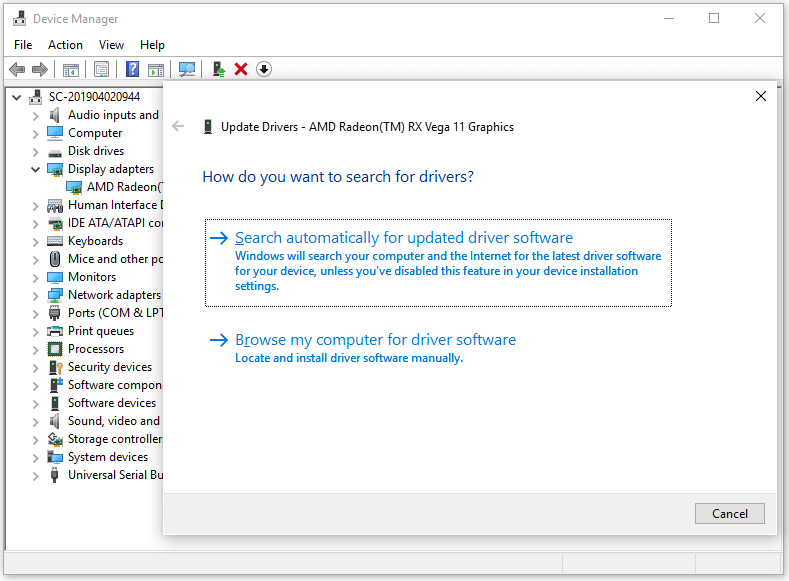
- Expand Display adapters category in Device Manager. Here, you can see what kind of graphics you are using on your desktop or laptop.
- Right-click your AMD Radeon graphics card and select Update driver.
- Choose “Search automatically for updated driver software” option. Windows will start automatically checking, downloading, and installing the newer AMD graphics driver for your Windows 10 computer.
AMD Radeon Software Download/Update/Uninstall on Windows 10/11
This post explains: what is AMD Radeon Software, how to download, install, update, or uninstall Radeon Software on Windows 10/11 computer.
Way 2. Perform a Windows update. To install the available latest Windows updates may also update your AMD Radeon, graphics, chipset, GPU drivers. You can click Start, type check for updates, and click Check for updates system settings to open Windows Update screen. Click Check for updates button to automatically look for newer updates.
Tip: Some free driver updater software might also help with auto AMD drivers update.
DirectX 12 (Ultimate) Download for Windows 10/11 PC
Check how to download DirectX 12 (Ultimate) for Windows 10 or Windows 11 PC for better gaming experience. Also learn what is DirectX 12 (Ultimate) in this post.
How to Download AMD Drivers
Way 1. Download from AMD Drivers and Support website
- Open your browser and go to https://www.amd.com/en/support.
- Click the drop-down icon to search for your product. Alternatively, you can select your product from the list. Select your AMD product and select the driver model. Click Submit button to download the AMD driver to your PC.
- When it completes downloading, you can click the installer file and follow the instructions to install the AMD driver on Windows 10.
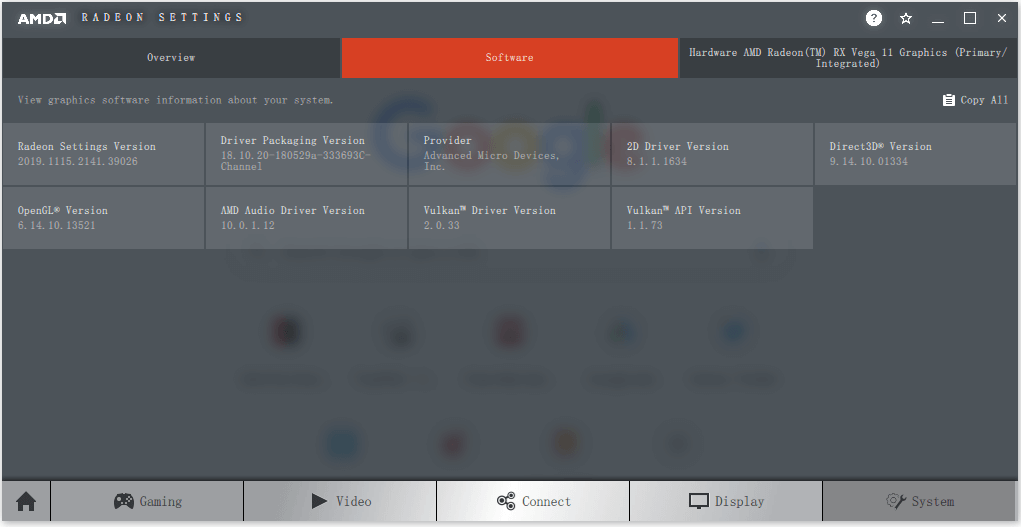
Tip: If you don’t know your AMD driver version, you can right-click Radeon Settings icon at the system tray and select Open Radeon Settings. Click System tab and click Software tab to check the detailed information about the installed AMD graphics driver. In this window, you can also see the versions of other installed AMD software components like AMD chipset drivers, etc.
Way 2. Use AMD Driver Auto-Detect Tool
AMD provides an AMD Driver Auto-detect Tool that can help automatically detect AMD Radeon graphics drivers, AMD Ryzen chipset drivers, etc. It can detect and display the latest compatible drivers available for the installed AMD products.
You can go to AMD Drivers and Support page and click Download Now button under Auto-Detect and Install Updates for Radeon Graphics and Ryzen Chipset Drivers for Windows to download AMD Driver Auto-detect Tool on your PC.
How to Open and Run dxdiag.exe on Windows 10/11
Dxdiag is a tool used to gather info and problems about Windows computer system, display, sound, video, etc. Check how to open/run dxdiag.exe on Windows 10/11.
How to Uninstall AMD Drivers
To uninstall AMD drivers, you can also go to Windows Device Manager, right-click your AMD graphics card and select Uninstall device to delete the AMD graphics driver.
If you want to reinstall it, you can restart your computer and Windows will automatically reinstall the missing AMD driver.
Alternatively, you can also go to Device Manager, click Action -> Scan for hardware changes to automatically detect and install the missing driver.
Windows 11 Release Date: The Official Release Date Is Oct. 5
What’s the Windows 11 release date? Microsoft revealed the first Insider Preview of Windows 11 on June 24, 2021. The official release date is October 5, 2021.
How to Roll Back AMD Drivers
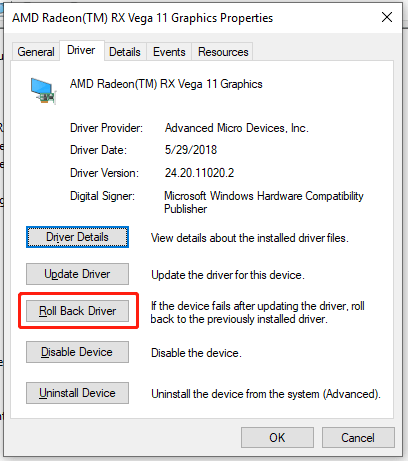
If the device fails after updating the driver and you want to roll back your AMD graphics driver to an old version, you can open Device Manager, right-click your AMD Radeon graphics and select Properties. Click Driver tab and click Roll Back Driver to roll back to the previously installed driver.
Some Free Software for Windows 10 Computer
MiniTool Software, a top software developer, provides users many useful computer software. You can find MiniTool Power Data Recovery, MiniTool Partition Wizard, MiniTool ShadowMaker, MiniTool MovieMaker, MiniTool Video Converter, etc. from its official website.
Microsoft Windows 11 Review: Everything You Need to Know
A review of Microsoft new Windows 11 OS. Check Windows 11 minimum system requirements, how to download, install or update Windows 11, and more.
How to Do an AMD Radeon Driver Update
AMD drivers must be updated on Radeon graphics cards for proper functioning and performance. Radeon cards can be updated manually, automatically or with the AMD Radeon update tool.
The following guide focuses on updating Windows 10 drivers but can be similarly applied across the different versions of Windows.

What Does the Radeon Driver Do?
The AMD Radeon driver is a software application that is written to the hard drive to allow communication between the video card and PC.
Without the graphics driver, the PC would have no instruction on how to communicate with the graphics card and would not be able to draw the pixels you see on the monitor.
Driver updates are usually a good idea when upgrading Windows.
What Happens When You Don’t Update Drivers?
Contrary to belief, if there are no issues with your current graphics card, an update may not be required; however, if any of the following situations apply you might consider upgrading:
- New software: Upgrade if you recently installed a newer 3D game, operating system version, or application
- Enhancements: Upgrade if you are looking for new features or performance improvements
- Poor Graphics: Upgrade if you are currently experiencing issues or driver conflicts.
Without the proper driver updates, you’re more likely to experience crashes, graphics issues, and slow render times. Fortunately, Windows provides a quick and easy way to update drivers.
How to Update AMD Drivers with Windows
Through the Windows Device Manager, your drivers can be updated automatically. Windows will search your computer and the internet for the latest drivers and install them. Here’s how:


- Go to the Start search bar, and look up Device Manager
- Go to Display adapters and locate your AMD Radeon Graphics Card


- Right-Click your graphics card and select Update Driver.
- Search automatically for updated driver software and follow the directions.
Update AMD Radeon Drivers Manually
An AMD Radeon card can be identified by its box, label, or through the PC.
- Original box – On the original box, the model will be located in the center with the manufacturer label towards the top half of the box.
- By sticker label – The sticker label is normally located on the side of the graphics card and will contain the manufacturer and model of the graphics card.
- Identifying your Graphics Card by software – Your operating system can be used to identify your graphics card – described in the next section.
How to Identify the Graphics Card Through the Operating System
The graphics card can be identified through the operating system using the device ID and subsystem vendor ID.
It is the preferred method when a physical inspection of the graphics card is not feasible. Here is how you identify your graphics card:

- Go to the Start search bar, and look up Device Manager

- Go to Display adapters and locate your AMD Radeon Graphics Card

- Right-click the graphics card and select Properties

- From the Details tab, select Hardware Ids from the Property dropdown

- From the menu, we see that our AMD Radeon device ID string is: PCIVEN_1002&DEV_15DD&SUBSYS_84AE103C&REV_C5
From the string ID, we can deduce that the Device ID is 15DD, and the Subsystem Vendor ID is 103C.
Note: When determining the graphics card model and manufacturer, only the SUBSYS and DEV values are used. Use the list to determine the manufacturer:
| Subsystem ID | Manufacturer |
| 1002 | AMD |
| 1025 | Acer |
| 1028 | Dell |
| 103C | HP |
| 1043 | ASUSTEK |
| 104D | Sony |
| 106B | Apple |
| 107B | Gateway |
| 1092 | Diamond Multimedia |
| 1179 | Toshiba |
| 1458 | Gigabyte |
| 1462 | MSI |
| 148C | PowerColor |
| 1545 | VisionTek |
| 1682 | XFX |
| 16F3 | Jetway |
| 17AA | Lenovo |
| 17AF | HIS |
| 18BC | GeCube |
| 196D | Club 3D |
| 1DA2 | Sapphire |
After you’ve located the Subsystem Vendor ID and Device ID you can proceed on to the AMD website to download the specific drivers for your device. Next step, you’ll learn how to install them.
How Do You Do a Manual Install?
After you identify the graphics card, the manual install should be a breeze. Here is how you do it:


- Go to the Start search bar, and look up Device Manager
- Go to Display adapters and locate your AMD Radeon Graphics Card


- Right-Click your graphics card and select Update Driver.
- Browse my computer for driver software and follow the directions.
Use the AMD Radeon Update tool
If the manual install seems a bit involved, AMD provides an autodetect tool that is compatible with any Windows 7 and Windows 10 PC running Radeon graphics cards.
The tool will detect the graphics card model and version of Windows installed on your PC, and then allows you to install the most recent compatible driver. Here is how it works:

- Go to the AMD support page and download the Auto-Detect tool for Radeon Graphics drivers

- Open the download and Install the application

- Accept the License Agreement

- AMD will find the latest drivers for your system that can be installed with one-click
Note: AMD will only install graphics card drivers, for a more comprehensive driver solution: Driver Support will update all of your drivers.
Make Sure Your Radeon Drivers Stay Updated
The AMD Radeon graphics card can do strange things when drivers are not updated. It’s best to keep drivers updated to prevent graphics card issues and glitches.
Windows provides an automatic update tool (that does not always work the greatest). It’s best to consider automatic driver updates for the latest updates and to keep your system running smooth.
Trust Driver Support for all your driver needs. Regular device driver updates should not take up all your time, let Driver Support track down and update drivers for you. Keep your graphics running smooth, and your system updates worry-free.