Как сделать резервную копию google authenticator
Двухфакторная аутентификация сейчас пользуется заслуженной популярностью. Аутентификация с использованием Google Authenticator — отличная альтернатива аутентификации на основе SMS сообщений.
Но вот вопрос — что делать если устройство потеряется? А как просто будет перенести данные для авторизации если у вас новое устройство?
Сейчас для того чтобы перенести авторизацию с одного устройства на другое нужно обнулить токены авторизации на одном устройстве и настроить их на другом. Хорошо если у вас только один аккаунт под управлением Google Authernticator — а если десять? У меня сейчас пять таких аккаунтов и их перенос для меня сильно проблематичен.
Не так давно я решил вопрос с потерей устройства регистрируя ключ на двух устройствах одновременно. Но вот у меня появился новый телефон. Проблема встала с новой остротой.
Хочется иметь возможность в любое время развернуть токены с одного телефона на другом. Желательно также, чтобы в любое время я бы имел возможность снести Google Authenticator и заменить его на любой другой, например, на FreeOTP.
Сел разбираться как это, вообще, работает. Оказалось, все до банальности просто. В момент, когда вы настраиваете двухфакторную аутентификацию с использованием Google Authenticator — генерируется секретный ключ, который запоминается на сервере и одновременно вы его фотографируете в виде баркода своим телефоном. Позднее, в момент авторизации — к секретному ключу добавляется текущее время округленное до тридцати секунд и от этого выражения рассчитывается sha1 контрольная сумма. Первые шесть чисел контрольной суммы и есть секретный код отображаемый на мобильном устройстве.
Оказалось, что задача резервного копирования решается не просто просто а очень просто! Значит, чтобы получить на двух телефонах одинаковые коды, нам всего лишь нужно знать этот «секретный» код. А ведь когда мы настраиваем аккаунт нам этот код показывают на экране! Дополнительно, его можно скопипастить в виде текста и сохранить в надежном месте! Далее, просто вводим этот код в ДРУГОЙ телефон и вуаля! Мы имеем ДВА телефона с одинаковыми кодами! Более того, теперь, в случае, если мы сбросили наш телефон до заводских настроек, мы всегда можем восстановить наш Google Authenticator как было!
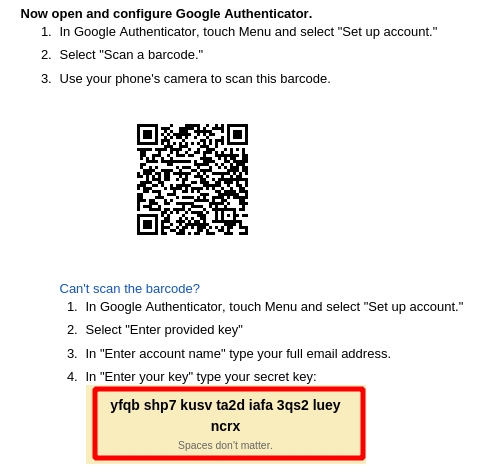
Таким образом, алгоритм подключения телефона дополняется дополнительным шагом — а именно — сохранением секретного ключа в секретном же месте. После чего, данный секретный ключ может быть введен на любом устройстве, в любое время! Кроме того, вы можете попробовать использовать любые другие OTP программы, например FreeOTP. Который, в отличие от Google Authenticator — полностью открытый и не имеет разрешений ходить в интернет. Да я теперь даже смогу использовать Pebble для авторизации!
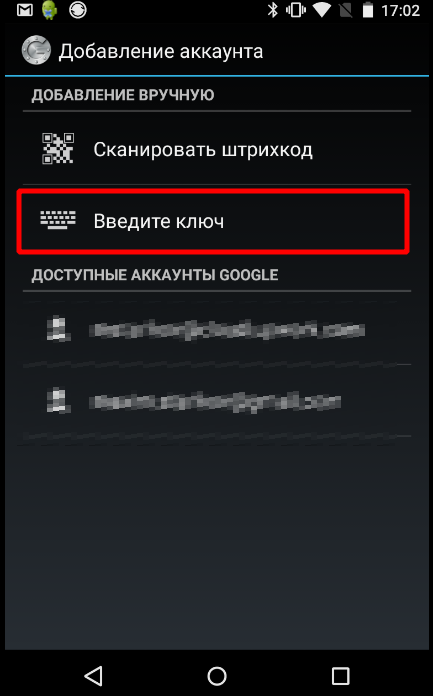
Конечно, такая практика несколько снижает криптостойкость всей схемы, ведь теперь секретный ключ хранится в нескольких местах, но тут уж каждый должен сам решать что ему важнее — надежность или проблемы в случае утери устройства.
комментарии:
Виктор (анонимный пользователь) | 2016-07-07
Спасибо огромное! Это помоему единственный способ как переносить нормально инфу.
А полностью всё перенести так и не нахожу! Но зато этим способом можно раз и навсегда все перенести не заморачиваясь!
Дмитрий (анонимный пользователь) | 2017-11-08
Добрый день! У меня на телефоне есть google authenticator. Как увидеть этот секретный код? Я так понимаю, то что Вы описали — это при установке google authenticator на телефон. А если уже установлено. Где взять код?
михайло (анонимный пользователь) | 2018-01-10
я так понял это не при установке программы, а при привязке аккаунта к программе. именно когда вы включаете двухфакторную аутентификацию, вам дают этот секретный код.
Андрей (анонимный пользователь) | 2018-03-13
Шляпу скопипастил
Вася (анонимный пользователь) | 2018-06-15
Не решает проблему, если тебе нужно обновить прошивку на телефоне и каким-то образом импортировать коды после обновления. Приходится каждый аккаунт перепривязывать заново.
разрешены только теги br, font, span, p, strong, u, p, blockquote, a, div, img — остальные будут безжалостно удаляться
Что делать, если вы потеряли телефон с приложением-аутентификатором
Потеряли телефон с приложением-аутентификатором и не можете войти в аккаунт? Рассказываем, какие у вас есть варианты.

Hugh Aver
Для защиты аккаунтов очень важна двухфакторная аутентификация: если утек пароль — а утекают они регулярно, — второй фактор помешает злоумышленникам взломать аккаунт. Один из удобных способов двухфакторной аутентификации — при помощи специального приложения, генерирующего одноразовые коды, вроде Google Authenticator и его аналогов. Но рано или поздно у многих пользователей возникает вопрос: что делать, если телефон с приложением-аутентификатором потерян/разбит/забыт/украден? Рассказываем, какие есть варианты.
Как восстановить аутентификатор, если смартфон с приложением недоступен
Если у вас больше нет доступа к смартфону, на котором установлен аутентификатор, попробуйте вспомнить: возможно, вы все еще залогинены на одном из ваших устройств в тот аккаунт, к которому пытаетесь получить доступ? Дальнейшие действия зависят от ответа на этот вопрос.
Восстанавливаем аутентификатор, если доступ к аккаунту есть на каком-то другом устройстве
Если вы все еще залогинены на одном из ваших устройств в аккаунт, в который пытаетесь войти на другом, то исправить положение будет несложно. В этом случае попробуйте зайти в настройки и сбросить аутентификатор, то есть привязать его к новому приложению. Обычно соответствующий пункт можно найти где-нибудь на вкладке «Безопасность». Например, с аккаунтами Google и «Яндекс» такой вариант сработает, даже если вы залогинены всего в одном из приложений этих компаний — скажем, в YouTube или «Яндекс.Навигаторе».
Иногда в тех же настройках можно посмотреть секретный ключ или QR-код аутентификатора — некоторые сервисы (но далеко не все) это позволяют. В таком случае вам останется просто ввести эти данные в приложение-аутентификатор на новом устройстве.
К сожалению, этот способ срабатывает не всегда, даже если вы все еще залогинены в аккаунт на одном из устройств. Проблема в том, что не у всех сервисов совпадает набор настроек в веб-версии и в мобильном приложении — нужной опции там, где вы залогинены, может просто не быть.
Как восстановить аунтентификатор, если доступа к аккаунту нет
Если вы уже не залогинены в аккаунт и смартфон с приложением-аутентификатором вы потеряли, сбросили к заводским настройкам или у вас его украли — в общем, у вас так или иначе больше нет к нему доступа, — то восстановить аутентификатор не получится. Как и в том случае, когда описанный выше способ не сработал.
Все, что вам остается, это воспользоваться процедурой восстановления доступа к учетной записи. Если речь идет об аккаунте в одном из крупных публичных сервисов — Google, «Яндекс», Facebook, Instagram, Mail.ru, «ВКонтакте» и так далее — и ваша учетная запись привязана к почте или телефону, то вы сможете восстановить доступ, воспользовавшись альтернативным способом подтверждения.
Для этого начните входить в аккаунт, укажите логин и пароль, а на том этапе, когда обычно требуется ввод одноразового кода из приложения-аутентификатора, поищите ссылку с названием вроде «Другие способы подтверждения».
После этого выберите удобный вам вариант — обычно сервисы поддерживают доставку кода в SMS, голосовым звонком или на электронную почту — и дождитесь получения кода. Скорее всего, это не займет много времени, и уже совсем скоро вы сможете войти в аккаунт.
Если из-за утраты аутентификатора вы потеряли доступ к аккаунту в корпоративном или в небольшом публичном сервисе, у которого нет удобной страницы автоматического восстановления доступа, то вам следует связаться с локальным администратором или службой поддержки. Придется описать ситуацию и, скорее всего, тем или иным образом подтвердить, что вы — настоящий владелец аккаунта.
После того как вы наконец сможете войти в аккаунт, привяжите аутентификацию к приложению на новом смартфоне. Ну а чтобы не проходить все вышеописанные процедуры в следующий раз, когда смартфон с аутентификатором потеряется, будет разумно прямо сразу создать резервную копию.
- 2FA
- аутентификаторы
- Двухфакторная аутентификация
- приложения
Как сделать резервную копию аутентификатора
Рассказываем о нескольких способах, которыми можно сделать резервную копию приложения-аутентификатора.

Hugh Aver
Если вы пользуетесь приложением-аутентификатором, то на случай потери (поломки, кражи и так далее) телефона разумно заранее создать резервную копию. Это можно сделать несколькими способами — выбор зависит от ваших личных предпочтений, а также от того, каким именно приложением-аутентификатором вы собираетесь пользоваться. Перечислим все доступные варианты.
Вручную сохранить в надежном месте секретные ключи или QR-коды
Одноразовые коды в приложении-аутентификаторе создаются на основе секретного ключа. Его генерирует сервис, когда вы включаете аутентификацию с помощью приложения. Этот ключ представляет собой случайное сочетание 16 символов, и он же закодирован в QR-коде, который сервис предлагает вам отсканировать.
В принципе, секретный ключ можно даже выучить наизусть, но проще всего будет сохранить его в каком-нибудь надежном месте. Например, для этого подойдут защищенные заметки в менеджере паролей. Альтернативный вариант представления того же секретного ключа, QR-код, можно сохранить в виде изображения и также поместить в защищенное хранилище Kaspersky Password Manager, но уже в виде картинки.
Если вам когда-нибудь понадобится восстановить аутентификатор, вы просто отсканируете приложением QR-код или введете вручную 16 символов секретного ключа.
Использовать облачную синхронизацию приложения-аутентифкатора
Большинство популярных приложений-аутентификаторов — за исключением Google Authenticator — предлагает возможность хранения секретных ключей в облаке и автоматической синхронизации аутентификаторов на разных устройствах. Однако в этом методе есть минус: в приложении-аутентификаторе придется завести учетную запись, а для этого обычно требуется поделиться с его создателями номером телефона или адресом электронной почты.
В случае Microsoft Authenticator можно воспользоваться учетной записью Microsoft, если она у вас есть (если нет — придется завести). Кроме того, следует иметь в виду один нюанс: Microsoft Authenticator для iOS сохраняет резервную копию в iCloud, а версия для Android — в какое-то другое не уточняемое создателями облако. Поэтому бэкапы получаются несовместимы: если вы пользовались айфоном, но решили перейти на Android (или наоборот), то восстановить бэкап Microsoft Authenticator не получится. Придется заново заводить токены для всех аккаунтов в новой версии приложения.
Экспортировать уже заведенные в аутентификаторе токены
По какой-то совершенно непонятной причине функция экспорта и импорта уже заведенных в приложение токенов есть только в одном аутентификаторе из всех, которые мы проверили, — это Google Authenticator.
Вероятно, разработчики других приложений считают, что их облачная синхронизация эту функцию успешно заменяет. Отчасти это так. Но облако никак не поможет тем, кто уже пользуется Google Authenticator и хотел бы попробовать альтернативу, быстренько перенеся уже имеющиеся токены в новое приложение. Почему-то создатели альтернативных аутентификаторов совершенно не пытаются упростить жизнь таким «перебежчикам».
Так или иначе, в Google Authenticator сохранять токены очень легко и удобно: достаточно нажать на три точки в верхней части экрана, выбрать «Экспорт аккаунтов» и отметить нужные учетные записи. После этого на экране появится огромный QR-код, в котором содержатся все выбранные токены сразу. Остается просто сделать скриншот и сохранить картинку в защищенном хранилище
менеджера паролей.
Установить приложение-аутентификатор сразу на несколько устройств
Одноразовые коды в аутентификаторе создаются на основе секретного ключа и текущего времени. Поэтому ничто не мешает иметь одновременно несколько копий работающих приложений-аутентификаторов, которые синхронно друг с другом генерируют одинаковые коды.
В таком случае, даже если вы лишитесь аутентификатора на одном смартфоне, у вас останется запасной, полностью готовый к действию. Это могут быть даже разные приложения, — правда, в этом случае их будет не так легко и удобно синхронизировать друг с другом.
- Установить аутентификатор на несколько устройств сразу можно разными способами:
- Одновременно сканировать QR-коды (или вводить секретные ключи) двумя смартфонами.
- Отсканировать ранее сохраненные коды вторым устройством.
- Воспользоваться облачной синхронизацией в большинстве приложений (кроме Google Authenticator).
- Экспортировать токены из Google Authenticator на одном смартфоне и импортировать на втором.
Какой бы вариант вы ни выбрали, советуем не тянуть и создать резервную копию аутентификатора как можно скорее. Иначе можно в самый неподходящий момент оказаться в ситуации, когда доступ к аутентификатору утрачен, бэкапа нет, а в аккаунт нужно срочно попасть. Впрочем, даже в этом случае не все потеряно: о том, как восстановить аутентификатор, не имея резервной копии, читайте в нашем посте.
- 2FA
- Kaspersky Password manager
- аутентификаторы
- Двухфакторная аутентификация
- приложения
How to Backup Google Authenticator or Transfer It to a New Phone
Our regular readers know that we strongly recommend applying two-step verification wherever it’s possible. In the contemporary world, where database leaks are a standing affair, two-step authentication is not an option, it is, in fact, a must. If you use two-factor verification, an intruder would need to get both the unique password you came up with, and the gadget, which produces the verification codes, to break into your account. Thus, two-factor authentication protects from brute force, keyloggers, most cases of phishing and social engineering. It also complicates man-in-the-middle and man-in-the-browser attacks.
So why two-factor verification is still unpopular? Sure, it creates an extra step to take to log in, but most users omit it not because of this extra time and effort, but because they are afraid of losing access to their credentials if something goes wrong with their authentication devices.
“As the world is increasingly interconnected, everyone shares the responsibility of securing cyberspace.”
– Newton Lee, Counterterrorism and Cybersecurity: Total Information Awareness
From all available options of one-time passwords generation or delivery (SMS, emails, hardware and software tokens) most people choose Google Authenticator or other similar applications like Authy, Protectimus Smart etc. Operating principle is pretty much the same for all the software OTP tokens – they generate authentication codes for logging into your account right on your smartphone.
It’s very convenient to use the smartphone for two-factor verification, but there are always these nagging questions: What do you do if you lose the smartphone which generates your one-time passwords? What occurs if you switch smartphones, do you lose the entire account? How do you transfer Google Authenticator to a new phone? In this article, we will answer these nagging questions and help you protect your invaluable personal data.
3 ways to backup Google Authenticator
1. Backup codes
Google, as well as some of the other websites where you can protect your user account with two-step authentication, provides backup codes. These are the one-use codes that allow you to login into your account if you lose access to your OTP token. After you use a backup code once it’s gone for good. Most people print out these Google Authenticator backup codes and keep them at hand.
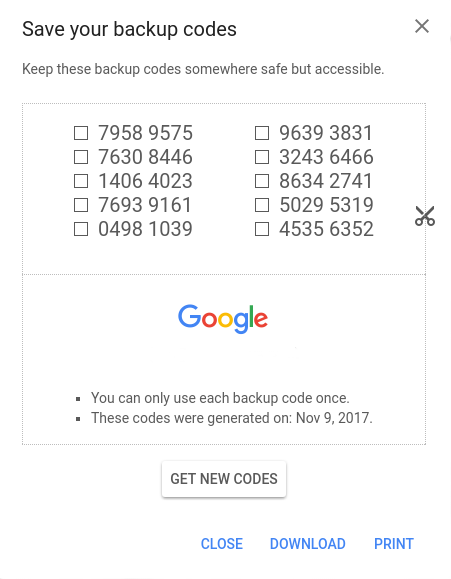
It is imperative to understand that Google Authenticator is a multi-token, thus you can enroll many tokens for various websites using one app. Some of these websites provide backup codes, and a user can gain access to these websites if his/her smartphone is lost. But what do you do with the websites which do not support backup codes?
Another point against Google Authenticator backup codes is – they are as secure as a password written down on a paper. An intruder can easily copy them if they are in physical vicinity and use them to gain access to your account. Granted, the intruder will have to be among your peers and know the user password, but you know… things happen.
Other things that you might want to keep in mind when it comes to printed out backup codes:
- You do not have them at hand at all times
- You can lose the paper or destroy it by mistake
- Only a few services provide them
Google Authenticator backup codes have their perks, but you have to be ready for the drawbacks as well.
| Read also: Mobile Authentication Pros and Cons
2. Saving screenshots of the secret keys
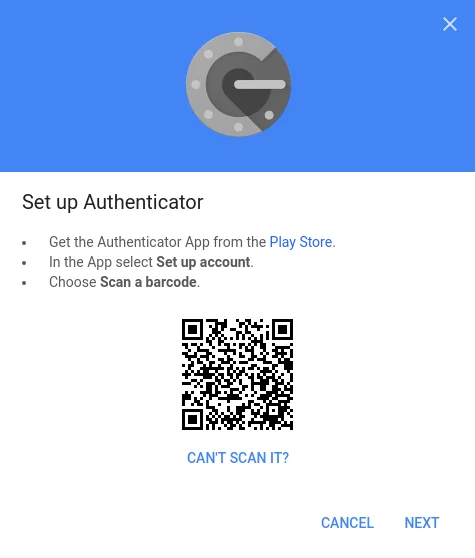
This is by far the easiest way to never lose access to your account. When you first set up your Google Authenticator simply make a screenshot of the barcode with the secret key. Keep the screenshot very secure though, if someone in your vicinity finds it they can access your data. Please, mind, if it really happens and someone steals your secret key, they will still need to know your user password, so make sure it’s not a simple combination to guess.
3. Programmable hardware token
Created as a more secure alternative to the authentication apps, hardware tokens Protectimus Slim NFC can be used with Google, Facebook, GitHub, Dropbox etc. These tokens are easily programmed with an application for Android with NFC support.
The token looks like a credit card and can be carried with you effortlessly. So you’ll always have an alternative source of one-time passwords on all times, for example, if your smartphone battery is out of charge or you’ve reset the phone or deleted the token accidentally.

The hardware token is far more secure than a backup code on paper or a screenshot of the key – extracting the secret key from the token is absolutely impossible. Protectimus Slim NFC allows for unlimited reprogramming, so every time you change a token on a service you can simply reprogram it and stay protected.
The main drawback here is that one token allows for one secret key only.
How to transfer Google Authenticator to a new phone
Android
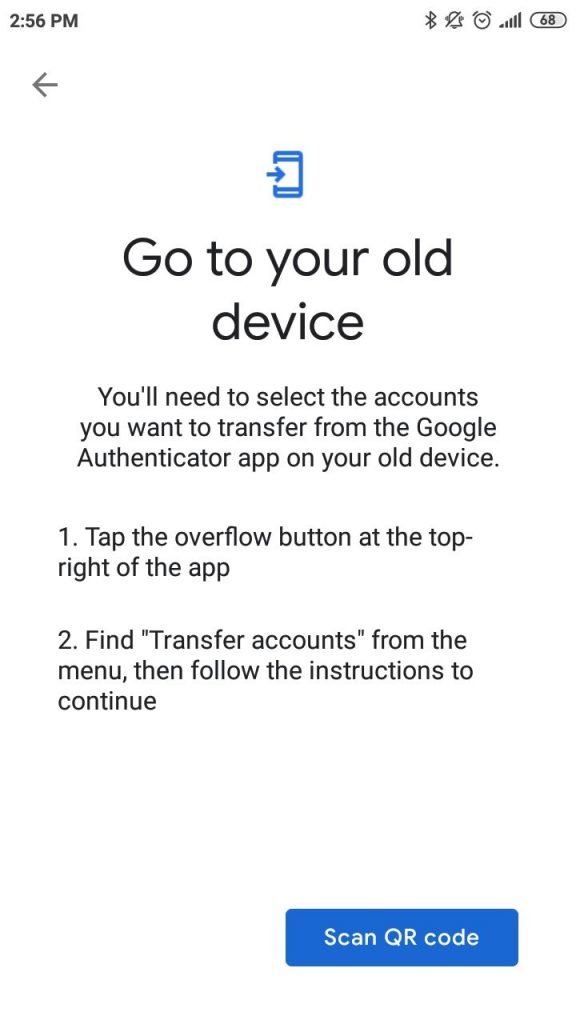
1. Use a built-in Google Authenticator feature Transfer Accounts
If you use Google Authenticator on Android smartphone, now there is an easier way to transfer it to a new phone. We are talking about a brand new “Transfer accounts” feature added to Google Authenticator recently. Unfortunately, this feature is available only for Android phones so far. If you use an iPhone, please, see the instructions in the next paragraph or here.
There is no need to turn off two-factor authentication on all your accounts and activate it again. It’s enough to tap one button on the Google Authenticator on your old phone, the app will generate a QR code, and then you’ll need to scan this QR code with the Google Authenticator application on your new Android phone. That’s it, all the tokens will be moved.
Here is a step-by-step guide for your convenience:
- Download and install Google Authenticator application on your new smartphone.
- Open Google Authenticator on your old Android phone.
- Tap the menu button at the top-right of the app and choose Transfer accounts.
- Choose Export accounts.
- Select accounts you’d like to transfer to a new phone and tap Next. You have to scan this QR code with the Google Authenticator app on your new phone.
- Now open Google Authenticator on your new Android phone.
- Tap the menu button at the top-right of the app and choose Transfer accounts.
- Choose Import accounts.
- Scan the QR code you have on your old phone. The tokens you’ve selected will be transferred.
Besides, you’ll see a notification “Accounts were recently exported” in your old app. Pay attention to this message. If it wasn’t you, who moved the Google Authenticator tokens to a new phone, take actions. Switch all your tokens in all your accounts to new.
2. Manually Extract Your Credentials [Root Only]
| Note: There are many ways to manually transfer Google Authenticator if you have an Android smartphone with root access to it. We do not recommend using them though. Getting root access can significantly damage the security of your apps and make the device prone to getting viruses and errors. |
This is a more time and effort consuming way to transfer Google Authenticator key to the other smartphone. It requires you to have root access to the smartphones.
To extract the secret keys manually you need to give adb root access, this is easily done with an app like [root] adbd Insecure if you’ve got stock ROM. And in case you happen to have custom ROM you might already have the necessary root access adb, so no additional apps are needed.
Set adb onto insecure mode with the application or directly, connect the smartphone to your PC or laptop and copy the Google Authenticator databases to the computer using the commands.
This is the pathname:
adb pull /data/data/com.google.android.apps.authenticator2/databases/databases
After the file is copied you can open it and see the keys using these sqlite editor commands:
select * from accounts;
Now you have your secret keys and can add them to your new device.
iPhone
1. Move Authenticator to a different phone using Google account settings
NOTE: You will transfer only the Google token this way. This method works for Android phones as well.
With Google, it is pretty straightforward to transfer the authenticator and all the secret keys within it to another smartphone. All you’ve got to do is go to the two-step verification page, click the “Get started” button, enter your password to verify it’s you, and click the “Change phone” button. Then either scan the QR or barcode, or put in the secret key on the other gadget manually. That’s it.
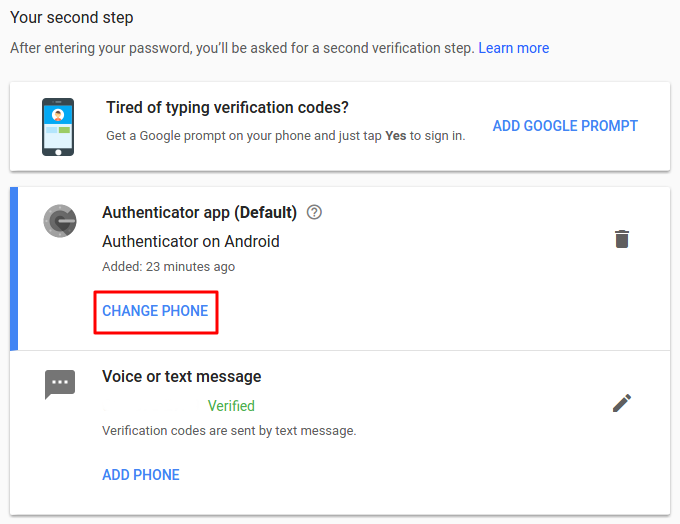
This works only with the Google account, the other accounts where you use Google Authenticator for two-step authentication might not support this option. You will transfer only the Google token this way. So you might want to try the next two options instead.
| Read also: Will Google’s Authentication without Passwords Be Safe?
2. Disable & Re-enable Two-Factor Authentication
Disabling two-step verification is pretty easy if you still have your old smartphone. It’s usually required to enter the OTP from the currently used token to disable two-factor authentication on any account. To disable 2FA for a while, just click the “Turn Off 2-Step Verification”, “Delete the token”, “Disable 2-step verification” or similar button, depending on the service you use. You’ll find it at the two-step verification page in security settings.
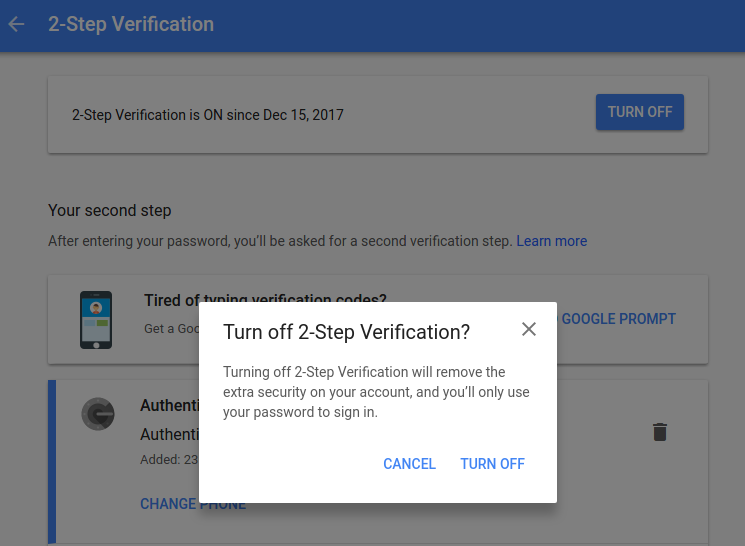
Then add the authenticator application to your new gadget and follow the usual steps to set up Google Authenticator on the new phone.
| Read also: What is Online Skimming and How to Avoid It
Conclusions
Two-phase authentication is a reliable and reasonable way to shield your invaluable personal data. Whether you use a hardware token or apps like Google Authenticator or Protectimus Smart, you now know how to stay safe even if you change devices or lose your smartphone.
We showed you easy ways like Google backup codes and making screenshots of the secret keys. And we showed you more secure option like the Protectimus Slim NFC hardware token.
So now you do not have any excuses not to protect your info better. All that is left to do is come up with proper user passwords which are not the name of your cat!
Read more
- Remote Work: How to Transition Team to Working From Home During the COVID-19 Pandemic
- 10 Steps to Eliminate Digital Security Risks in Fintech Project
- Credit Card Fraud – Most Common Ways
- Ransomware – to Pay or Not to Pay
- Malvertising: Can It Be Stopped?
- Biometric Authentication Pros and Cons
- Social Engineering Against 2FA: New Tricks
- TOTP Tokens Protectimus Slim NFC: FAQ
- Securing VPN with Two-Factor Authentication
Subscribe To Our Newsletter
Join our mailing list to receive the latest news and updates from our team.
You have Successfully Subscribed!
He worked in the IT industry for many years. One fine day, he had an idea to create a convenient and affordable two-factor authentication service. He gathered a group of talented like-minded people. A bit of time + a lot of work + a lot of money + a million experiments. And – voila! Protectimus is born! After a little more time and effort, not only is Protectimus not in any way inferior, it is often superior as compared to former industry leaders.
58 Comments
Chris 2018-02-06
Hello Maxim,
I have a situation. old phone, (galaxy note 5), has dead screen. Google Auth on it. Of course, lost backup and QR. the program is paired with a crypto currency web site.
Have another Galaxy note 5. Can not log on the the site because 2FA is turned on. Should have stayed with SMS auth. Crypto Site support has been unresponsive. If i load Google Auth. on new note 5, using same SIM(phone number). Will new phone take over Google Auth from old phone? Or is it encrypted based on the EIN? If I an i spoof the new note 5 EIN will it generate authorization to paired crypto web site? Or is there an app that will display a dead screen on PC just by plugging into the mini usb? Worst case,…i will replace the display and problem solved. Just wondered if any other less expensive ways to do it! (Besides saving backup!!) I am stupid. Any help for me? Thanks in advance.
Chris
PS,…Did my Chrome /Google account save the backup somewhere? Post a Reply
Hi Chris!
Thank you for reaching out. It’s a pity, but Google doesn’t save any Google Authenticator backups. For the future, the easiest backup approach is saving secret keys for every website where you use two-factor authentication. Or, at least, for the most important websites for you. You can save the screenshots with the QR codes, or write down the secret keys, or use Protectimus Slim NFC tokens, which is probably the most reliable option. I suggest contacting the support team of your cryptocurrency website one more time. If this is not a fraudulent company, they’ll definitely verify your identity, and disable two-factor authentication for you. But if they don’t answer you, unfortunately, there seems to be no other way to restore your Google Auth than to replace the display. It could be possible if your phone was rooted. But now you can’t root the phone as you’ll have to tap several buttons, which is impossible in your situation. Post a Reply
Lucas 2022-08-03
Hi. I lost my phone so I ended up losing my Google Authenticator and we’ll, and I am not able to login on my Facebook. I asked a cybersecurity company to Help me with that, and I found out they were scammers. If I buy these king of generator codes for Google authenticator, will I be able to login on my Facebook? Post a Reply
Kirby 2018-02-07
I ordered few Protectimus Slim NFC tokens for my sales team last year. It’s the most compact and portable replacement device for the Google Authenticator app I could find on the market. The tokens work flawlessly, the only this is that they are a bit fragile as they are designed to be carried in a wallet or cardholder. But I’ve made a cheap solution from 1mm polystyrene for protecting the Slim to use it as a key fob. Thing is, phones frequently get lost or stolen. If a salesperson is on the road, and they lose their phone, the first thing they are going to want to do is login to secure their Google account as we are keeping more and more of our assets in google these days. But — catch-22 — they can’t because they don’t have their phone! The other thing people use is the USB key style devices, but I think they tend to get stuck in laptops and left there. Then the laptop gets stolen on the airport TSA line, and… catch-22 again. Post a Reply
Alyce 2018-02-12
A little confusing. I already have Google Authenticator installed on my andriod phone and I use it daily. But I CANNOT FIND the original QR code or secret key when I first installed it. I have not lost my phone (yet) but this is very important in case I do lose it or it breaks. I went into my google account and added a 2 step verification and printed out 10 codes which I’ve now placed in a safe place. Please tell me: if I should lose my phone or it breaks, would I download Google Authenticator again? and since I have the 10 codes and can verify my Google account, will it work with my accounts that require Authenticator like before? Will i never have that QR code that I can’t find? thank you, appreciate your help Post a Reply
Hi Alyce, thank you for the question. 1. You’ll never find the QR code with the secret key you used to create your current token, even don’t try. You can see the secret key (QR code) and save it only once – at the moment when you create the token. Then it disappears, which is right from the security point of view (actually it’s stored on the authentication server and in your phone, but it’s too complicated to pull it out and you actually don’t need this). 2. It’s very good that you’ve saved 10 Google backup codes. Now if something happens to your smartphone you will easily disable 2-step authentication and restore access to your Google account. But please note, if you use Google Authenticator app for any other website (Dropbox, Facebook, any payment system ect.), Google backup codes won’t help you to restore access to any account except Google. 3. What can you do to backup the secret keys for all other websites where you use two-factor authentication? You can log into every account using current tokens, disable or delete two-factor authentication, and then enable 2-factor authentication one more time and create new tokens, saving the secret keys this time. Post a Reply
McVitas 2018-04-26
Hello, you should definitelly edit the article and clarify this. I was also consufed not to find any backup option in my Authenticator app. Just say that backup is ONLY possible when initially adding a new account into Authenticator and that’s it. Thanks Post a Reply
McVitas 2018-04-26
for example you don’t mention at all what are these Backup codes and how and where to display them… Post a Reply
David 2018-02-13
It seems the Google Authenticator backup codes and screenshots of the secret key have the same vulnerabilities – They are only as safe as the paper its written on. So I ordered one Protectimus Slim NFC to test it with my Google account. The token works very well and is ideal for my needs. I’ll be ordering more for my colleagues in due course. Post a Reply
James 2018-02-14
Hello. I’m really hoping you can help me. I invest in cryptocurrency and use the Google Aunthenticator for the 2-step verification. Last week I upgraded to a new iphone, but with the same number. After connecting my iphone to my computer and restoring the backup, the Google Authenticator was not working. I downloaded it again and it keeps asking me for the barcode or enter manually. I don’t recall it giving me a “key” to use later. I searched my emails for a screen shot of it, but nothing. Now I can’t get access to barcode on any of my crypto wallets because I’m already a client per se; meaning all I need is my login information and the 2-step verification…which I can’t get. What can be done and why when I restored my phone does the google authenticator no longer work? Please advise if you’re able to assist. Kind Regards, James Post a Reply
Hello James!
Unfortunately, this is a common issue for many iPhone users, Google Authenticator can’t be restored from iCloud backup. If you don’t have access to your old iPhone the only thing you can do is to contact customer support for every cryptocurrency exchange you use. There should be a way to restore access to every legal website. Maybe you’ll be asked to provide some documents for verification, it’s a normal practice for many payment services. Post a Reply
Dirk 2018-02-15
Thank you, author, you saved a lot of my time and nerves with this article. Post a Reply
Dear Dirk! I am really happy to give you a piece of my knowledge.
I’ll continue to work for you �� Post a Reply
thegeekkid 2018-02-22
Another option for backups is Authy (you briefly mentioned it, but not in depth). Yes, it stores your secrets “in the cloud”. Yes, part of the authentication method that it uses is SMS (which is technically against best standards for 2FA). What it excels at is the ability to back it up automatically. You can set your own encryption key as well. The methods that you mentioned are good if you always follow best practices for security; but the average user will never do so. (Heck – I’m a infosec engineer, and even I have a hard time following all best practices 100% of the time.) That’s where it comes down to a risk assessment. The chances of your secrets being lost through Google Authenticator is astronomical compared to the chances of a breach in a service like Authy. Not all sites support hardware authentication (I love my Yubikey; but very few services that I use 2fa on support it).
There’s another part to the equation too… if someone gains physical access to my device, then my secrets in GA are compromised. There’s a good chance that one or two of my passwords are in memory; so I have to assume those are compromised as well. Yes, my phone is encrypted… but the problem with phones is that people (myself included) leave them on all the time – which means it will most likely be in a decrypted state when it is obtained by another party. With Authy, I can set it to require my encryption key whenever I open the app – meaning the secrets are much less likely to be compromised unless the attacker can brute force or guess my encryption key. From that respect, Authy has some security advantages over GA. In the end, the biggest problem facing 2fa is that people think it’s too complicated. These methods for backing up secrets are great… if you’re willing to put the work into it. Most people aren’t, so they just will not do it if this is their only option. The best security mechanism is the one that people use – which means it needs to be easy to use. That’s where Authy makes more sense than GA. Both are great options, and it really doesn’t matter which one you use, as long as you use one. �� Post a Reply
thegeekkid 2018-02-22
I should clarify… when I say “The chances of your secrets being lost through Google Authenticator is astronomical compared to”…, I should have phrased it as “The chances of your secrets being lost through Google Authenticator is astronomically higher compared to”… Sorry for the confusion. Post a Reply